Last updated: December 2, 2025
Available with any of the following subscriptions, except where noted:
-
 Marketing Hub
Professional, Enterprise
Marketing Hub
Professional, Enterprise
-
 Sales Hub
Professional, Enterprise
Sales Hub
Professional, Enterprise
-
 Service Hub
Professional, Enterprise
Service Hub
Professional, Enterprise
-
 Data Hub
Professional, Enterprise
Data Hub
Professional, Enterprise
-
 Content Hub
Professional, Enterprise
Content Hub
Professional, Enterprise
-
 Smart CRM
Professional, Enterprise
Smart CRM
Professional, Enterprise
-
 Commerce Hub
Professional, Enterprise
Commerce Hub
Professional, Enterprise
-
 HubSpot Credits required
Allow the customer agent to access and update CRM data to deliver personalized conversations and assist with customer queries or requests. By giving the customer agent access to specific CRM properties, it can provide accurate, real-time information during interactions. The customer agent can update CRM records based on what customers share, streamlining support workflows and allowing your team to focus on more complex tasks.
You can also configure when the agent asks for a customer's email address on messaging channels.
If you're a Super Admin, you can opt your account into the Customer Agent can now view and edit contact properties directly in your CRM beta.
Permissions required Customer agent editor permission is required to create, edit, and manage the customer agent.
Seats required An assigned seat is required to create, edit, and manage the customer agent.
Add CRM data
- In your HubSpot account, navigate to Service > Customer Agent.
- Navigate to the Manage tab.
- In the left sidebar menu, click Knowledge > CRM data.
- Click Add CRM data.
- In the right panel, click the CRM property dropdown menu and select a property.
- Toggle the View property switch on to allow the agent access to this property.
- Set the verification level before sharing data by clicking the Data protection level dropdown menu and selecting an option:
- Match email: the agent asks for the customer's email and verifies it matches the contact record.
- Verify email: the agent sends a verification link to the customer’s email to confirm their identity.
- In the Instructions field, add guidance on when and how the agent should use this data. E.g., If a customer says they haven’t received their bill, share their billing address to confirm it’s correct.
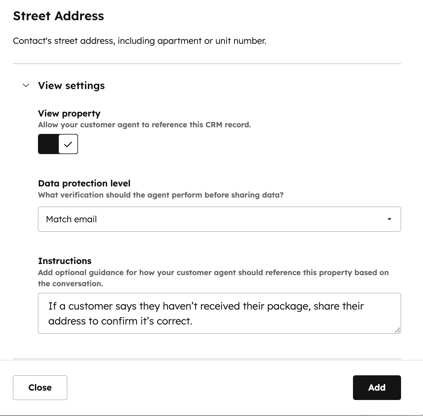
- To allow the agent to update CRM records, such as changing a customer’s billing address, click Edit settings to expand the section.
- Toggle the Edit property switch on.
- Configure your data protection level and instructions.
- In the bottom right, click Save.
Configure email capture on messaging channels
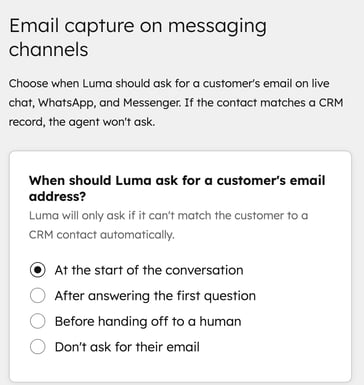
You can choose when the customer agent should ask for the customer's email on live chat, WhatsApp, and Facebook Messenger channels.
If the visitor already matches an existing contact record, for example a returning visitor identified via cookies, the customer agent will not ask for their email again.
- In your HubSpot account, navigate to Service > Customer Agent.
- Navigate to the Manage tab.
- In the left sidebar menu, click Deployment & channels > Email capture.
- Under When should Luma ask for a customer's email address?, select an option.