
Last updated: April 14, 2026
Available with any of the following subscriptions, except where noted:
-
 Service Hub
Professional, Enterprise
Service Hub
Professional, Enterprise
Use the CX score to track and analyze your support team's customer experience over time. It uses signals to categorize tickets as positive or negative experiences. Use these insights to identify areas for improvement and better manage tickets.
You can analyze help desk tickets using the CX score in both the Summary and Analyze tabs.
Seats required An assigned Service Hub Seat is required to access the CX score dashboard.
CX score use cases
- Identify poor customer experiences: find tickets that resulted in a negative experience, such as long escalations, repeated handoffs between teams, billing confusion, unresolved or reopened issues.
- Detect high-friction topics: analyze low CX scores to identify recurring issues, such as missing or unclear self-service documentation, incorrect routing rules, or long resolution times.
- Apply targeted fixes based on score explanations: use CX score explanations to address root causes. For example, refine internal processes, adjust routing rules, or improve billing communication clarity.
- Improve customer agent performance: use low CX scores to identify performance gaps and improve the customer agent’s setup, including synced knowledge sources, guidelines, and tone.
Please note: if a ticket is reopened, the CX score is reset and recalculated when the ticket is closed again:
- Existing signals are retained.
- The CX score is cleared when the ticket is reopened.
- When the ticket closes again, the CX score is recalculated using both previous and new signals.
Access the CX score in the help desk summary tab
- In your HubSpot account, navigate to Service > Help Desk.
- In the left sidebar menu, click Summary.
- In the CX Score by ticket report, view tickets closed today, broken down by CX score. The following information is displayed in the columns:
- Ticket ID: the unique identifier for the ticket.
-
- Ticket owner: the owner of the ticket.
- Predicted CX score: the overall customer experience score for a ticket. This score starts at 50 and goes up or down based on signals.
-
- CX Score range: score bands used to classify a ticket’s CX score
-
-
- :<= 30: Critical
-
-
-
- 31-45: Needs review
- 46-55: Neutral
- 56-84: Good
-
-
-
- 85-100: Exceptional
-
CX Score explanation: a summary of what signals affected the score.
-
Access the CX Dashboard in help desk
In the CX Dashboard, view, filter, and save pre-built CX score reports to gain insights into your team's performance over time.
- In your HubSpot account, navigate to Service > Help Desk.
- In the left sidebar, navigate to Analyze.
- In the top left, click the dropdown menu and select CXS Draft.
- To filter the dashboard:
- In the top left, click Advanced filters.
- In the right panel, click the Frequency dropdown menu and select a frequency (e.g., Monthly, Weekly).
- To add a filter, click + Add filter. Then, select a ticket property
and an operator (e.g., Is less than, Is known). Once a filter is applied, it will be applied to all reports on the dashboard.
Learn more about filtering or customizing dashboards.
Types of CX score reports
- Average CXS over time with Ticket Owner Type: displays the number of closed tickets over time, broken down by ticket owner type (e.g., Human rep only, Customer agent only), alongside predicted average CX score. Use this report to identify how different ticket owners impact customer experience scores.
- Average CXS over time with number of tickets score: tracks the average CX score for closed tickets over time, along with the number of tickets that received scores. Use this report to analyze customer satisfaction trends.
- CX score by ticket: displays CX scores for individual tickets, grouped by ticket owner and close date. Use this report to identify which tickets contribute to positive or negative customer experiences.
- Top positive CX score signals: identifies the most impactful signals contributing to positive customer experience scores. Use this report to understand which actions or touchpoints drive positive customer experiences.
- Top negative CX score signals: identifies the most impactful factors contributing to negative CX scores. Use this report to pinpoint experience gaps and prioritize improvements.
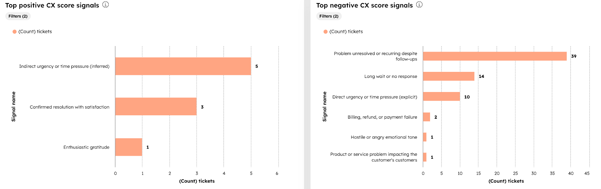
- CX score signals over time: tracks the number of tickets associated with various CX score signals over time, based on ticket close date. Use this report to identify patterns in customer feedback.
- Volume of tickets by CX score range : displays the distribution of closed support tickets across CX score ranges. Use this report to understand how ticket volume correlates with customer satisfaction.
- Percentage of tickets by CX score range: displays the percentage distribution of tickets across CX score ranges. Use this report to evaluate overall support quality.
- Customer overview: combines revenue data with support metrics (such as ticket volume, response times, resolution times, and predicted CX scores) to identify high-value customers and growth opportunities.
Understand CX score signals
CX score signals categorize customer experiences as positive or negative. Use these signals to understand what is driving customer sentiment.
For example, you can create a custom report for tickets with the signal Product or service problem impacting the customer’s customers to identify trends and improve your product or service.
- Positive signals:
-
- Enthusiastic gratitude
- Confirmed resolution with satisfaction
-
- Positive future intent or advocacy
- Negative signals:
-
- Dismissive, rude, or argumentative tone
- Legal or public-exposure threat
- Process or handoff breakdown
- Generic or inadequate support
- Policy confusion or broken promises
- Hostile or angry emotional tone
- Premature closure or ignored issue
- Long wait or no response
- Billing, refund, or payment failure
- Product or service problem impacting the customer’s customers
- Problem unresolved or recurring despite follow-ups
- Direct urgency or time pressure (explicit)
- Internal process or escalation failure
- Indirect urgency or time pressure (inferred)
