
Last updated: March 6, 2026
Available with any of the following subscriptions, except where noted:

-
 Additional subscriptions required for certain features
Import to add objects—such as contacts, companies, deals, services, and activities—to HubSpot. By uploading a spreadsheet and mapping its columns to HubSpot properties, you can create new records, update existing ones, and define relationships between them. Review the import process and terminology below to ensure your data is formatted correctly before uploading your file.
Prior to importing, review the get started with imports article.
If you're new to HubSpot and want to transfer your existing CRM data to HubSpot's CRM, you can use self-service transfer to audit and sync your data.
Glossary
-
CRM Object: your customers and business process information, such as contacts, companies, deals, and tickets. When importing, an object is the type of dataset you're importing into HubSpot.
-
Record: an individual instance of an object (e.g., “Neal Caffrey” is a contact record). In a single object import file, each row of your file represents one object record. If you're importing multiple objects in one file, each row will represent records that are associated with each other.
- Activity: an engagement that can be associated with records, such as an email sent to a contact, or a note logged on a ticket record. For the import tool, supported activities include calls, emails, meetings, notes, and tasks.
- Property: a field created to store information about your records and activities. In an import, properties will match up with your file’s column headers.
- Mapping: the process of matching columns in your import file to corresponding HubSpot properties. During an import you'll review and confirm how columns map to HubSpot properties.
In the following example, the object being imported is contacts. Each row represents a contact record, and each column of information represents a contact property (First Name, Last Name, Email Address).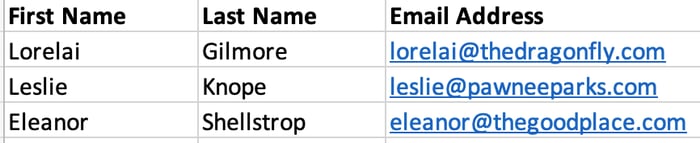
Supported objects and activities
The following are the types of imports you can complete, and the objects and activities supported for each.
Single object or activity import
You can import to create and/or update one object or activity at a time. In a single object import you can:
- Create and/or update contacts, companies, deals, tickets, appointments, courses, listings, services, calls, products, projects, orders, carts, subscriptions, and custom object records.
- Create, but not update, tasks.
Multiple object and activity import
You can import to create, update, and/or associate multiple objects and activities at once. You can import multiple objects and activities in one file, or two objects/an object and an activity in two separate files. When using two separate files, the files must contain a shared column.
In a multiple object import you can:
- Create and/or update contacts, companies, deals, tickets, appointments, courses, listings, services, calls, orders, projects, carts, and custom object records.
- Associate records such as contacts and companies, contacts and deals, or projects and tasks.
- Create and/or update line items, but they must be associated with deals.
- Create, but not update, emails, meetings, notes, and tasks. Emails, meetings, and notes must be associated with an object.
Example: use two files to import two objects
You have two files from a different database to bring into HubSpot, one contains contacts and one contains deals. They both share a Deal name column, which matches up to the associated contact in the contact file. During the import, use Deal name as the common column and the unique key for the contact file. This allows the column to populate the Deal name property while associating the deals to contacts in HubSpot.
Set up import files
Before uploading a file to the import tool, it's important to set up your files properly to make sure data is added correctly to your account. The following sections include important concepts and requirements for correctly setting up your files.
Refer to the format your import files article for technical limits and general requirements.
Unique identifiers
A unique identifier is a property value that HubSpot uses to recognize each record as one of a kind. In an import, you need a unique identifier to update records, avoid creating duplicate records (e.g., two records for “Tom Smith”) and to associate records with each other (e.g., import “Tom Smith” and associate him with his company “Smith Inc.”). For contacts and companies, it's recommended to use their respective unique identifiers when importing (Email, Company domain name) to maintain data quality.
The unique identifiers available for use when importing are:
- Email: the email address of a contact. Include it during a contact import to prevent duplicates, updated existing records, and associate contacts with another object. If you don’t have contact email addresses, use the Record ID to update and associate existing contact records.
- Company domain name: the website domain of a company (e.g., example.com). Include it during a company import to prevent duplicates, update existing records, and associate companies with another object. If you don’t have company domain names, use the Record ID to update and associate existing company records.
- Record ID: a unique property value given to each record by HubSpot. Export existing records to view and use Record ID. This is the default unique identifier for deals, tickets, appointments, courses, listings, services, activities, and custom objects. It can also be used as the unique identifier for contacts and companies if you don't have emails or company domain names. If Record ID is mapped during your import, it will supersede any other mapped unique identifiers.
- Custom property that requires unique values: a user-created custom property that requires unique values. You can use the property as a unique identifier in your import files. These properties are available for contacts, companies, deals, tickets, appointments, courses, listings, services, and custom objects.
Example: use Record ID to update existing deals
You want to update several properties for all existing deals in your pipeline. Export those deals and only include the properties you want to edit plus Record ID. Make the desired updates in the spreadsheet, leaving the Record ID column untouched. Perform a deal import and use Record ID as the unique identifier in the map columns part of the process.
Associations
Subscription required A Professional or Enterprise subscription is required to add association labels.
You can also import to associate records with one another and add association labels to specify the relationship between records. This includes cross-object associations such as deal to contact or same-object associations such as contact to contact.
Learn more about how to properly include associations in your import files.
Example: import a contact same-object association
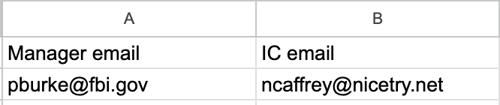
Your business tracks manager to individual contributer (IC) relationships using the contact object. The managers already exist in HubSpot. Configure a single import file to contain the primary email of both contacts in separate columns (e.g., Manage email, IC email). The manager email property value should match the one already in HubSpot. Start a contact import, select the option to create same-object associations, configure the rest of the details, and finish the import. You can also use custom association labels to label the relationship.
Mapping guide
On the Map columns in your file to [object] properties page, HubSpot will map the columns in your file to the selected object’s properties based on the header, the header language, and the property name.
In the Mapping Guide section, click the expand icon, then review the following:
- Properties: the properties required to create and/or update the object. If your file is missing any of the properties needed to complete the goal of your import (e.g., you chose to update existing deals but didn’t include a Record ID column), you must fix your import file by doing one of the following:
- Fix the spreadsheet and restart the import.
- In the Mapped column, click [x] errors to resolve during the import process. Learn more about managing errors during mapping.
- Errors: the number of errors found in up to 1,000 rows. If your file is larger than that, errors may not shown in the Mapping Guide card.
Map columns to properties
Once you've uploaded your file to the import tool, there's a step in the import process when you'll be prompted to match the column headers in your file to HubSpot properties. Mapping correctly ensures that your data goes to the right place (i.e. the correct object and the correct property) when added to HubSpot.
For example, for a contacts file, you'd map the column First Name to the First Name contact property.

For a file associating multiple objects, you'd select the corresponding object and property for each column.

- Column header from file: the name of the header from your import file.
- Preview Information: preview of the first three rows from your spreadsheet for the column.
- Mapped: displays the status of the column mapping to the HubSpot property. Click the All mapped statuses dropdown menu to view the status types and sort the table by them. If certain errors are detected, there will be an alert icon displayed. Click [x] errors to learn how you can resolve them.
- Import as: dropdown menu to select the [object] properties (e.g., Task properties) you're importing or the option to not import the column.
- HubSpot Property: dropdown menu to the select the HubSpot property to map to the column.
- Manage Existing Values: checkbox to overwrite existing values for the record in the CRM. To filter the mapping page by mapping status or object, click the dropdown menus, and select the status or object you want to view.
Import errors
If you encounter errors while importing, you can manage them in the following ways:
-
During the import: manage certain errors to fix the data before it's added to your account.
-
After the import: if there are errors following an import, review and troubleshoot the errors to add or update affected data.
Additional ways to update data in HubSpot
Instead of importing, there are additional ways to bulk create, sync, or associate records that you can consider:- Automatic company creation and association: for contacts and companies with matching email and company domains, turn on the setting to automatically create and associate companies with contacts based on the contact’s email domain. If contacts have email domains that are different from their companies' domains, or if you're importing other objects, turn off the setting and follow the instructions to associate your records via import. This configuration can prevent incorrect companies from being created.
- HubSpot data sync: if you have data in another system and want to set up a two-way sync, learn how to connect and use HubSpot data sync.
Other types of imports
You can also access the import process for other tools from the import page, however, these follow different steps than object or activity imports.
