Last updated: May 15, 2026
Available with any of the following subscriptions, except where noted:

Use never log lists to exclude specific email addresses or domains from email and meeting logging in the CRM. Managing never log settings helps you fine-tune logging behavior and maintain data integrity by preventing the logging of internal communications and personal meetings. For example, adding your company's domain to your never log list prevents internal email and meeting activity from being logged to the CRM, while communications with your contacts are still logged based on your email logging rules.
Add email addresses or domains to your personal never log list when exclusions only apply to your own user account. Use the account-wide never log list when exclusions apply to all users in your account.
How never log lists work
When you add email addresses or domains to a never log list, emails and synced meetings are excluded from logging to those specific contacts. If multiple contacts are included in the email or meeting, the activity will log to the other contacts’ records if they aren't on the never log list. Review the following never log behavior for emails and meetings.
Emails
- When an email is sent from a connected personal email, the HubSpot Sales extension or add-in, or from a team email address to recipients on the never log list:
- A new contact record will not be created.
- Email tracking activity will not be recorded on the contact's timeline. However, email tracking activity for all recipients will still be logged in your activity feed.
- The email will not be logged to any associated records.
- If you send an email from the CRM to a contact on the never log list, the email will send but it won't log to the contact's timeline.
- If an email is sent to an address or domain on the never log list, then logged to HubSpot using the BCC address or forwarding address, the contact will be excluded from logging.
Meetings
- Never log lists only apply to meetings created through HubSpot’s calendar sync, from your connected Google or Outlook calendar. Meetings created in HubSpot (e.g., from CRM records or through scheduling pages) will continue to log to the CRM, even if the attendee is on the never log list.
- When a meeting includes multiple HubSpot users, the meeting owner's personal never log list determines if the meeting logs to the CRM. For example, if a contact schedules a meeting with two HubSpot users, but only the meeting owner has that contact on their personal never log list, the meeting will not log to the CRM.
Limitations & considerations
-
Never log lists do not apply to emails sent to or from third-party integrations.
-
Never log lists support up to 500 email addresses or domains.
Manage your personal never log list
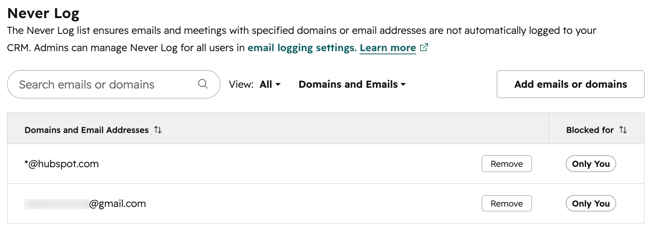
Add email addresses and domains to your personal never log list in your email preferences.
- In your HubSpot account, click the
settings icon in the top navigation bar. - In the left sidebar menu, navigate to General.
- At the top, click the Email tab.
- In the Never Log section, click Add emails or domains.
- In the dialog box, enter one or more email addresses or domains:
- To never log emails sent to a specific recipient, enter the email address as emailaddress@domain.com (e.g., name@hubspot.com).
- To never log emails sent to any recipients with a specific domain, enter the domain as *@domain.com (e.g., *@hubspot.com).
- Click Save. Emails saved to your personal never log list are tagged with the label Only You.
- To remove an email address or domain from the never log list, click Remove.
Manage the never log list for all users
Permissions required Super Admin permissions are required to block addresses and domains for all users in the account.
- In your HubSpot account, click the
settings icon in the top navigation bar. -
In the left sidebar menu, under Data Management, navigate to Objects.
-
At the top of the Objects page, click the Select an object dropdown menu and select Activities.
-
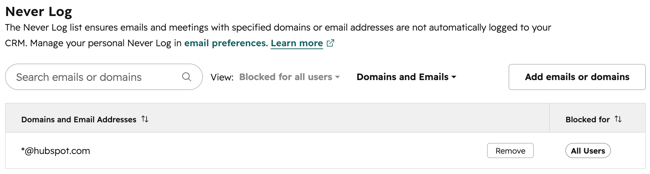
On the Email Log & Track tab, in the Never Log section, click Add emails or domains.
- In the dialog box, enter one or more email addresses or domains:
- To never log emails sent to a specific recipient, enter the email address as emailaddress@domain.com (e.g., name@hubspot.com).
-
- To never log emails sent to any recipients with a specific domain, enter the domain as *@domain.com (e.g., *@hubspot.com).
-
Click Save. Emails saved to your account-wide never log list are tagged with the label All Users.
-
To remove an email address or domain from the never log list, click Remove.