
Last updated: December 17, 2025
Available with any of the following subscriptions, except where noted:

Connect HubSpot and Microsoft Teams to sync your communications across the two apps. If you have feedback about this integration, use this form to submit any suggestions, requests, or ideas.
Before you get started
- You can connect only one instance of Microsoft Teams to a HubSpot account.
- A personal version of a Microsoft Teams account cannot be connected to HubSpot.
- It's not possible to install the same Microsoft Teams account across different HubSpot data centers.
Before you connect HubSpot and Microsoft Teams, ensure that the HubSpot app isn't blocked in Microsoft Teams and that HubSpot is allowed.
- Navigate to the Microsoft Teams admin center.
- On the left sidebar, click Team apps > Manage apps and search for HubSpot.
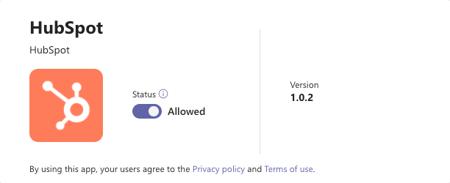
- Click the HubSpot app and click the Status toggle to Allowed.
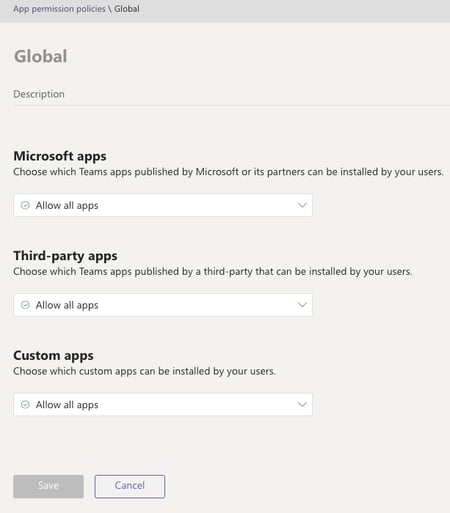
- Next, on the left sidebar, click Permissions policies.
- Check that the HubSpot app is allowed under your organization's permissions policy.
App requirements
Permissions required You must be a Super Admin or have App Marketplace permissions in your HubSpot account to install the integration. You must also be a Global Admin for Microsoft Teams to install the Full Install version.
- For full install:
- Read organization information: required for the integration to get the organization's name.
- Read all users' full profiles: required for the integration to get basic information about users.
- Read all groups: required for the integration to retrieve a list of the teams.
- Read and create online meetings: required for the integration to create online meetings.
- Read all group memberships: required for the integration to read basic information about members of a team.
- Read all call records: required to get notified about new calls and read phone call details for the call logging feature.
- Read all the members of all channels: required to get information about channel members, such as the ID, name, and email.
- Read online meeting artifacts: required to get Microsoft Teams Webinars attendance records for the Webinar sync feature.
- Read all users' virtual events: required to get webinar information and get notified about changes to webinars and registrations for the Webinar sync feature.
- Create channels: required for the integration to create channels as part of the workflow channel creation feature.
- Read and write the names, descriptions, and settings of all channels: required for the integration to read a list of channels.
- Allow the Teams app to manage itself for all teams: required for the integration to install the HubSpot bot to Microsoft Teams.
- Allow the app to manage itself for all users: required for the integration to install the HubSpot bot to users.
- Sign in and read user profile: required for the integration to read the Microsoft Teams user ID and email of the user signing in.
- For limited install:
- Read and create your online meetings: required for the integration to create online meetings.
- Allow the Teams app to manage itself for you: required for the integration to install the HubSpot bot to the user.
- Sign you in and read your profile: required for the integration to read id and email of the user signing in.
Please note: HubSpot will access the Microsoft Teams user ID, team IDs, and private chat that the HubSpot bot sends notifications to.
Install the Microsoft Teams app
- In your HubSpot account, click the Marketplace icon in the top navigation bar, then select HubSpot Marketplace.
- Click the search bar and enter Microsoft Teams. Then select Microsoft Teams in the results.
- Click Install.
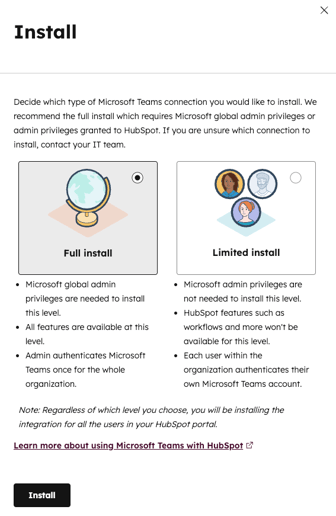
- Before selecting an install option, review the differences between the two options:
-
- Full install: you must be a Microsoft admin to select Full install. All features will be available if you select Full install.
- Limited install: you don't need to be a Microsoft admin to select Limited install. With limited install, you can only receive HubSpot notifications in Microsoft Teams and add Microsoft Teams meeting links to your meetings.
- Select the Full install or Limited install option. Then click Install.
- You’ll be prompted to sign in to your Microsoft Teams account. Enter your Microsoft Teams credentials.
If you select Limited install, you'll be redirected to the Microsoft Teams connected app settings and can start using the app with HubSpot.
If you select Full install, review the required permissions, then click Allow. You’ll be redirected to the Microsoft Teams connected app settings, where you can finish connecting teams to HubSpot and setting up your user account.
To select teams to sync to HubSpot:
- Navigate to the General settings tab.
- Click the Global Settings tab.
- In the Connected Teams section, toggle the Connect switch on next to the team that you want to connect to HubSpot.
- If you're the user who installed the integration, you can restrict which teams HubSpot users are able to view by selecting the Show checkbox. To allow all users to view newly created teams by default, select the Turn on visibility for newly created teams by default checkbox.
Please note: if you selected Limited install and want to change to the Full install, you must uninstall and reinstall the app.
Review your app settings
General settings
On the My settings tab, review your connected account. To edit the connected account:
- In your HubSpot account, click the settings icon in the top navigation bar. In the left sidebar menu, navigate to Integrations > Connected Apps.
- Click Microsoft Teams.
- Navigate to the General settings tab.
- On the My Settings tab, click Edit connected account > Change connected account.
- In the right panel, review the Microsoft Teams user email and click Update linked account.
On the Global Settings tab, review all connected teams.
- In your HubSpot account, click the settings icon in the top navigation bar. In the left sidebar menu, navigate to Integrations > Connected Apps.
- Click Microsoft Teams.
- Navigate to the General settings tab. Then click Global settings.
-
- Click the team name to review the number of members in it.
- Toggle the Visibility switch on to control what Microsoft Teams teams users can view and connect to.
- Click Connect to connect a team in Microsoft Teams to HubSpot to give users access to it across features.
- Click Upgrade to upgrade a team for any new functionality.
- In the Manage individual user settings section, view and manage the settings of individual Microsoft Teams settings in the HubSpot account.
Communications
On the Inbox tab, review which support inboxes are connected to Microsoft Teams channels.
- In your HubSpot account, click the settings icon in the top navigation bar. In the left sidebar menu, navigate to Integrations > Connected Apps.
- Click Microsoft Teams.
- Navigate to the Communications tab.
- On the Inbox tab:
-
- Toggle the switch On/Off to connect an inbox to a Microsoft Teams channel.
- Click the Team dropdown menu and select a team.
- Click the Channel dropdown menu and select a channel.
- Click the Inbox channel types dropdown menu and select the support channels you want to connect to Microsoft teams.
- Click the Help Desk tab to review how tickets sync to Microsoft Teams. Learn more about syncing and managing help desk tickets in Microsoft Teams (Service Hub Professional and Enterprise only).
Teams Phone
On the Teams Phone tab, review your Teams phone settings to log Teams phone calls to HubSpot records.
- In your HubSpot account, click the settings icon in the top navigation bar. In the left sidebar menu, navigate to Integrations > Connected Apps.
- Click Microsoft Teams.
- Navigate to the Teams Phone tab.
- Select the checkboxes for the Microsoft Teams calls you want to automatically log to HubSpot:
-
- For outbound calls
- For inbound calls
Learn more about setting up HubSpot and Microsoft Teams Phone.
Webinars
On the Webinars tab, manage global and individual settings for Microsoft Teams webinars.
- In your HubSpot account, click the settings icon in the top navigation bar. In the left sidebar menu, navigate to Integrations > Connected Apps.
- Click Microsoft Teams.
- Navigate to the Webinars tab.
- On the My settings tab and Global Settings tab, review the webinar sync settings for your user and for your team.
Learn more about syncing Microsoft Teams webinars to HubSpot.
Map your HubSpot user to your Microsoft Teams User
You must map your HubSpot user to your Microsoft Teams user to use all the features of the Microsoft Teams integration. This includes adding the Microsoft Teams meeting link to your meetings, receiving HubSpot notifications in Microsoft Teams, and creating custom notifications. Your users will be automatically mapped if the email address matches in both apps. If they don't match, you must manually map your email address.
To manually map your users:
- In your HubSpot account, click the settings icon in the top navigation bar. In the left sidebar menu, navigate to Integrations > Connected Apps.
- Click Microsoft Teams.
- Click the General settings tab.
- On the My settings tab, click Connect account.
- In the right panel, in the Microsoft Teams account field, enter your Microsoft Teams email address, then click Update linked account.
- A verification message will be sent to your Microsoft Teams account. Navigate to Microsoft Teams and locate the message from HubSpot, then click Verify.
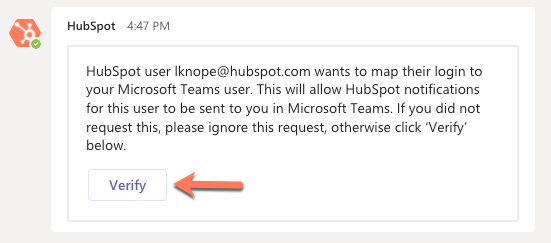
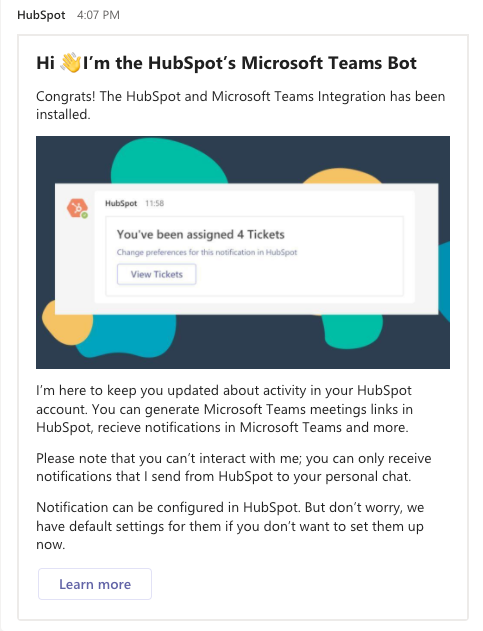
- Once your account is confirmed, HubSpot will send you a welcome message in your Microsoft Teams account. You can start using the integration.
If you're a Super Admin, you can review all the mapped users on the General Settings tab.
Add Microsoft Teams meeting links to your meetings
You can add Microsoft Teams meeting links when scheduling a meeting in the CRM or when using the meetings tool. Meeting links will be created in the default language set in your HubSpot account.
- To add a Microsoft Teams link to a meeting event you schedule from a record in the CRM, in your HubSpot account, navigate to your records.
-
- Contacts: In your HubSpot account, navigate to CRM > Contacts.
-
- Companies: In your HubSpot account, navigate to CRM > Companies.
- Deals: In your HubSpot account, navigate to CRM > Deals.
- Tickets: In your HubSpot account, navigate to CRM > Tickets.
- Click the name of the record.
- In the left panel, click Meet. In the window that opens at the bottom of the screen, set up your meeting.
- Click Select location > Microsoft Teams.
Please note: while it is not required to connect your Office 365 calendar to the meetings tool, it is recommended to ensure you get the most out of the Microsoft Teams integration.
You can also include a Microsoft Teams link on a scheduling page that you created in the meetings tool.
- In your HubSpot account, navigate to Sales > Meetings Scheduler.
- Hover over a meeting and click Edit.
- On the Overview page, click the Add videoconference link dropdown menu and select Microsoft Teams.
- Click Save.
Please note: it is not possible to update meeting links once a Microsoft Team's link has been created in HubSpot. To update the link in HubSpot, a new meeting must be created.
Troubleshoot Microsoft Teams errors
Learn how to resolve common errors that may occur when connecting Microsoft Teams with HubSpot.
User mapping error
When mapping your HubSpot user with your Microsoft Teams user, you may encounter the following error message:
Something went wrong while updating your linked Microsoft Teams account.
To resolve this error, check that the HubSpot app isn't blocked in Microsoft Teams:
- Navigate to your Microsoft Teams admin center.
- In the left panel, click Team apps > Manage apps.
- Search for HubSpot.
- Check that the status is Allowed.

- Return to Microsoft Teams.
- At the bottom left, click Apps and search for HubSpot.
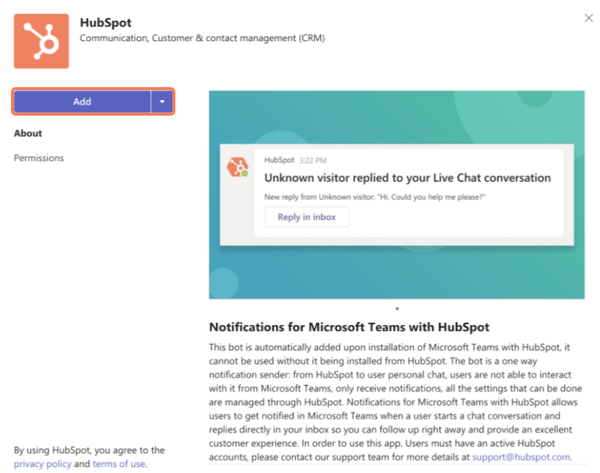
- Click Add to manually add the HubSpot app to your Microsoft Teams account.
New permissions prompt
You may encounter the following prompt for Microsoft permissions:
Microsoft permissions In order to continue using Microsoft Teams meetings, please accept the new permissions.
If you continue to receive this prompt after accepting it, a Microsoft Teams admin must complete these steps to resolve:
- Sign in to Azure using a Global Administrator account.
- Click Enterprise applications.
- Search for and select HubSpot.
- In the left sidebar menu, click Security > Permissions.
- Click Grant admin consent for [your org name], then follow the steps in the authorization flow.

Next steps
Review the following articles after connecting HubSpot and Microsoft Teams:
