
Last updated: August 20, 2026
Available with any of the following subscriptions, except where noted:
-
 Service Hub
Professional, Enterprise
Service Hub
Professional, Enterprise
-
 Seats required
Create knowledge base articles in multiple languages and organize them into language groups. Language variations give visitors access to help content in their preferred language.
For related tools, learn more about working with language variations in blogs and pages.
Before you get started
Before you begin managing multi-language variations, review the requirements and considerations.
Seats required An assigned Service Hub seat is required to manage language variations and create knowledge base articles in multiple languages.
Permissions required The following permissions are required:
- Super Admin or Knowledge base settings and Global content and theme settings permission are required to manage knowledge base language variations in settings.
- Super Admin or Knowledge base articles permission are required to create and edit knowledge base articles.
Add or edit language variations
- In your HubSpot account, click the
settings icon in the top navigation bar. - In the left sidebar menu, navigate to Content > Knowledge Base.
- At the top of the page, click the second dropdown menu, then click Add/edit multi-language variations. In accounts with the Brands add-on, this will be the third dropdown menu.

- In the right panel, click Add multi-language variation, then select a language. Repeat this step for any additional languages.
- To delete a language, click the delete icon next to that language.
- To change the primary language of your knowledge base, click the Primary dropdown menu, then select a language.
- When finished, click the X in the top right.
Translate knowledge base categories and subcategories
Translate categories before creating article language variations manually or using HubSpot's AI so visitors can navigate translated content. Categories and subcategories with missing translations display a Needs translation label.
- In your HubSpot account, click More, then navigate to Service > Knowledge Base. If More doesn't appear in your account, navigate to Service > Knowledge Base directly.
- In the top right, click the Configure dropdown menu, then select Categories.
- Click the language filter at the top and select a language. Categories without translations display a Needs translation label.

- In the left sidebar, select a category. To edit the category, click Edit category on the top right. To edit the subcategory, click Edit in the subcategory section.
- In the dialog box, enter the translated text for the required fields for each language. To use HubSpot's AI to enter translations, click Translate all supported (#) or Translate for individual categories and subcategories.
- In the top right, click Update template.
Learn more about organizing and managing your knowledge base categories.
Create a language variation of an article
After adding language variations in settings and translating categories, create language variations for individual articles.
- In your HubSpot account, click More, then navigate to Service > Knowledge Base. If More doesn't appear in your account, navigate to Service > Knowledge Base directly.
- Hover over an article, click the Actions dropdown menu, then select Create language variant.
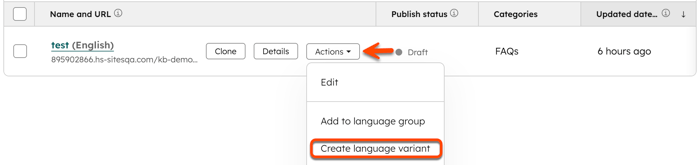
- In the dialog box, click the Variation language dropdown menu and select a language, or click Create to add a new language.
- Click Save.
- In the editor, enter the translated text content.
- To switch between variations, click the Language dropdown menu in the top left and select a variation.
Edit the language of an article
- In your HubSpot account, click More, then navigate to Service > Knowledge Base. If More doesn't appear in your account, navigate to Service > Knowledge Base directly.
- Click the name of the article.
- In the editor, click Settings in the top right.
- In the dialog box, click the Article language dropdown menu, then select a language.
- Click the X to close the dialog box.
- When finished, click Publish or Update to take your changes live. Updating the language automatically updates the language slug in the URL.
Add an existing article to a language group
If translated articles already exist as separate articles, add the articles to a language group.
- In your HubSpot account, click More, then navigate to Service > Knowledge Base. If More doesn't appear in your account, navigate to Service > Knowledge Base directly.
- Click the checkboxes to the left of the articles you want to add to your group.
- At the top of the table, click Add to language group.
- In the dialog box, click the Select a primary knowledge article dropdown menu and select an article.
- Click Save.
Remove an article from a language group
- In your HubSpot account, click More, then navigate to Service > Knowledge Base. If More doesn't appear in your account, navigate to Service > Knowledge Base directly.
- Hover over an article, click the Actions dropdown menu, then select Remove from language group.
- In the dialog box, click Remove. The knowledge base article will be removed from the group and will no longer be associated to the primary knowledge base article.
