
Last updated: April 28, 2026
Available with any of the following subscriptions, except where noted:

After you start collecting payments in HubSpot, the payment details are stored in a payment record in HubSpot. Payouts from online payments are automatically deposited to your bank account.
From each payment record, you can issue refunds, resend receipts, download reports of your payments and payouts, export payment data, and more. If a buyer disputes a payment, you can also respond to and manage disputes in HubSpot. Learn more about managing payment disputes.
Payouts
Payouts are the funds deposited into your bank account from your collected payments each day, minus any fees, refunds, or chargebacks. If you haven't received a payout for a recent transaction, learn more about the common reasons for not receiving payouts.
Please note: if you're based in the U.K., your balance needs to be £1 or above before a payout is initiated.
If you're using HubSpot payments, you can view payouts in HubSpot. If you've connected Stripe as a payment processing option, payout information won't display in your HubSpot account. Instead, download and manage payment reports in Stripe.
When funds are available for payout
HubSpot will send a daily payout notification email that includes the payout total. When funds are available for payout depends on how long it takes to receive payment from your buyer:
| Payment Method | Time to Receive Payment from Buyer |
|---|---|
| Card | Two business days |
| ACH | Up to four business days |
| BACS | Up to five business days |
| PADs | Up to five business days |
| SEPA | Up to fourteen business days |
When you receive the payout to your bank account
Payouts are initiated daily when funds from completed payments become available in your balance. After a payout is created, it may take additional time for the deposit to appear in your bank account. Timing varies by bank.
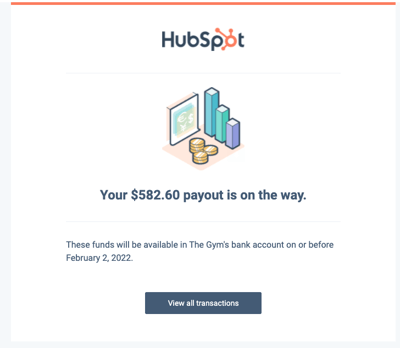
If the daily payout total is less than the refunds or chargebacks processed that day, HubSpot will debit your bank account to cover the difference. On these days, you'll receive a payout email from HubSpot that includes the amount debited from your account.
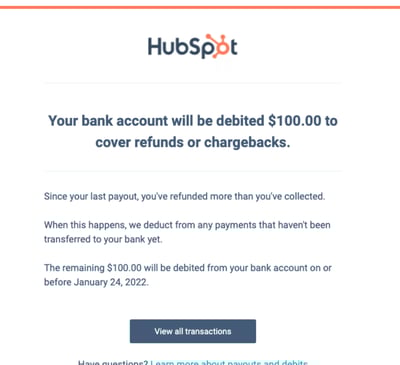
Learn more about auto-debiting and paused payouts in Stripe's documentation. Stripe is HubSpot's partner for processing payments when using HubSpot payments.
View payment records
When a payment is collected in HubSpot, the payment details are stored in a payment record. All payments can be viewed on the payments index page. If there aren't any payment records on the index page (e.g., no completed transactions), you'll be redirected to the payments settings to complete payments set up.
- In your HubSpot account, navigate to Commerce > Payments.
- Payment records are displayed in the table on the index page. In the Status column, view the payment status:
- Processing: the payment is processing. Payment processing time will depend on the payment method used. Once the payment is processed, the status will either change to Succeeded or Failed. Learn more about processing times.
- Succeeded: the payment was collected online or manually. Payouts
Please note: payments created manually or recorded on invoices are set to a Succeeded status. If you need to track a pending or cleared state for manual checks, we recommend creating a custom property, as the payment status isn't editable.
- Failed: the payment didn't process, and the payment method wasn't charged. This status only applies to payments made via bank debit, such as ACH, or subscription payments.
- Partially refunded: the buyer has been refunded an amount less than they originally paid.
- Refunded: the total amount of the original payment was refunded.
- Processing refund: a refund request has been submitted. Refunds for payments made via bank debit, such as ACH, can take five to ten business days to process.
- Use the filters at the top to segment your payment records by status or payment date. Click + More to view more filters.
- To filter the index page by specific payment properties:
- Click Advanced filters above the table.
- In the right panel, click + Add filter. Search for and select the property you want to filter by, then set the filter criteria. To add another filter to the filter group, under and, click + Add filter.
- To add an additional filter group, under or, click + Add filter group.
- Click the X in the upper right of the panel when you've set up your filter. Learn more about setting up filters and saving views.
- To view more details about the payment, in the Gross amount column, click the payment amount to open the details in the right sidebar. The sidebar includes a summary of the payment amount, payment date, buyer, and payment method. The right sidebar will also display cards for payment history, line items, subscriptions, and record associations. Click a card to collapse or expand it.
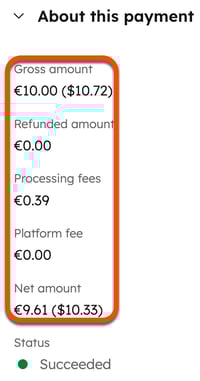
- If you sell in multiple currencies, the related fees will be displayed along with the net amount received in your settlement currency when it differs from the payment currency. For example, if your connected bank account in Stripe is in U.S. dollars, but you collect a payment in Euros, you'll see both the gross amount, fees, and net amount in Euros, but the fees and net amount will also display in U.S. dollars. The FX rate is applied by Stripe. Learn more about rates and fees when using payments.
Manage payments
Permissions required Super Admin or Manage payments or subscriptions permissions are required to manage payments. Users Manage payments or subscriptions permissions can view transaction and payout history, download payment and payout reports, resend receipts, cancel subscriptions, and issue refunds.
After you start collecting payments with HubSpot, you can manage payment-related tasks from your payments dashboard. Review transaction fees, receive daily payouts, issue refunds, send receipts, update receipt and refund email branding, retrieve bank debit authorization documents, retry failed payments, and request updated payment information from customers.
View transaction fees
View the transaction fees associated with the payment from the payments index page.
- In your HubSpot account, navigate to Commerce > Payments.
- In the Gross amount column, click the payment amount of a payment record.
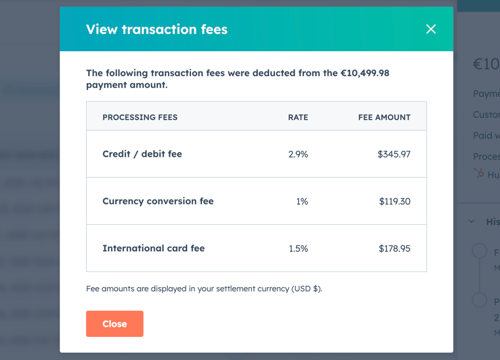
- In the right sidebar, in the upper right, click Actions, then select See applied fees.
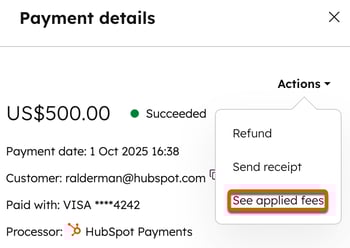
- Applied fees (including international fees if applicable) will be displayed in the dialog box. Fee amounts are displayed in your settlement currency.
Issue refunds
Issue a refund from the payments index page. The payment must have been processed before you can issue the refund. Refunds for payments made via bank debit, such as ACH, can take five to ten business days to process. During this time, the status of the payment will be Refund processing.
- In your HubSpot account, navigate to Commerce > Payments.
- In the Gross amount column, click the payment amount of the payment to be refunded.
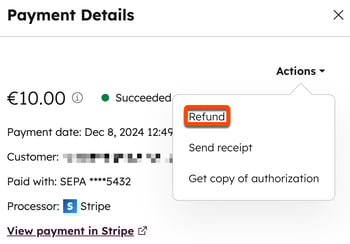
- In the right panel, in the upper right, click Actions, then select Refund. Issuing a refund does not impact the active subscription and billing will continue as scheduled.
- In the dialog box:
- Enter the refund amount. Click the Reason dropdown menu, and select a reason for the refund.
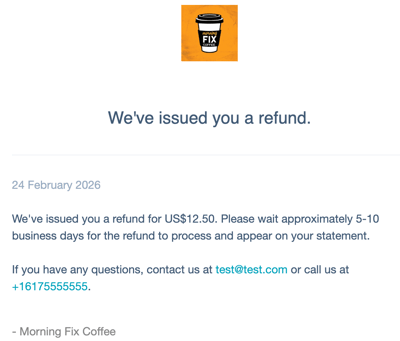
- Click Refund. HubSpot will deduct the original transaction amount from your future payouts or debit it from your bank account. It can take 5–10 business days for the refund to appear on a buyer's statement.
- An email confirming the refund will be sent to the buyer.
Please note:
- If you're using HubSpot payments, HubSpot does not charge a fee for processing a refund. However, you won't receive a refund of the fee associated with the original transaction. If using Stripe as your payment processing option, refer to Stripe's documentation.
- Refunds for ACH direct debit payments must be initiated within 180 days from the date of the original payment.
- If using the QuickBooks Online integration, refunds do not sync to QuickBooks Online. Use refunds in HubSpot to manually reflect changes made in QuickBooks.
Send receipts
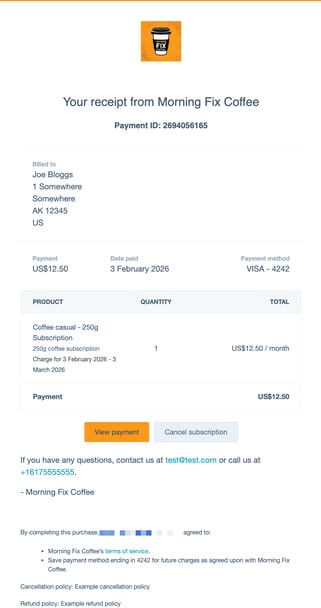
Send a receipt from the payments index page. The payment must be processed before you can send the receipt.
- In your HubSpot account, navigate to Commerce > Payments.
- In the Gross amount column, click the payment amount of the payment for which you want to send the receipt.
- In the right panel, in the upper right, click Actions, then select Send receipt.
- In the dialog box:
- Click the Choose receipt dropdown menu and select a receipt.
- The buyer's email address will be displayed by default. To change or add another recipient, in the Email address field, enter the email addresses.
- Click Send.
Customize receipt and refund emails
Customize the appearance of receipt and refund emails in your settings.
- Update the company name that displays at the top of the receipt.
- Update the logo that displays at the top of the receipt.
- Update your brand colors. A single colored bar is displayed at the top of the receipt.
- If you're using Brands, invoices, payment links, and subscriptions associated with a specific brand (BETA), will inherit the brand kit of that specific brand.
Please note: changes to the company name, logo, or colors in your account settings will apply to every payment link, regardless of which user created the link. These changes will also apply to other tools that use the default branding. Learn more about updating your logo and brand colors.
Retrieve a copy of the bank debit transaction authorization
To retrieve a copy of a bank debit transaction authorization, such as an ACH direct debit:
- In your HubSpot account, navigate to Commerce > Payments.
- In the Gross amount column, click the payment amount of the payment record.
- In the right panel, in the upper right, click Actions, then select Get copy of authorization.

- In the dialog box, click Send. The authorization will be emailed to you.
Manually retry a failed subscription payment
HubSpot will send email notifications to account admins when a subscription payment fails. You can turn these notifications off within your notification settings. If a transaction fails, retries to take the payment will be automatically attempted based on a set schedule.
You can manually try to process the payment again, before the scheduled payment retries up to three times. Some payments can't be retried because of the decline reason.
To manually retry taking a failed subscription payment:
- In your HubSpot account, navigate to Commerce > Payments.
- Click the Status filter at the top of the table and select Failed.
- In the Gross amount column, click the amount of the failed payment.
- In the right panel, in the upper right, click Actions, then select Manually retry payment.
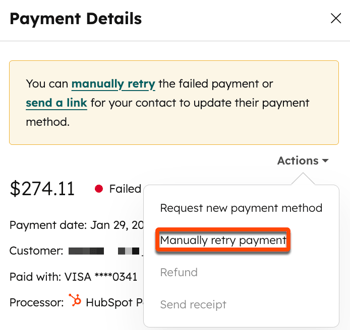
- In the dialog box, click Retry payment.
- In the Gross amount column, click the amount of the failed payment.
- In the right sidebar, the History card will display if the latest payment attempt was successful. If the payment was unsuccessful, in the upper right, click Actions, then select Request new payment method. Learn more about requesting a new payment method.
Request a new payment method
Request a new payment method if a payment has failed. A link will be sent to the customer to update their payment method.
- In your HubSpot account, navigate to Commerce > Payments.
- Click the Status filter at the top of the table and select Failed.
- In the Gross amount column, click the amount of the failed payment.
- In the right panel, in the upper right, click Actions, then select Request new payment method.
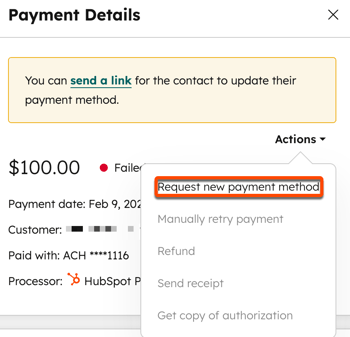
- In the dialog box, click Send link.
Export payment records
Permissions required Super Admin permissions or Export permissions are required to export subscriptions.
Export payment records from the payments index page to CSV, XLS, or XLSX. It isn't possible to export to PDF. You can also download payout reports.
- In your HubSpot account, navigate to Commerce > Payments.
- Click Export in the upper right. In the dialog box:
- In the Export name field, enter an export name.
- Click the File format dropdown menu, and select a format.
- Click the Language of column headers dropdown menu and select a language.
- Click to expand the Customize section to customize the export further:
- Under Properties included in export select which properties to include in the export.
- Under Associations included in export, select the Include associated record name checkbox to include associated record names (e.g., the invoice name).
- Under Associations included in export, select whether to include up to 1,000 associated records, or all associated records.
- Click Export.
- The exported report will be emailed to you and you'll be notified in your HubSpot account when it's ready. Learn more about exporting records.
Download payment reports
Please note: if you've connected Stripe as a payment processing option, the Payouts tab won't display in your HubSpot account. Instead, download and manage payment reports in Stripe.
Download reports that include your payment or payout details, as well as a payment reconciliation report to CSV, XLS, or XLSX. It isn't possible to download reports to PDF. You can also export payment records.
- In your HubSpot account, click the settings icon in the top navigation bar.
- In the left sidebar menu, navigate to Payments Account.
- At the top, click the Payouts tab. You can view your payout history, including individual payments and their statuses.
- To view more details about a payout, click the payout date to view the details in the right panel.
- To download a report of your account's payments or payouts, in the upper right, click Download reports, then select one of the following report types:
- Payment reconciliation: view a list of payouts with itemized payment details. The report includes the transactions included in each payout, such as payments, refunds, and fees, in descending order. Each payment in the report will have an ID, reporting category, customer name and email, payment ID, associated invoice number, payout ID, and payout status.
- Payment details: view all buyer transactions, such as one-time and recurring payments, refunds, transactional fees, and disputes. The report includes the balance transaction ID, reporting category, description, customer name and email, payment ID, and associated invoice number.
- Payout details: view all of the buyer payments that are included in your daily payout total, including the payout ID, balance transaction ID, and payout expected arrival date.
- In the dialog box, click the File format dropdown menu and select a format, then click Export. The exported report will be emailed to you and you'll be notified in your HubSpot account when it's ready.
Next steps
-
Learn more about collecting payments.
- Learn how to use payment data in other HubSpot tools.
-
Build and send branded quotes that include personalization options, terms, e-signature or click-to-accept, billing, and payment options, so your buyers can easily review, accept, and pay.
- Manage the invoices of your buyers.
-
Set up subscriptions to automate recurring payments or send recurring invoices to your customers.
-
To understand your transactions and business performance, use the commerce analytics suite to analyze your payments and track key metrics.
