
Last updated: September 10, 2026
Available with any of the following subscriptions, except where noted:
-
 Revenue Hub
Professional, Enterprise
Revenue Hub
Professional, Enterprise
-
 Seats required for certain features
Permissions required Super Admin or Edit or Delete products permissions are required to create and manage price books.
Use price books to manage different pricing for products and services. For example, you can create separate price books for referral, partner, or regional pricing.
After creating a price book, add products, set custom prices, and assign the price book to deals using assignment rules based on HubSpot properties so the appropriate pricing is available when sellers add line items to a deal. This helps standardize pricing across teams, reduce manual updates, and simplify deal management.
Create multiple price books and choose which should be active. Edit and delete price books from the price books index page.
Example price book use cases
- Create a referral price book with discounted pricing for referred buyers.
- Create a partner price book with negotiated rates for reseller and channel deals.
- Create regional price books to manage different pricing across countries or territories.
Before you get started
Understand requirements
-
Add products to your product library before creating price books.
-
Price books use products from your product library. You can configure different pricing and terms for those products in each price book.
Understand limitations and considerations
-
When working with price books:
- Automatically assign a price book to a deal when the deal matches exactly one assignment rule.
- Manually select a price book on a deal when an automatic assignment isn't available or isn't the desired option.
- Override a product's default price within a price book.
- Price books can't be imported, cloned, or used in workflows or other HubSpot automation tools.
- Quotes inherit the price book from the associated deal. Users can't select a price book when creating a quote; they must select it on the deal so it can be used on the quote.
- Price books are auto-assigned only when a deal is created. After a price book is auto-assigned, HubSpot won’t run auto-assignment again if the deal or associated company properties used in the filter are updated.
- The Add line item to deal workflow action does not apply pricing from the price book associated to the deal. Price books based pricing applies when adding line items using the line items editor.
- If users have the Create custom line items permission, they can create custom line items on deals with an assigned price book.
Please note: if you want users to only use the price books configured on deals, turn the Create custom line items permission off for those users.
Create and configure price books
Create a price book, add products, configure pricing, and set assignment rules.
Create price books
- In your HubSpot account, click More, then navigate to CRM > Products. If More doesn't appear in your account, navigate to CRM > Products directly.
- In the upper right, click Manage price books.
- In the upper right, click Create price book.
- In the right panel:
- Enter the name of the price book.
- Enter the description of the price book.
- Click the Currencies dropdown menu and select a currency. Learn how to add and edit account currencies.
- Click Create.
- In the upper right, click Add products.
- In the right panel, select the checkboxes next to the products you want to add to the price book, then click Add. Learn more about configuring products in the product library.
- Click the Price, Billing frequency, and Term columns of each product to update their values.

- To remove a product, hover over the product and click Remove.
- If you want price books to be auto-assigned to deals based on matching filter criteria, learn more about adding assignment rules.
- To activate the price book, in the top right, toggle the Inactive switch on.
Add assignment rules
Add assignment rules when configuring your price book to auto-assign price books to deals matching filter criteria. When you configure assignment rules, there are three options:
- No assignment rules: users manually select a price book to use on a deal.
- Assignment rules without auto-assignment: assignment rules are set but don't automatically assign deals based on the filter criteria. This is the recommended setting when configuring assignment rules to test rule assignments before turning them on.
- Assignment rules with auto-assignment: assignment rules are configured and price books are automatically assigned to deals based on the filter criteria.
When using assignment rules:
- When a deal matches exactly one assignment rule, that price book is automatically assigned.
- If multiple price books match, the deal owner can choose which matching price book to use.
- If a deal does not match any auto-assignment criteria, a price book isn't assigned. The deal owner can manually select a price book or select products from the product library.
To add assignment rules:
- In your HubSpot account, click More, then navigate to CRM > Products. If More doesn't appear in your account, navigate to CRM > Products directly.
- In the upper right, click Manage price books.
- Click a price book name.
- Above the product table, hover over Assignment rules and click the edit icon. Learn more about assignment rules.
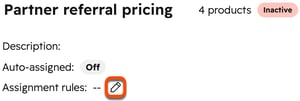
- In the Filters section, click + Add filter.
- Configure filters using deal properties. Learn more about filter criteria.
- In the right panel, review the deals that match the filter criteria.
- Toggle the Auto-assigned switch on to automatically assign the price book to deals that match the filter criteria. After activation, the price book is automatically assigned to newly created deals that match the criteria. Existing matching deals aren't updated.
- Click Save in the top right.
- To activate the price book, in the top right, toggle the Inactive switch on.
Use price books
When using price books on deals, you can only browse products within the assigned price book. If multiple price books match the properties of a deal, you can browse different price books before adding products from them as line items to the deal.
- In your HubSpot account, click More, then navigate to CRM > Deals. If More doesn't appear in your account, navigate to CRM > Deals directly.
- Click a deal name.
- In the right sidebar, on the Line items card, click + Add.
- The assigned price book is displayed at the top. If the deal doesn't have a matched price book, click Price book: None to select a price book.
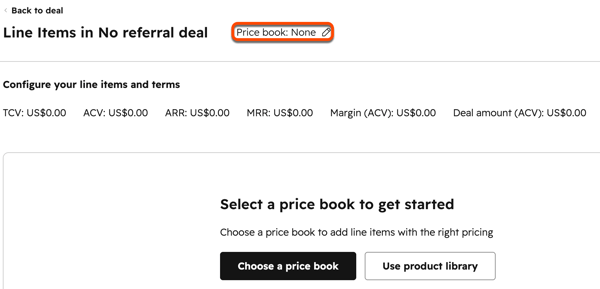
- Click the Price book dropdown menu and select a price book.
- Click Change price book.
- If a deal matches multiple price books, click the price book name to select a different price book.
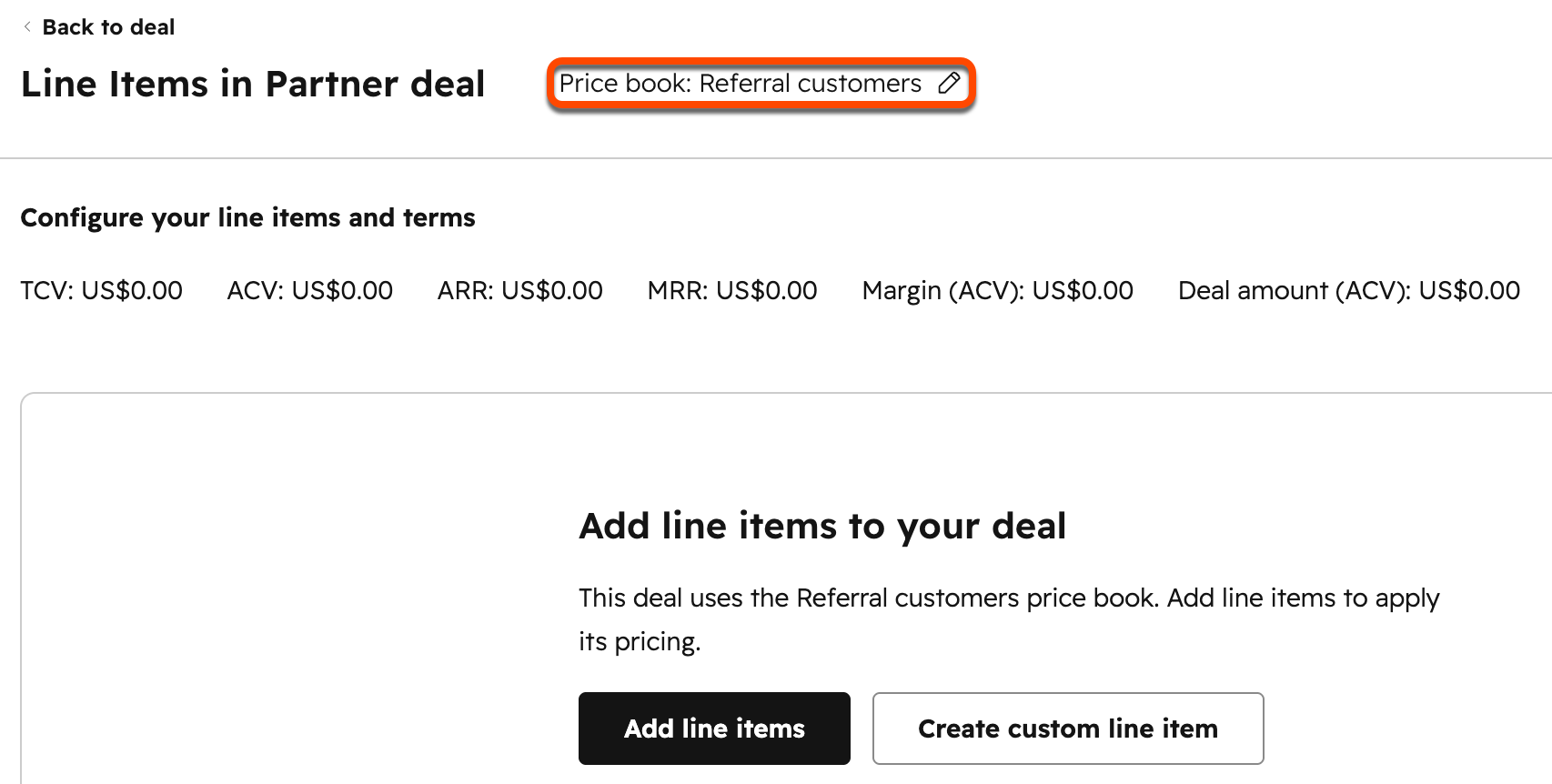
- Click the Price book dropdown menu and select a price book.
- Click Change price book.
Please note:
- If the price book is changed, any line items associated with the previous price book will be removed.
- Super Admins can override the automatically assigned price book by changing the price book, or by adding products from the product library to the deal.
- Add line items to the deal from the price book.
Manage price books
Edit, deactivate, or delete existing price books.
Edit price books
- In your HubSpot account, click More, then navigate to CRM > Products. If More doesn't appear in your account, navigate to CRM > Products directly.
- In the upper right, click Manage price books.
- Click a price book name.
- To deactivate the price book, in the top right, toggle the Active switch off, then click Deactivate in the dialog box.
Please note: when a price book is deactivated, it can't be used in existing or new deals, but users with the Create custom line items permission can still create custom line items on deals with the price book assigned.
- To edit existing product information, update the Unit price, Billing frequency, or Term columns for each product.
- To add products, click Add products in the upper right.
- To remove products, hover over a product and click Remove.
Please note: removing a product from a price book doesn't delete the product from the product library. If a product that is part of a price book is deleted, the product is removed from the price book. If that product was previously added as a line item to a deal using the price book, it will remain as a line item on the deal.
Delete price books
- In your HubSpot account, click More, then navigate to CRM > Products. If More doesn't appear in your account, navigate to CRM > Products directly.
- In the upper right, click Manage price books.
- Hover over a price book and click the Preview icon.
- In the right sidebar, click Actions in the upper right, then click Delete.
- Click Delete price book in the dialog box.
Next steps
-
Learn more about creating and managing products in the product library.
-
Learn more about creating deals.
-
Learn more about creating and sending quotes.
-
Learn more about using line items.
