
Last updated: May 27, 2026
Available with any of the following subscriptions, except where noted:
-
 Commerce Hub
Professional, Enterprise
Commerce Hub
Professional, Enterprise
-
 Seats required
Use contracts to track and manage agreements associated with quotes in HubSpot. Contracts provide a centralized source of truth for committed revenue.
This article covers how to view and manage contracts, and their associated records. Learn how to review contract details, associated revenue, activities, and history, and how to make mid-contract changes using change or renewal quotes, terminate contracts, or export contracts.
To get started, learn more about how contracts are used, and how to create contracts.
Before you get started
- If you're a Super Admin, you can opt your account into the HubSpot Contracts with Commerce Hub beta.
- It isn't possible to enroll in the beta if you're using HubSpot payments or Stripe as a payment processing option.
View contract records
Permissions required Super Admin or View permissions for contracts are required to view contracts.
View contracts on the index page
Use the contract index page to view all contracts and to create and use saved views to filter contracts by specific criteria. To view all contracts:
- In your HubSpot account, navigate to Commerce > Contracts.
- To edit the columns that appear in the table, click Edit columns in the upper right of the table.
- To filter the index page, click the filter dropdown menus (e.g., Status) and set your filter criteria. Contracts can have the following statuses:
- Scheduled: when a contract is created with a future effective date, the status is set to Scheduled. On the effective date, the status is set to Active.
- Active: a contract that's currently in effect.
- Completed: a contract that's reached its end date.
- Terminated: a contract that has been terminated.
- Draft: a contract that isn't finalized.
- To set custom filters, click Advanced filters at the top of the table.
- To save a view for future use, click the Save icon at the upper right of the table.
- To preview the contract details, hover over the contract and click Preview. View the details in the right panel.
- To view the contract record, click the contract name.
Learn more about the contract layout.
View contracts on associated CRM records
To view a contract from one of its associated records (for example, a contact, company, or invoice):
- Navigate to your records. For example:
- In your HubSpot account, navigate to CRM > Contacts.
- In your HubSpot account, navigate to CRM > Companies.
- In your HubSpot account, navigate to Commerce > Invoices.
- In your HubSpot account, navigate to Commerce > Quotes.
- Open the right sidebar by clicking the name of a record, or by clicking Preview. The behavior depends on the object index page you're on.
- In the right sidebar, navigate to the Contracts card to view the contract status. If the Contracts card isn't appearing on your record by default, you can manually add the card to it.
- For more information, hover over the contract and click the Preview icon, or click the contract name to navigate to the contract.
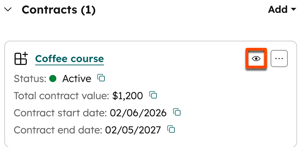
- Review the contract details in the right panel.
View the contract overview, activities, and history
Use the contract record to understand the contract information, including performance, associated line items, billing schedule, renewal information, timeline of activities, and history.
- In your HubSpot account, navigate to Commerce > Contracts.
- In the middle column, click the Overview tab to view a snapshot of the contract performance, line items, billing schedule, and renewal information.
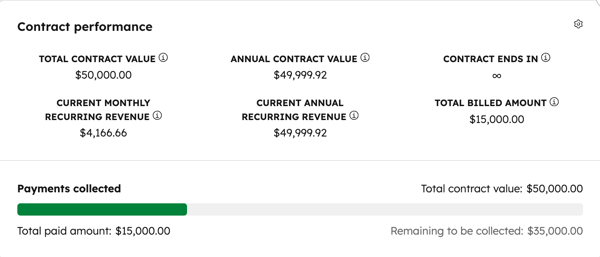
- The Contract performance card displays the contract value, recurring revenue information, the contract end date, and the amount billed.
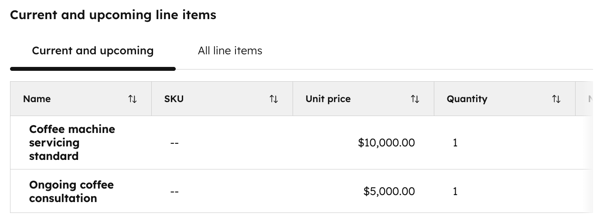
- The Current and upcoming line items card lists each of the contract's line items and their properties (e.g., price, quantity, billing schedule, term, pricing model).
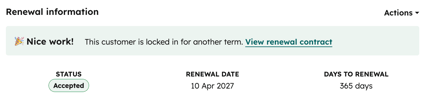
- The Renewal information card displays the renewal status, based on any renewal quotes created for the contract.
- The Contract performance card displays the contract value, recurring revenue information, the contract end date, and the amount billed.
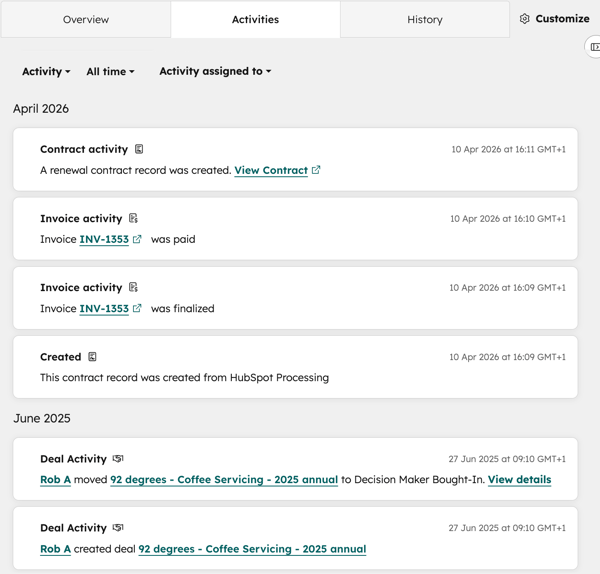
- Click the Activities tab to view a timeline of communications (e.g., emails and calls), team activity (meetings, notes, tasks), and updates to the contract, and associated invoices, deals, and tickets.
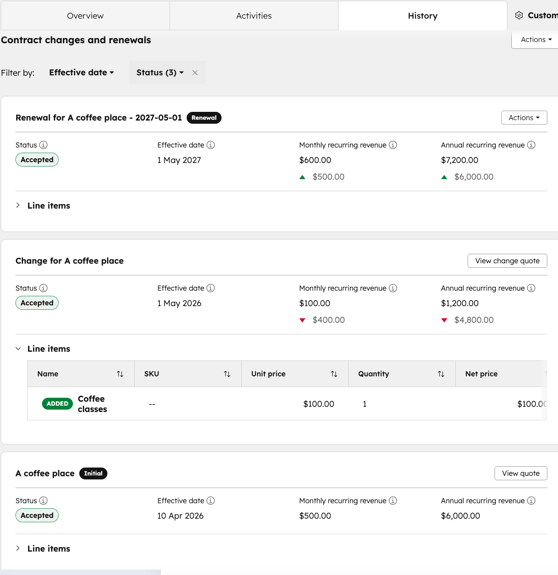
- Click the History tab to view details of contract changes and renewals, including changes in recurring revenue and line item additions or removals.
Manage contracts
On a contract record, you can manage a contract’s details. Create change and renewal quotes, update payment methods, terminate contracts, and manage associations.
Create a change quote on a contract
Permissions required Super Admin or Create permissions for contracts are required to create contracts.
Seats required A Commerce Hub seat is required to create change quotes.
Create a change quote to modify an active contract agreement. Learn more about creating change quotes.
Create a renewal quote on a contract
Permissions required Super Admin or Create permissions for contracts are required to create contracts.
Seats required A Commerce Hub seat is required to create renewal quotes.
Use a renewal quote as a customer nears the end of their current contract. Learn more about creating renewal quotes.
Update the payment method of a contract
Send the contact of the contract a link to update their payment method.
- In your HubSpot account, navigate to Commerce > Contracts.
- Click the name of the contract.
- In the upper left, click Actions, then select Update payment method.
- In the dialog box, click Send link.
- The buyer will be sent a link which they can click to update their payment method.
Terminate a contract
Permissions required Super Admin or Edit permissions for contracts are required to terminate contracts.
Contracts can be terminated immediately or on a scheduled date. To terminate a contract:
- In your HubSpot account, navigate to Commerce > Contracts.
- Click the name of the contract.
- In the upper right of the left sidebar, click Actions, then select Terminate.
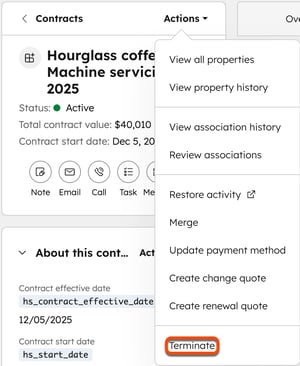
- In the dialog box, click the date picker and select a termination date. Select today’s date to terminate immediately, or a future date to schedule a termination.
- Click Terminate contract if terminating immediately, or Schedule termination if you’ve selected a future date.
- The contract record will be updated with the termination information.
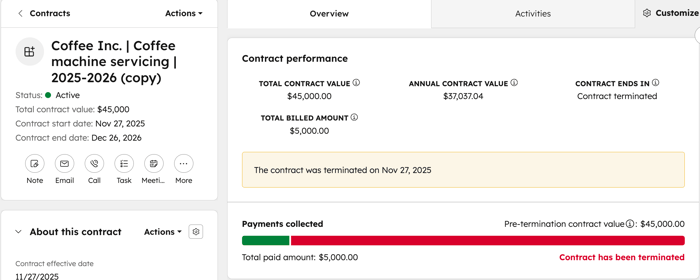
Change or cancel the termination of a contract
Permissions required Super Admin or Edit permissions for contracts are required to change or cancel contract terminations.
If you have scheduled a termination of a contract, you can change or cancel the termination.
- In your HubSpot account, navigate to Commerce > Contracts.
- Hover over a contract and click Preview.
- In the upper right of the left sidebar, click Actions and select an option:
- Change termination date: change the contract termination date. In the dialog box, click the date picker and select a new termination date. Click Update date.
- Cancel termination: cancel the contract termination. In the dialog box, click Cancel termination to confirm.
Associate records with contracts
Permissions required Super Admins or users with Edit associations permissions can manage associations between records.
Add associations to contracts from the contract index page. You can associate contracts with contacts, companies, deals, tickets, quotes, invoices, and other contracts.
- In your HubSpot account, navigate to Commerce > Contracts.
- Hover over a contract and click Preview.
- In the right sidebar, click + Add on an association card (e.g., Contacts).
- In the right panel, search for and select the checkboxes next to the records you want to associate. Click Save to associate them to the contract. Or, click the Create new tab to create a new record to associate to the contract. Enter the details of the new record and click Create to associate it to the contract, or Create and add another to create another record.
Export contracts
Permissions required Super Admin or Export permissions are required to export contracts.
- In your HubSpot account, navigate to Commerce > Contracts.
- Click Export in the top right of the table.
- In the dialog box:
- Enter an export name in the Export name text box.
- Click the File format dropdown menu, and select a format.
- Click the Language of column headers dropdown menu and select a language.
- Click Customize to customize the export further.
- Under Properties included in export select an option for which properties to include in the export.
- Under Associations included in export, select the Include associated record name checkbox to include associated record names (e.g., the invoice name).
- Under Associations included in export, select whether to include up to 1,000 associated records, or all associated records.
- Click Export.
