Last updated: April 9, 2026
Available with any of the following subscriptions, except where noted:
-
 Marketing Hub
Professional, Enterprise
Marketing Hub
Professional, Enterprise
Use Breeze AI to automatically generate reply recommendations within the HubSpot social tool. You can use reply recommendations in your social feeds or in your social inbox. You can also use this feature on the go with the HubSpot mobile app.
Before you get started
To use AI-generated reply recommendations, you must turn on your Give users access to generative AI tools and features and Customer Conversation Data AI settings. Learn more about managing your AI settings.
Please note: you can manage AI feature access in your AI settings and configure what data is shared. Review HubSpot's AI Trust FAQs and AI Model Cards for detailed information on AI security controls, data use, and compliance.
Use reply recommendations
- In your HubSpot account, navigate to Marketing > Social.
- Navigate to your social content:
- Social inbox: At the top, click the Reply tab.
- Social feeds: At the top, click the Listen tab.
- Click the reply icon on the social post or interaction you want to reply to. You can reply to all post types. The post's details or thread will open in the right panel.
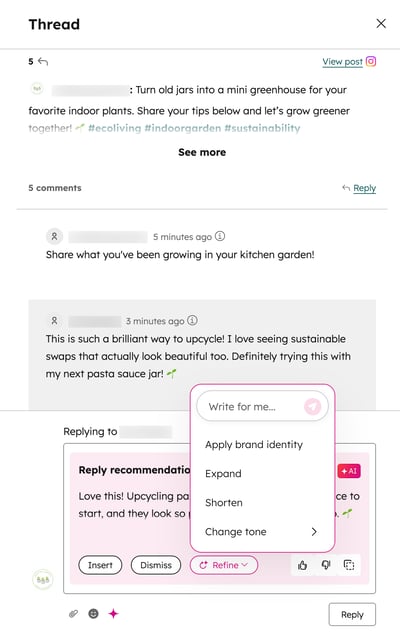
- The reply recommendation will be generated automatically. To use the message, click Insert. Then, continue editing the message, or click Reply to send the message.
- To update the reply recommendation, click Refine. Then select from the options to Apply brand identity, Expand, Shorten, or Change tone.
- To dismiss a message, click Dismiss.
- To copy the message content, click the copy icon.
- To provide feedback about a recommendation:
-
- If a recommended action was helpful, click the thumbs up icon.
- If a recommended action wasn't helpful, click the thumbs down icon.
Use reply recommendations with the HubSpot mobile app
- Open the HubSpot app on your device.
- In the top left, tap the menu icon.
- In the Marketing section, tap Social Reply.
- To reply to a social post, tap the reply icon on the social post.
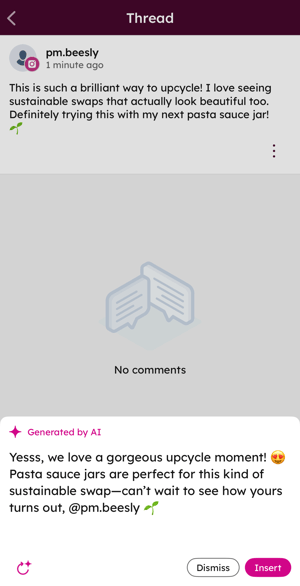
- To generate a reply recommendation, at the bottom, tap the Breeze icon.
- To use the reply recommendation, tap Insert.
- To generate another reply, tap the regenerate icon.
- To dismiss the reply recommendation and manually enter a message, tap Dismiss.
- After adding your message, tap the send icon.