
Last updated: November 28, 2025
Available with any of the following subscriptions, except where noted:

Permissions required Edit permissions for subscriptions are required to edit subscriptions.
After creating subscriptions, manage and edit them from the subscriptions index page, like managing other CRM records. Below, learn about the ways that you can edit a subscription, including:
- Updating the associated contact.
- Updating the billing address.
- Editing the line items, including price, quantity, and discounts.
- Editing the next payment due date.
- Updating the payment method.
- Pausing and resumng subscriptions.
Please note:
- This article isn't about editing your account's HubSpot subscription. Learn how to manage the products included in your HubSpot subscription.
- You can't edit subscriptions that have automated invoice creation turned off.
Change the contact associated with a subscription
A subscription can only be associated with one contact at a time, but if you need to change the contact associated with a subscription, you can do so from the subscription panel. For example, during the lifetime of a contract you may need to change the main point of contact if the original buyer has moved to a different company.
- In your HubSpot account, navigate to Commerce > Subscriptions.
- Click the name of the subscription.
- In the right panel, scroll to the Contacts card, then click + Replace.
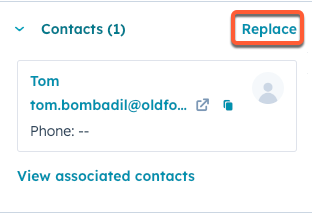
- Search for and select an existing contact, or click the Create new tab to create a new contact record.
- Click Save.
The following notifications will be sent to the new contact:
- Successful subscription payment receipts.
- Payment method update emails for failed payments.
- Upcoming subscription payment reminders, if the setting is turned on.
- Notices for subscription changes, including upgrades, downgrades, and updates to the next payment dates.
- User-initiated update payment method requests.
- Subscription cancellation.
Update the billing address of a subscription
Update the billing address of a subscription. When updating the billing address:
- The address will be associated with the subscription, and any future invoices for the subscription.
- The address will be used to calculate any automated taxes.
To edit a subscription's billing address:
- In your HubSpot account, navigate to Commerce > Subscriptions.
- Click the name of the subscription.
- In the right panel, click Actions in the upper right, then select Edit subscription.
- Under Billing address click Edit.
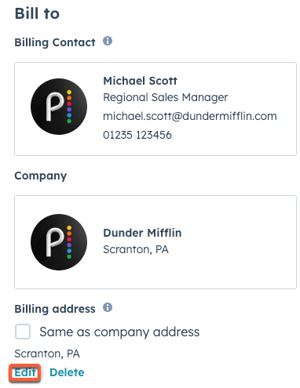
- Update the address details in the right panel, then click Save.
- Click Save to save the subscription. In the Update subscription dialog box, enter any internal notes. These notes will be added to the associated deal, contact, and companies timelines. You can also access these notes in other tools such as segments, workflows, and reports through the Last modification reason property. When you're done, click Update subscription.
Edit a subscription's line items
Sometimes you may need to change a subscription’s details without canceling it, such as when a customer wants to upgrade or downgrade their subscription.
For example, you can:
- Change the price of existing line items.
- Add a new line item that the customer agreed to subscribe to.
- Remove an existing line item that the customer doesn't want to subscribe to anymore.
- Increase or decrease the line item quantities a customer originally subscribed to.
- Add or remove line item discounts.
Limitations
Keep in mind the following when editing a subscription:
- You can't edit a subscription that doesn't create invoices.
- You can only edit subscriptions with a status of Active or Scheduled.
- You can't edit a subscription within two days of its next payment due date so that customers have adequate notification before the next payment date.
- If you aren't prorating your changes, you can make as many changes as needed before the next billing cycle. The next payment of the subscription will be collected based on the last saved change.
- Changing a subscription paid by PADs may have compliance implications. Please consult your legal team for more information.
Edit the line items of a subscription
- In your HubSpot account, navigate to Commerce > Subscriptions.
- Click the name of the subscription.
- In the right panel, click Actions in the upper right, then select Edit subscription.
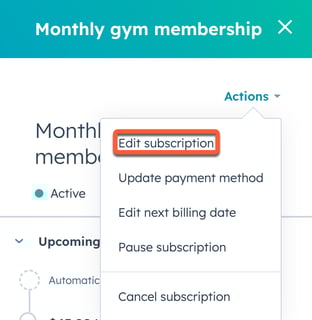
- To add new line items, click Add line item in the upper right, then select Select from product library or Create custom line item. In the right sidebar, select or set up the line item details, then click Save. Learn more about adding line items to subscriptions.
Please note: any newly added line items will be billed based on the frequency already set in the subscription. For example, if a subscription recurs monthly, any line items that you add will be billed monthly. This also applies to adding products from your product library that are set to a different frequency. New line items will also be billed for the remaining term length of the subscription.
- To remove a line item, hover over the line item, click Actions, then select Delete.
- Edit a line item using the columns in the line item editor or by clicking the line item's name and using the right panel, then click Save.
- By default, your changes will apply during the next billing cycle. To apply the changes immediately and collect or refund the prorated amount automatically on save, toggle the Prorate changes switch on. Prorating isn't possible if an online payment option isn't added to the subscription. Learn more about prorating subscription changes.
- Click Save in the bottom left to save your changes.
- In the Update subscription dialog box, enter any internal notes. These notes will be added to the associated deal, contact, and companies timelines. You can also access these notes in other tools such as segments, workflows, and reports through the Last modification reason property. When you're done, click Update subscription.
Once your changes are saved, the following will happen:
- An email will be sent to the contact associated with the subscription to notify them of the changes. The email will appear similar to the following example:
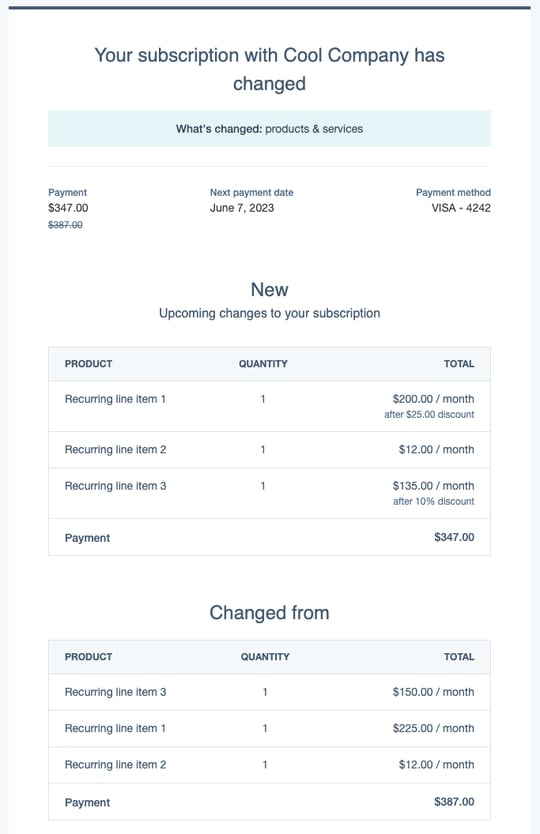
- The subscription record will be updated to show the changes:
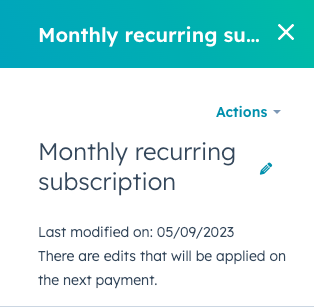
- The Last modified on property will show the modified date. The record will also show that there are edits to the subscription that'll be applied after the next payment. Learn more about subscription properties.
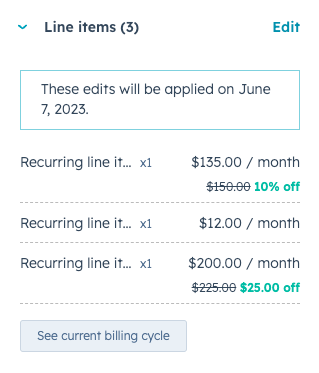
- The Line items section will show any changes that you've made to the line items. Click See current billing cycle to view what your customer is currently paying for.
- Once the changes take effect, the Monthly recurring revenue and Annual recurring revenue properties will update to match the changes. Learn more about subscription properties.
- The Last modified on property will show the modified date. The record will also show that there are edits to the subscription that'll be applied after the next payment. Learn more about subscription properties.
Update the payment method used for a subscription
The payment method of a subscription can be updated either by sending the customer an email with a link to update their payment method, or through an automated email if payment fails.
When a payment method is updated, all past-due subscription balances will be charged to the payment method automatically.
Send the customer a link to update their payment method
Please note: the payment method can be updated only for subscriptions where payment collection is automated. For example, if a subscription is set up to automatically bill a customer, but payment isn't automatically collected as part of the billing subscription, it won't be possible to update the payment method for the subscription.
- In your HubSpot account, navigate to Commerce > Subscriptions.
- Click the name of the subscription.
- In the right panel, click Actions in the upper right, then select Update payment method.
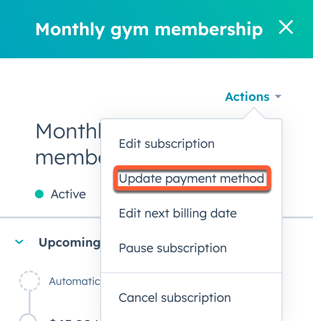
- In the dialog box, review the content and click Send link. The link will be sent to the subscription's associated contact's email address. The customer will receive the link in an email:
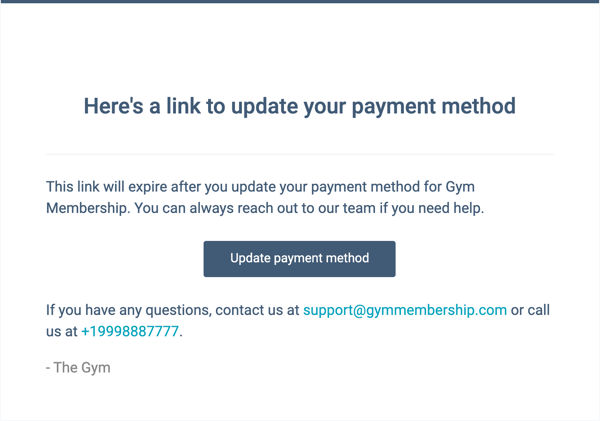
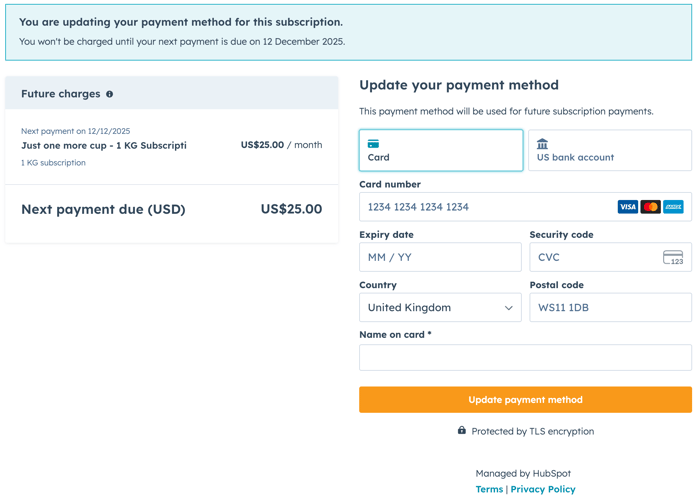
- When the customer clicks Update payment method in the email, they'll be brought to a page to review their subscription and enter a new payment method.
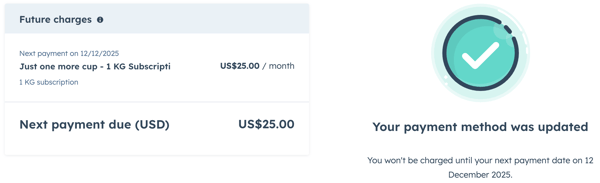
- A confirmation page will confirm the update. The new payment method will be used for all future auto-payments of the subscription.
Update payment method for failed payments
If a customer's payment method fails when completing a payment for a subscription, HubSpot will send them an email with a link to update their payment method.
Please note: if a transaction fails, retries will be automatically attempted based on a set schedule.
The payment method update request uses tool-defined payment methods from the associated checkout (e.g., invoice, payment link, or quote). For example, if the invoice only allows ACH bank debit, the customer can only pay with ACH bank debit.
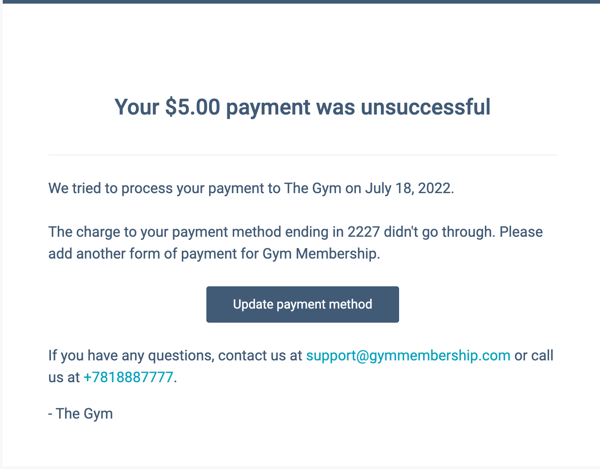
In the email sent to the customer after a payment fails, they can click Update payment method.
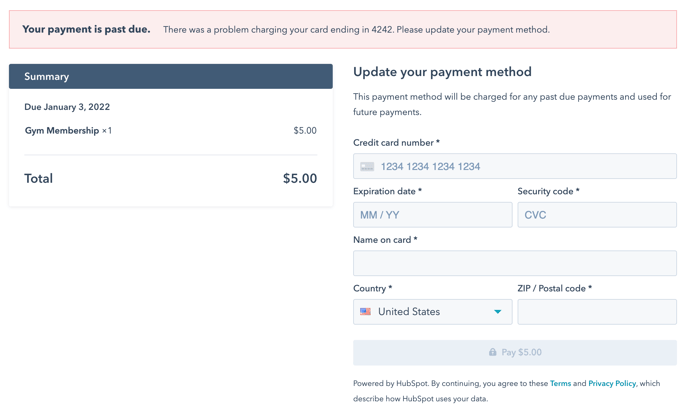
They'll be brought to a page where they can update their payment details. Any unpaid subscription payments will be charged to the updated payment method. If you don't want this email to be sent automatically when a payment fails, you can turn this off in settings.
Edit the next payment due date of a subscription
You can update a subscription's next payment due date from the subscription record, giving you and your customer more flexibility for upcoming payments.
- In your HubSpot account, navigate to Commerce > Subscriptions.
- From the subscription index page, click the name of the subscription.
- In the right panel, click Actions in the upper right, then select Edit next billing date.
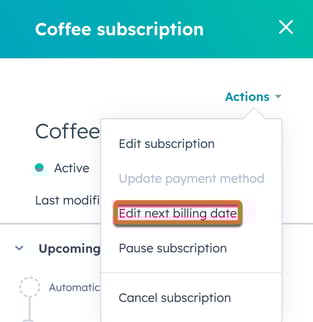
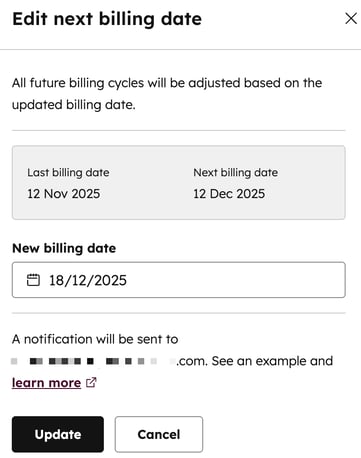
- Click date picker and select the next payment date. By default, the customer won't be charged or refunded for the updated billing date. To collect or refund the customer for the updated billing cycle, edit the subscription and toggle the Prorating switch on.
Please note: only subscriptions with an automated collection process can be prorated. For example, if a subscription is set up to automatically bill a customer, but payment isn't automatically collected as part of the billing subscription, it won't be possible to prorate this subscription.
- Click Update.
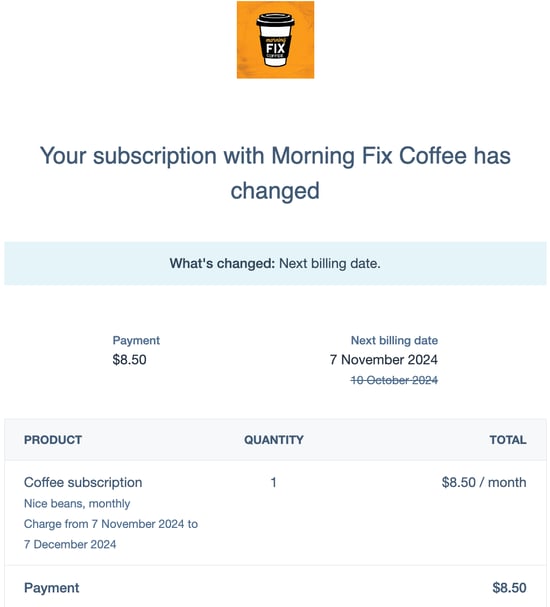
With the next billing due date updated, HubSpot will send the customer an email confirming the new next billing date.
The subscription record will also reflect the new billing cycle in the Next billing date and End date properties, and a Last modified date will be added to indicate the date when the payment date was updated. Learn more about subscription properties.
Remove a checkout fee
If a fee has been added to the checkout, you can remove it from the subscription. Removing a checkout fee will remove it for all future payments, but won't prorate or refund previous fee payments.
- In your HubSpot account, navigate to Commerce > Subscriptions.
- From the subscription index page, click the name of the subscription.
- In the right panel, click Actions in the upper right, then select Remove checkout fee.
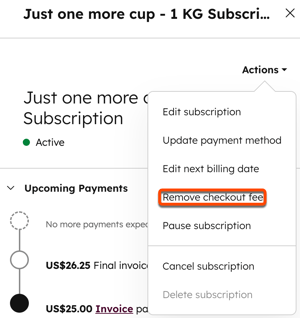
- In the dialog box, click Remove checkout fee.
Pause and resume a subscription
If a customer requests to pause their subscription, you can pause and resume from their subscription record.
Pause a subscription
- In your HubSpot account, navigate to Commerce > Subscriptions.
- From the subscription index page, click the name of the subscription.
- In the right panel, click Actions in the upper right, then select Pause subscription.
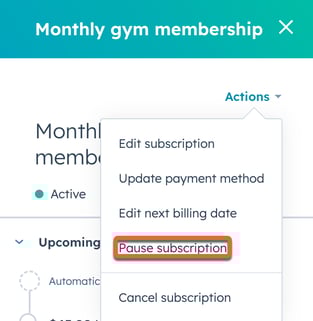
- In the Pause subscription dialog box, enter any internal notes. These notes will be added to the associated deal, contact, and companies timelines. You can also access these notes in other tools such as segments, workflows, and reports through the Last modification reason property. Learn more about subscription properties.
- When you're done, click Update subscription.
- The subscription status will display as Paused, with the date it was paused.
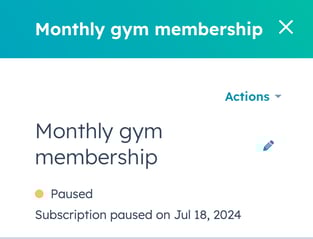
A notification will be sent to the customer, and all billing and payment collection will be paused until the subscription is resumed.
Resume a subscription
- In your HubSpot account, navigate to Commerce > Subscriptions.
- From the subscription index page, click the name of the subscription.
- In the right panel, click Actions in the upper right, then select Resume subscription.
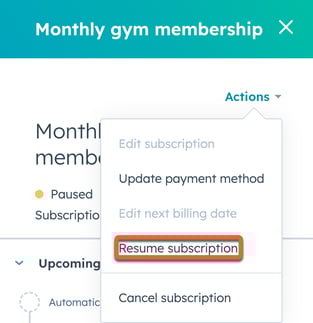
- In the dialog box, click the date picker and select the next billing date.
- Click Resume.
- The subscription status will update to Active with the new invoice date displayed.
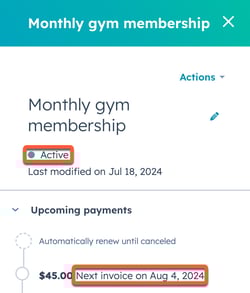
If the subscription is resumed immediately, a receipt or invoice will be sent to the customer. If the subscription is resumed for a future date, a notification will be sent to the customer with their new billing date.
Prorating subscription changes
When updating a subscription's line items, you can turn on prorating to automatically collect or refund the prorated amount. This results in you and your customer seeing their billing changes reflected immediately, rather than having to wait for the next billing cycle.
Please note:
- Upon saving prorated changes to a subscription, an email will be sent to the associated contact with the subscription.
- Scheduled subscriptions cannot be prorated, as the billing period has not yet started. Instead, you can change the scheduled subscription without proration.
- Only subscriptions with an automated collection process can be prorated. For example, if a subscription is set up to automatically bill a customer, but payment isn't automatically collected as part of the billing subscription, it will not be possible to prorate this subscription.
- For monthly subscriptions, the prorated amount is calculated based on a 30-day billing cycle. For annual subscriptions, HubSpot multiplies the 30-day billing cycle total by 12.
When applying prorating to the changes you've made to a subscription's line items:
- If you're upgrading the subscription by adding more line items or increasing prices, HubSpot will automatically charge the payment method on file for the prorated amount.
- If you're downgrading a subscription by removing line items or decreasing prices, HubSpot will automatically refund the previous payment method for the prorated amount.
