
Last updated: April 9, 2026
Available with any of the following subscriptions, except where noted:

After uploading files to the files tool in HubSpot, you can locate specific files by searching and filtering within the file manager. You can also organize your files with folders and export files. Learn more about exporting data from HubSpot.
You can also manage files in HubSpot using the Files API. If you want to restrict access to a specific file or folder, learn how to partition your files and folders. To manage your individual files, learn how to manage your individual file details.
Review, search, and filter your files
In both list and grid view, to find specific files, you can search by the file's name, description, or keywords. You can also filter your files by file type. Learn more about managing your file's description and keywords.
- In your HubSpot account, navigate to Content > Files. If you're using HubSpot's free tools, navigate to Marketing > Email. In the top right, click Email tools and select Files.
-
To toggle between list or grid view, click the list icon or the board icon in the top right.
- In the top search bar, enter the name, description, or keywords for the file you want to locate. Learn more about using AI to automatically analyze and tag your files with descriptions and keywords.
- In the left sidebar menu, navigate to a specific folder or subfolder in the files tool. To expand a folder or subfolder, click the right carat icon next to the folder. Any subfolders will appear in the sidebar menu.
- To sort your files:
- In the list view, to sort your file by name, file size, format, or last update date, click the column header.
- In the grid view, click the dropdown menu in the top right, and select your sorting criteria. You can sort files based on file name, file size, last update date, and file format.
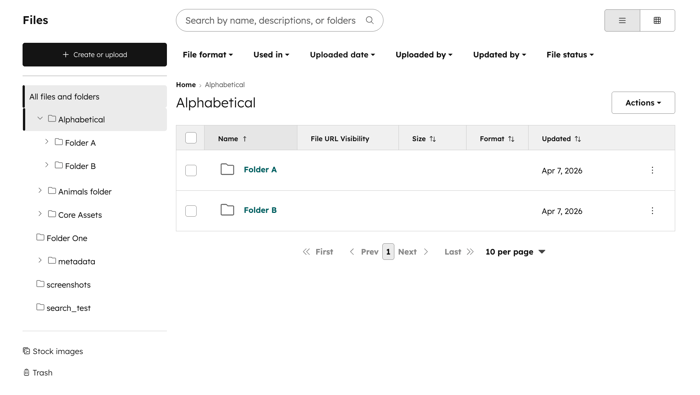
- At the top, you can filter your files by the following:
- File format: filter your files by file extension type. Categories include Images, Documents, Audio, All videos, Videos with advanced features, and Videos without advanced features.
- In addition to extension types such as mp3, mov, pdf, jpg, and more, you can also filter by Videos with advanced features and Videos without advanced features.
- Extension types are grouped by Images, Documents, Audio, and Videos.
- Used in: filter your files by the content the file is used in. For example, you can filter files by those used in website pages, CTAs, case studies, and more.
- Uploaded date: filter your files by the date uploaded, click the Uploaded date dropdown menu and set your Date range.
- Uploaded by: filter your files by the specific user who uploaded the file.
- Updated by: filter your files by the user that last updated the file. This includes edits such as renaming a file, editing alt text or metadata, deleting a file, moving a file, and more.
- File status: filter your files by status. You can filter between from active or archived files.
- File format: filter your files by file extension type. Categories include Images, Documents, Audio, All videos, Videos with advanced features, and Videos without advanced features.
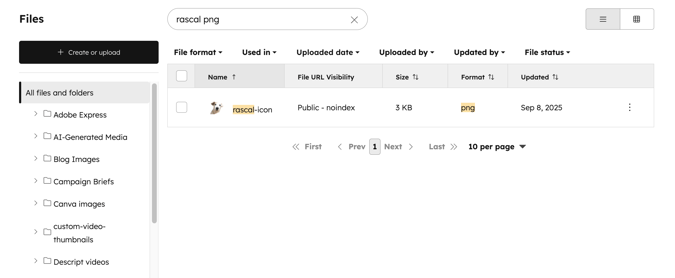
- To search by a file's extension type:
- In the top search bar, enter the file extension (e.g., jpg, pdf, mp3) in the top search bar.
- You can also include the file's name in your search, separated by a space. For example, entering dog png in the search bar would result in all png files that have titles that include the text dog.
Select files in bulk
In the files tool, you may need to select multiple files to take bulk actions such as moving files to a folder, deleting files, changing the files' visibility, or exporting these files. In both list or grid view in the file manager, you can select multiple files by using checkboxes, using marquee select, or holding a key on your keyboard.
- In your HubSpot account, navigate to Content > Files. If you're using HubSpot's free tools, navigate to Marketing > Email. In the top right, click Email tools and select Files.
- To select multiple files manually, hover over the file and select the checkboxes next to the flies that you'd like to select.
- To use a marquee select, you can click and drag a selection box to select multiple files. After selecting these files, the checkbox on the files will be automatically selected.
- Depending on your device, you can also select multiple files by holding the shift key, command key, or ctrl key while selecting the files.
After selecting your files, you can take action on your files. You can also drag the selected files to a specific folder.
Manage files with folders
You can move files between folders to stay organized in the file manager. In both list and grid view, you can move individual files or multiple files in bulk.
Please note: when a file is moved to a new folder in the file manager, it will remain accessible at the old path. You do not need to add a redirect from the old URL to the new URL. If you upload a new file with the same name and path as the file you moved, HubSpot will serve the new file instead.
Create a new folder
To create a new folder in the file manager:
- In your HubSpot account, navigate to Content > Files. If you're using HubSpot's free tools, navigate to Marketing > Email. In the top right, click Email tools and select Files.
- From the files dashboard, in the top right, click Create folder.
- In the dialog box, enter a name for your folder, then click Save.
- After creating your folder, you can browse through your files or use the search bar at the top to search by file name.
- To rename your folder, in the top right, click Actions and select Rename.
- To move your folder to another location, in the top right, click Actions and select Move.
- To delete a folder and the files within, in the top right, click Actions and select Delete.
Move files to folders in list view
To organize your files with folders:
- In your HubSpot account, navigate to Content > Files. If you're using HubSpot's free tools, navigate to Marketing > Email. In the top right, click Email tools and select Files.
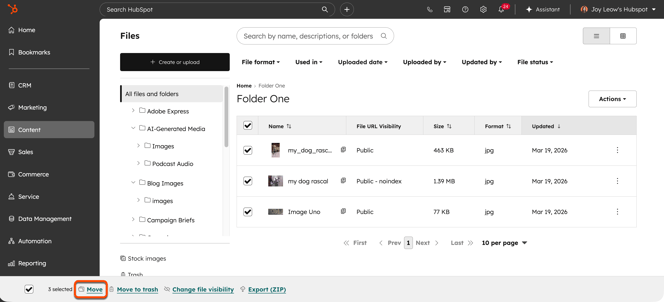
- In the table, select the checkboxes next to the files you'd like to move.
- At the bottom left, click Move.
- After adding your files to a folder, you can restrict access to individual files or the overall folder.
Move files to folders in grid view
To organize your files with folders:
- In your HubSpot account, navigate to Content > Files. If you're using HubSpot's free tools, navigate to Marketing > Email. In the top right, click Email tools and select Files.
-
To switch to a grid view, click the board icon in the top right.
- To move an individual file to a folder:
- Hover over a file and click Actions. Then, select Move. In the dialog box, select the folder you want to move the file to and click Move.
- Alternatively, click and drag the file to the folder that you'd like to move it to.
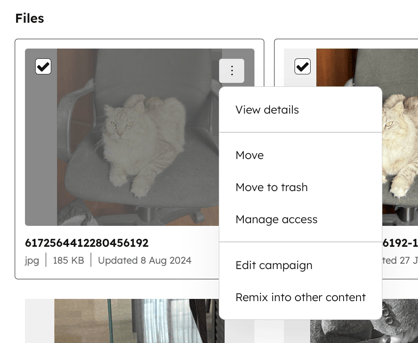
- To move multiple files to a folder:
- Hover over and select the checkboxes next to the files and folders that you'd like to move. At the bottom, click Move. In the dialog box, select the folder you want to move the file to and click Move.
-
- Alternatively, click and drag a selection box to select multiple files. Then, click and drag these files to the folder that you'd like to move it to.
Export your files
Permissions required Super Admin permissions are required to export files.
Export your files in list view
To export your files in a .zip folder:
- In your HubSpot account, navigate to Content > Files. If you're using HubSpot's free tools, navigate to Marketing > Email. In the top right, click Email tools and select Files.
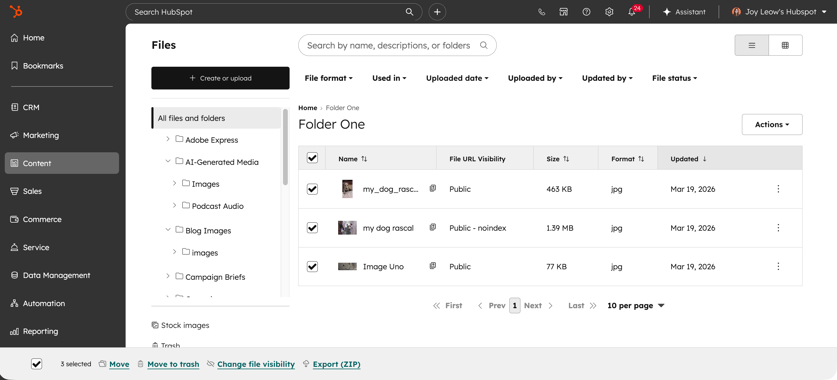
- In the table, select the checkboxes next to the files and folders that you'd like to export. You can navigate between pages when selecting your files.
- At the bottom, click Export (ZIP).
- In the dialog box, click the dropdown menu and select the users that you'd like to receive a download link.
- Click Export. Once the export is processed, you'll receive a download link through email and in the notification center.
Export your files in grid view
To export your files in a .zip folder:
- In your HubSpot account, navigate to Content > Files. If you're using HubSpot's free tools, navigate to Marketing > Email. In the top right, click Email tools and select Files.
-
To switch to a grid view, click the board icon in the top right.
- In the table, hover over and select the checkboxes next to the files and folders that you'd like to export. Alternatively, click and drag a selection box to select multiple files.
- At the bottom, click Export (ZIP).
- In the dialog box, click the dropdown menu and select the users that you'd like to receive a download link.
- Click Export. Once the export is processed, you'll receive a download link through email and in the notification center.
