
Last updated: January 15, 2026
Available with any of the following subscriptions, except where noted:
-
 Service Hub
Professional, Enterprise
Service Hub
Professional, Enterprise
Import articles from an external knowledge base hosted on Freshdesk, Help Scout, Zendesk, or Intercom into HubSpot. You can also import your knowledge base from a CSV file.
Before you get started
Before importing knowledge base articles, make sure to fully understand what steps should be taken ahead of time, as well as the limitations of the feature and consequences of using it.
Seats required An assigned Service Hub seat is required to import knowledge base articles.
Permissions required The following permissions are required:
- Knowledge base settings permission is required to import knowledge base articles.
- Service Access with Edit and Publish permission is required to edit and publish knowledge base articles.
Understand limitations & considerations
-
Importing tables into a knowledge base isn't supported.
-
Each import has a limit of 400 articles.
- Importing a knowledge base from a homepage URL using Smart copy is only available for newly created and migrated knowledge bases.
- Importing a knowledge base from a CSV file requires the following fields:
- URL
- Title
- Category
- Article Body
Import a knowledge base from a homepage URL
- In your HubSpot account, click the settings icon in the top navigation bar.
- In the left sidebar menu, navigate to Content > Knowledge Base.
- In the Current view section, click the first dropdown menu and select Import knowledge base. In accounts with the Brands add-on, this will be the second dropdown menu.
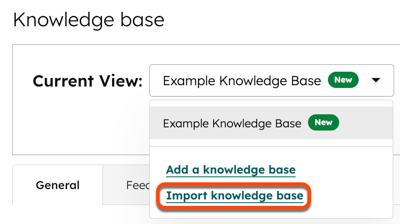
- On the Import your knowledge base page, click Previous on the bottom left.
- Select the Smart copy option, then click Next.
- Enter the URL for the external knowledge base homepage.
- Select an option for importing your articles:
- Import and publish: the imported articles will be published live for visitors to see.
- Import as a draft: the articles will be imported as drafts in the knowledge base. Visitors won't see the articles until they are published.
- Click Import to start the import process.
Check the status of the import
- In your HubSpot account, navigate to Service > Knowledge Base.
- Click the Articles tab.
- At the top of the page, view the import progress.

Import a knowledge base from a CSV file
Import your knowledge base from a CSV file. Review a sample CSV file to format your knowledge base content for your import.
Upload the CSV file
- In your HubSpot account, click the settings icon in the top navigation bar.
- In the left sidebar menu, navigate to Content > Knowledge Base.
- In the Current view section, click the first dropdown menu and select Import knowledge base. In accounts with the Brands add-on, this will be the second dropdown menu.
- Click the Which knowledge base platform are you currently using dropdown menu and select the platform where you're currently hosting your knowledge base.
- Click the HubSpot knowledge base dropdown menu and select a knowledge base.
- In the CSV file upload section, click Select a file, then upload your CSV file.
- In the bottom right, click Copy articles.
Map the columns from the CSV file
Map the columns of your CSV file to the corresponding properties in your new HubSpot knowledge base. To see an example of how to format your CSV file and the article content you're importing, review the sample CSV import file.
To map the article content from your CSV file:
- Click the Select a column dropdown menu to select the column in the file that the HubSpot KB property should map to.
- Once you're done, click Next in the lower right. The import process may take a few minutes to complete.
- Click return to the dashboard to see the status of your import.
The following are HubSpot knowledge base properties (HubSpot KB property column):
- URL (required): the URL of each article in this column.
- Title (required): the title for each article in this column
- Category (required): the category for each article in this column. To set the value in HubSpot to Uncategorized, you can leave this field blank in your file.
- Subcategory: the subcategory for each article in this column.
- Keywords: the search keywords for each article, separated by commas, in this column.
- Meta description (required): the meta description for each article in this column.
- Article Body (required): the source code of the article content, including image URLs, in this column. For an example of how to format the article body, see the sample CSV import file.
- Subtitle: the subtitle for each article in this column.
Please note: if any keywords have a space after the comma separating them from the next keyword, you will receive an error that those tags couldn't be imported.
Finish the import
After mappings are completed, you can review and complete the knowledge base article import.
- Navigate back to the import tool:
- In your HubSpot account, click the settings icon in the top navigation bar.
- In the left sidebar menu, navigate to Content > Knowledge base.
- Click the Current view dropdown menu and select Import knowledge base.
- Click Review results.
- To preview a specific article, click Preview. In the right panel, view the article and see a listing of all values the tool identified for that article.
- If any default values were applied to your article's features, you'll see a note that reads: Default values used to complete mappings.
- To review the default values, click Change default values.
- In the right panel, review the default values for any article features that couldn't be mapped for every article.
- Enter the values in the text field to the desired values.
- Click Save to apply these values to all articles.
- By default, none of the articles are selected for the import. Select the checkbox on the left of any articles you want to include in your import.
- When finished, click Import.
- In the dialog box, select an option:
- Import all content as "Draft": the imported articles will be imported as drafts in your knowledge base and can only be seen by visitors once they are manually published.
- Import all content as "Published": the imported articles will immediately be published live for visitors to see.
- To overwrite any existing content, select the Overwrite any existing content with imported content checkbox.
- When finished, click Save.
