
Last updated: May 13, 2026
Available with any of the following subscriptions, except where noted:
-
 Marketing Hub
Professional, Enterprise
Marketing Hub
Professional, Enterprise
-
 Sales Hub
Professional, Enterprise
Sales Hub
Professional, Enterprise
-
 Service Hub
Professional, Enterprise
Service Hub
Professional, Enterprise
-
 Data Hub
Professional, Enterprise
Data Hub
Professional, Enterprise
-
 Content Hub
Professional, Enterprise
Content Hub
Professional, Enterprise
-
 Smart CRM
Professional, Enterprise
Smart CRM
Professional, Enterprise
With the Salesforce integration, you can create and use inclusion segments to control which records sync between HubSpot and Salesforce.
Inclusion segments define which records are eligible to sync from HubSpot to Salesforce based on specific criteria. Records that aren't in your segment won't sync between HubSpot and Salesforce.
For example, you can create an inclusion segment to sync only companies in a specific lifecycle stage, or only tickets with a defined status.
Before you get started
Before you begin working with inclusion segments, make sure you understand how they affect your Salesforce sync behavior.
- You can use inclusion segments when syncing contacts, companies (after upgrading to the new company sync), tickets, and custom objects.
- Only active segments can be set as your Salesforce inclusion segment, as they will update dynamically as records meet or don't meet your segment criteria.
- Selecting a segment as your inclusion segment will not automatically sync the segment with Salesforce. Members of the segment will only sync with Salesforce when a sync is triggered. Learn how to manually resync a segment with Salesforce.
- If new or existing Salesforce leads or contacts are set to automatically create HubSpot contacts in your integration settings, a new contact will be created or an existing contact will be synced in HubSpot when a Salesforce lead or contact is created, even if the HubSpot contact is not in your inclusion segment. Further updates to the contact or lead from either HubSpot or Salesforce will not sync to the other platform until they meet the segment criteria.
- In rare cases, when a property update changes a record's inclusion segment membership, a record update may sync before the inclusion segment is re-evaluated. As a result, the record may sync instead of being skipped. This can only occur when the property update would remove a record from the inclusion segment, because the sync may process faster than the inclusion segment evaluation.
Set up an inclusion segment
- In your HubSpot account, click the
settings icon in the top navigation bar. In the left sidebar menu, navigate to Integrations > Connected Apps. - Click Salesforce.
- Navigate to the Data sync tab.
- Click [Object] (e.g., contacts, companies, etc.) > Sync rules.
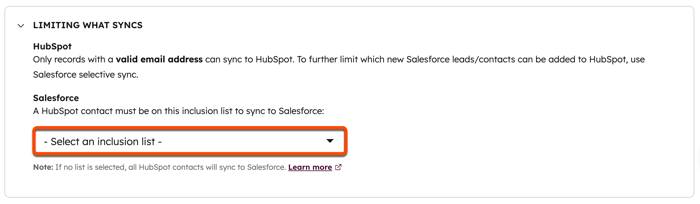
- In the Limiting what syncs section, click the dropdown menu and select an existing active segment. To create a new active segment, click + Create Inclusion List.
-
- If you select an existing active segment, the setting will update automatically.
- If you click + Create Inclusion List, you'll be redirected to create a new segment in the segments tool.
- In the top left, click the pencil icon and enter a name for the segment, then select your criteria. Learn more about determining your segment criteria.
- In the upper right, click Review and save. Your segment may take some time to process.
- Return to your Salesforce integration settings. In the Inclusion List setting, click the dropdown menu and select the newly-created active segment. The setting will update automatically.
Understand Salesforce imports and inclusion segments
Importing Salesforce records into HubSpot allows you to bring existing data from your Salesforce instance directly into your HubSpot account.
If you're importing leads or contacts from Salesforce, only the lead's or contact's email address will be synced over from Salesforce at the time of the import. In HubSpot accounts with no inclusion segment, or for contacts in an inclusion segment, a sync is automatically triggered after the import, which will sync over the remaining Salesforce field values. For contacts not in the inclusion segment, all other contact properties will remain blank after the initial import.
How inclusion segments behave on the first sync and with duplicates
When using inclusion segments in HubSpot, it's important to understand their role during the initial sync and in managing duplicates.
Understand first sync behavior
When a record first syncs between HubSpot and Salesforce, mapped fields may update the Salesforce record even if the record is not yet part of the inclusion segment in HubSpot. This occurs when HubSpot knows the Salesforce record ID, but a corresponding HubSpot record doesn't exist yet. Since inclusion segments rely on HubSpot data, HubSpot can't evaluate inclusion criteria until the HubSpot record is created and synced. As a result, during the first sync, mapped fields may sync data back to Salesforce.
Understand duplicate records
If a HubSpot record gets mapped to a different Salesforce record, the integration treats this as a new sync pairing. Each time a new HubSpot-Salesforce pairing is created, the integration considers it an initial sync, so field mappings may sync data back to Salesforce.
