Last updated: August 3, 2026
Available with any of the following subscriptions, except where noted:
-
 Marketing Hub
Enterprise
Marketing Hub
Enterprise
-
 Sales Hub
Enterprise
Sales Hub
Enterprise
-
 Service Hub
Enterprise
Service Hub
Enterprise
-
 Data Hub
Enterprise
Data Hub
Enterprise
-
 Smart CRM
Enterprise
Smart CRM
Enterprise
-
 Revenue Hub
Enterprise
Revenue Hub
Enterprise
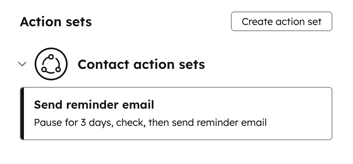
Use actions sets to save and re-use a group of workflow actions. For example, you may want to a set of Set marketing contact status and Email send actions across different workflows.
Before you get started
Permissions required Super Admin or Workflows permissions are required to create and use action sets.
- Action sets are only available in workflows of the same type. For example, only actions sets created in a contact-based workflow will be available to use in other contact-based workflows.
- Data variables can be used in an action set. However, if you've added a new source and used data from an associated object, that data cannot be used in the action set.
Create an action set
- In your HubSpot account, click More, then navigate to Automation > Workflows. If More doesn't appear in your account, navigate to Automation > Workflows directly.
- Click the name of an existing workflow or create a new workflow.
- Set your enrollment triggers.
- Click the + plus icon to add an action.
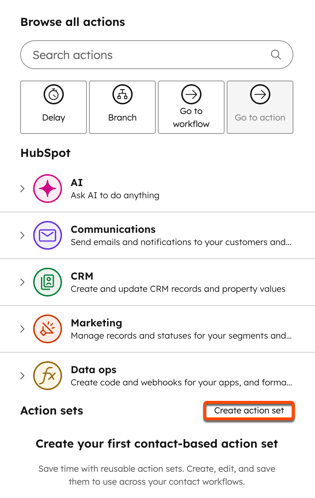
- In the left panel, under Action sets, click Create action set.
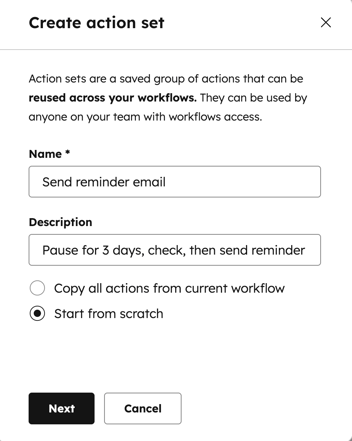
- In the pop-up box, enter your action set name. Add an optional description.
- Select Copy all actions from current workflow or Start from scratch.
- At the bottom, click Next.
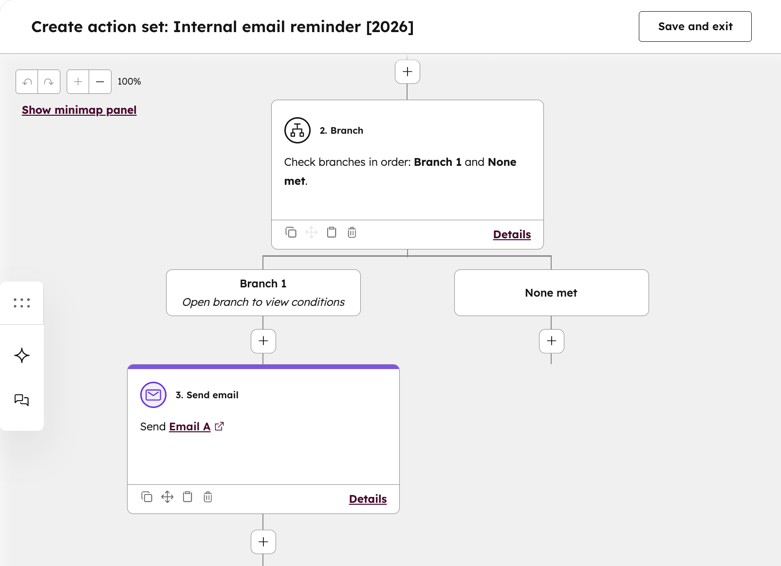
- If you've selected Start from scratch:
- In the left panel, search for and configure your workflow actions.
- After adding your actions, in the top right, click Save and exit. The action set will be automatically saved.
- In the left panel, click Add to add the action set to your workflow. Or, click Cancel to exit.
- If you selected Copy all actions from current workflow:
- In the editor, review a preview of the actions in your workflow.
- To add additional actions, click the + plus icon. Then, set up your action.
-
- After reviewing or adding your actions, in the top right, click Save and exit. The action set will be automatically saved.
- In the left panel, click Add to add the action set to your workflow. Or, click Cancel to exit.
Add an action set to a workflow
- In your HubSpot account, click More, then navigate to Automation > Workflows. If More doesn't appear in your account, navigate to Automation > Workflows directly.
- Click the name of an existing workflow or create a new workflow.
- Set your enrollment triggers.
- Click the + plus icon to add an action.
- In the left panel, under Action sets, click [object] action sets.
- Click the name of the action set.
- At the top, click Add. The action set will appear in your workflow editor.