
Last updated: July 6, 2026
Available with any of the following subscriptions, except where noted:

-
 Additional subscriptions required for certain features
After connecting Zoom to HubSpot, sync webinar registration and attendance data from Zoom to HubSpot. This helps you track how contacts engage with your webinars and use that information across your marketing and sales processes.
For example, you can segment contacts based on webinar registrations, attendance, or engagement, then use those audiences for follow-up campaigns and reporting. Webinar activity also syncs to marketing events and contact records, giving teams a centralized view of webinar engagement in HubSpot.
You can also automate webinar registration by adding contacts to Zoom webinars using workflows.
If you're experiencing sync errors for Zoom webinars, learn how to troubleshoot common sync errors.
Before you get started
Before getting started, please note the following:
- Your Zoom account must have the Zoom webinar add-on.
- The Zoom integration does not support Zoom Events or webinars created as part of a Zoom Event.
- Zoom removes email addresses for users identified as guests in Zoom unless they meet Zoom's requirements. As a result, webinar registrants or participants without an email address won't sync to HubSpot. To ensure all attendees sync to HubSpot, turn on webinar registration in Zoom.
- The Zoom integration only accepts and syncs with three required fields in the Zoom registration link: First name, Last name, and Email. If the registration link has any other required fields, the registration will fail.
- Users in the account won't be created as contact records in HubSpot if they register for or attend a Zoom webinar. If a contact record has already been created for them in HubSpot, Zoom activities won't sync to their contact record.
- Timeline events won't be created for contacts who registered for a webinar using their secondary email address. Only the primary email address is used to create and update contact records.
- Contact records that were previously deleted won't be automatically recreated by the Zoom integration.
Sync Zoom webinars to HubSpot
Once you've connected the Zoom integration, set up your HubSpot account's webinar sync settings and choose how new contacts are created in HubSpot.
- In your HubSpot account, click the
settings icon in the top navigation bar. In the left sidebar menu, navigate to Integrations > Connected Apps. - Click Zoom.
- Navigate to the Settings tab.
- Click Webinars, then click the Global settings tab.
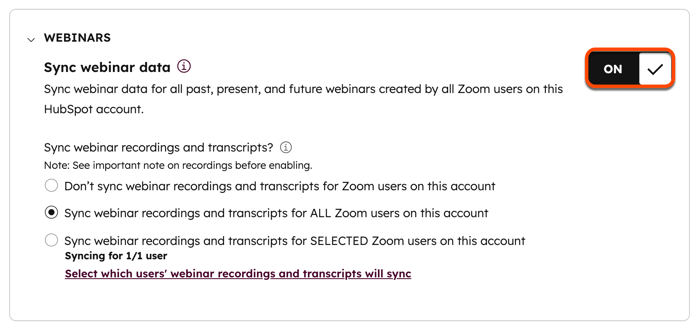
- In the Webinars section, click the Sync webinar data toggle on to sync webinar data from Zoom to HubSpot. This will sync Zoom webinar registrants and attendees, and will also sync data to marketing events.
- In the Sync webinar recordings and transcripts section, select whether you want to sync webinar recordings and transcripts for none of, selected, or all Zoom users in your HubSpot account.
- In the Exclusions section, add domains to prevent webinars from being synced to HubSpot by users with a specific domain in their email address.
-
- In the Recording exclusions section, click Enter domain or choose from list.
- In the Contact exclusions section, enter your company's domain name to prevent internal employees from being created as new contacts in HubSpot.

Add contacts to a Zoom webinar using a workflow
Subscription required A Professional or Enterprise subscription is required to use workflows.
- To add contacts to a Zoom webinar using a workflow, the Zoom user that owns the webinar must be connected in HubSpot's Zoom integration.
- You'll receive the error Webinar host cannot register for the webinar if you try to enroll the webinar host or connected user into a Zoom webinar using a workflow.
Use the Add Contact to Zoom Webinar workflow action to automate webinar registration. If you have separate Zoom accounts connected to multiple brands, this action can only register contacts for webinars that are associated with the Zoom account connected to the primary Account brand in HubSpot. Using the action to add contacts to a Zoom webinar that isn't associated with the primary Account brand will result in the contact not being registered for the webinar.
To set up a workflow to automate Zoom webinar registration:
- In your HubSpot account, click More, then navigate to Automation > Workflows. If More doesn't appear in your account, navigate to Automation > Workflows directly.
- Create a new workflow, or hover over an existing workflow and click Edit.
- In the workflows editor, after setting up your enrollment criteria, click the + icon to add an action.
- In the right panel, under Zoom, select the Add Contact to Zoom webinar action.
- Enter the Webinar ID without spaces or dashes. If you've set up a contact property that contains the Webinar ID, you can search for and select the corresponding property in the All data tokens panel.
- Click Save.

The contact will be registered for the webinar using their first name, last name, and email contact properties. Learn more about the Add Contact to a Zoom webinar action.
Segment Zoom webinar contacts
Segment using Zoom properties
Please note: starting Jan. 8, 2025, Zoom contact-based properties cannot be used to segment contacts anymore. You can still use these properties for contacts with Zoom activity from before this date. To segment contacts after Jan.8, 2025, use marketing event filters.
You can filter contact records using the following properties, which are automatically created in your HubSpot account after connecting the Zoom integration:- Average Zoom webinar attendance duration: the average percentage of each webinar that the contact attends. A 100% value for this property, for example, would mean that the contact attended the full duration of each webinar.
- Last registered Zoom webinar: the URL of the webinar the contact most recently registered for. This is populated if the contact was added as a registrant to the Zoom webinar manually or through a HubSpot workflow.
- Total number of Zoom webinar registrations: the total number of webinars the contact has registered for.
- Total number of Zoom webinars attended: the total number of webinars the contact attended.
Please note: the Total number of Zoom Webinars attended property will not be updated for contacts who attend the same recurring webinar.
Segment using marketing event filters
You can also segment your contacts using marketing event filters:
- Attendance duration: how long the contact attended the webinar for.
- Registered for marketing event: if they registered, or didn't register for a webinar.
- Canceled marketing event registration: if they canceled their webinar registration.
- Attended marketing event: if they attended, or didn't attend a webinar.
You can also segment your contacts based on the attributes of a specific Zoom event using the following filters:
- Zoom: Recording Available Event: if you recorded one of your Zoom events, you can choose this filter, then refine by the Event Topic, Event Start Time, or Recording URL.
- Zoom: Webinar Attendance Event: to filter based on attendance, choose this filter to segment your contacts based on the Attendance Duration, Attendance Duration Percent, Webinar id, or Webinar name.
- Zoom: Webinar Registration Event: to filter based on registration, choose this filter to segment your contacts based on the Webinar id, or Webinar Name.
View Zoom webinar registrations
When a contact registers, attends or cancels a registration for a Zoom event, the contact will automatically be created or updated in HubSpot’s marketing events object.
Zoom webinar events also appear on HubSpot contact record timelines, showing you the webinar date, when a contact joined and left the webinar.
