
Last updated: August 18, 2026
Available with any of the following subscriptions, except where noted:
-
 Service Hub
Professional, Enterprise
Service Hub
Professional, Enterprise
Set up your knowledge base agent (BETA), to generate article drafts and improve existing knowledge base content. The knowledge base agent uses your closed support tickets to identify gaps and generate article drafts, then analyzes your existing articles to surface suggested edits where content may be unclear, outdated, or incomplete.
Please note: you can manage AI feature access in your AI settings and configure what data is shared. Review HubSpot's AI Trust FAQs and AI Model Cards for detailed information on AI security controls, data use, and compliance.
Please note: on September 16, 2026, the knowledge base agent will consume HubSpot Credits.
Before you get started
Before you begin working with the knowledge base agent, review the requirements and considerations.
Understand requirements
- A Super Admin must toggle the Customer conversation data switch on.
- You must have at least five closed ticket records created in your account.
- A knowledge base must be created.
Permissions required Service Access with Knowledge base articles permission is required to set up a knowledge base agent.
Understand limitations & considerations
- The knowledge base agent is available for one knowledge base.
- The knowledge base agent scans all conversation data, including chats, associated to closed tickets.
- The knowledge base agent will generate drafted articles in the primary language for the knowledge base.
Set up a knowledge base agent
Set up a knowledge base agent to scan for gaps in your knowledge base and analyze ticket data to create article drafts and suggest edits.
- In your HubSpot account, click More, then navigate to Service > Knowledge Base. If More doesn't appear in your account, navigate to Service > Knowledge Base directly.
- On the knowledge base index page, click the Suggestions tab.
- On the Suggestions tab, click Create Knowledge base agent.
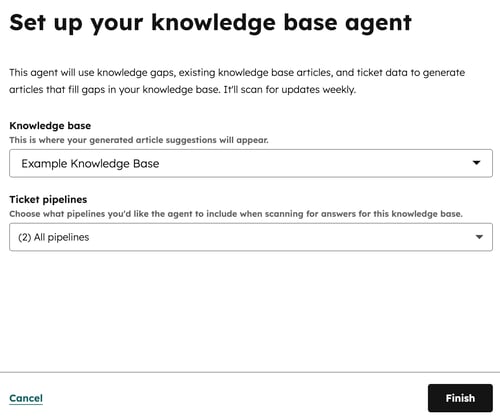
- Click the Knowledge Base dropdown and select the knowledge base.
- To filter your tickets, click the Pipelines dropdown menu and select the pipelines. The knowledge base agent will pull information from closed tickets in the selected pipelines.
- When finished, click Finish in the bottom right.
Review generated articles
After the knowledge base agent drafts your articles, review the drafted articles, including checking sources and editing the articles.
- In your HubSpot account, click More, then navigate to Service > Knowledge Base. If More doesn't appear in your account, navigate to Service > Knowledge Base directly.
- On the knowledge base index page, click the Suggestions tab.
- In the left panel, click the Filter dropdown menu and select Create. To sort the suggestions, click the Sort dropdown menu and select an option (e.g., Sources (most)).
- Click a suggestion (e.g., Create article: [article title]).
- In the right panel, review the generated article.
- To see what tickets and knowledge gaps contributed to the drafted article, click the Source conversations section.
- To edit the article before publishing, click Save as draft. Learn more about editing knowledge base articles.
- To dismiss a drafted article, click Dismiss.
Please note: editing the drafted article will move the article from the Suggestions tab to the Manage tab.
Review suggested edits
The knowledge base agent analyzes your existing articles and surfaces edit suggestions where content may be unclear, outdated, or incomplete. Review, accept, or dismiss each suggestion from the Suggestions tab.
- In your HubSpot account, click More, then navigate to Service > Knowledge Base. If More doesn't appear in your account, navigate to Service > Knowledge Base directly.
- On the knowledge base index page, click the Suggestions tab.
- In the left panel, click the Filter dropdown menu and select Update. To sort the suggestions, click the Sort dropdown menu and select an option (e.g., Sources (most)).
- Click a suggestion (e.g., Update article [article title]).
- In the right panel, review the suggested edit.
- To accept all suggested edits, click Accept all and publish in the bottom right.
- To accept all suggested edits as a draft, click Accept all and save as draft in the bottom right.
- To accept or dismiss some of the suggested edits, click Accept or Dismiss below each suggested edit. Then click Accept [#] and save as draft or Accept [#] and publish.
Manage knowledge base agent settings
After your knowledge base agent has been created, you can edit its filters.
- In your HubSpot account, click More, then navigate to Service > Knowledge Base. If More doesn't appear in your account, navigate to Service > Knowledge Base directly.
- On the knowledge base index page, click the Suggestions tab.
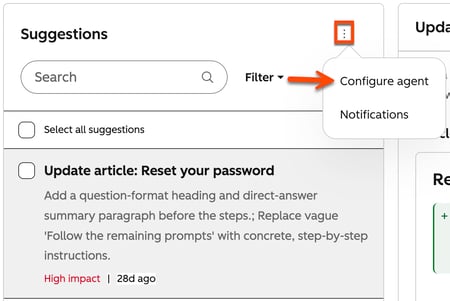
- In the left panel, click the three vertical dots icon and select Configure agent.
- To change the knowledge base, click the Knowledge Base dropdown menu, then select the knowledge base.
- To change the pipeline filters, click the Pipelines dropdown menu, then select the pipelines.
- When finished, click Finish in the bottom right.
