
Last updated: March 11, 2026
Available with any of the following subscriptions, except where noted:
-
 Service Hub
Professional, Enterprise
Service Hub
Professional, Enterprise
-
 Seats required
Create and customize knowledge base articles to answer common questions about your business. Knowledge base articles help visitors find organized, self-service information without contacting your team.
Before you get started
Before creating and customizing knowledge base articles, review the requirements and considerations.
Seats required An assigned Service Hub seat is required to create and customize knowledge base articles.
Permissions required Service Access with Knowledge base articles permission is required to create and customize knowledge base articles.
Understand limits & considerations
- These tools are only available for migrated knowledge bases. Learn more about migrating your knowledge base.
- For knowledge bases that haven't been migrated, learn more about creating and customizing a legacy knowledge base.
- Accounts with Service Hub Professional subscriptions can create one knowledge base, with up to 2,000 articles.
- Accounts with Service Hub Enterprise subscriptions can create up to 25 knowledge bases, with up to 10,000 total articles.
- Visitors who haven't signed in cannot view a category if all articles within the category have their visibility set to Single sign-on (SSO) required or Access group membership required.
Create a knowledge base article
- In your HubSpot account, navigate to Service > Knowledge Base.
- In the top right, click Create article.
- In the content editor, enter a title and subtitle. Then, write the body of the article.
- Apply formatting and add assets like videos, links, and images using the rich text toolbar in the body of the article. Learn more about editing content with the rich text toolbar.
Please note: some styling options, such as colors and fonts, must be edited in the knowledge base theme.
Customize a knowledge base article's settings
Customize the article’s URL slug, language, categories, tags, meta description, visibility, and head HTML.
- In your HubSpot account, navigate to Service > Knowledge Base.
- Click the name of an article.
- In the content editor, click Settings in the top right.
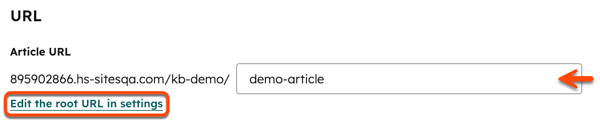
- To customize the URL, enter a new URL slug in the Article URL field. To edit the root URL for all knowledge base articles, click Edit the root URL in settings. You'll be redirected to the knowledge base settings page.
- To set the language of the article, click the Article language dropdown menu and select a language. Learn more about managing knowledge base articles in multiple languages.
- To assign a category to the article, click the Category dropdown menu and select a category. Learn more about using categories in a knowledge base.
- To assign a subcategory to the article, click the Subcategory dropdown menu and select a subcategory. Learn more about using subcategories in a knowledge base.
- To add a tag to the article, click the Tags dropdown menu and select a tag, or type a new tag, then click + Add "[name of your new tag]" tag. Adding tags to an article will widen the search results it appears in.
- In the Meta description field, enter a description. This description will appear in search results below the article title.
- To change the visibility of the article, select an option in the Control audience access section:
- Public: select this option to make the article's content available to any visitor.
- Access group membership required: select this option to require visitors to register to view the article. Learn more about setting up registration for private content.
- Single sign-on (SSO) required: select this option to require visitors to log in with your SSO provider. This option is only available if SSO has been set up for the domain where your knowledge base is hosted. Learn more about setting up SSO for your content.
- To add a code snippet to the head HTML of the article, enter the code snippet in the Head HTML field.
- When finished, click X to close the settings in the top right.
Preview a knowledge base article
- In your HubSpot account, navigate to Service > Knowledge Base.
- Click the name of an article.
- In the editor, click Preview in the top right.
- To preview the article across different device types, click the mobile icon or the tablet icon. By default, the desktop icon will be selected.
- To open the preview in a new tab, click Open in a new tab in the top right.
- To share the preview, click Copy link in the top right. The preview will only be visible to other HubSpot users in the account.
- When finished, click Back in the top left.
Publish a knowledge base article
Publish a knowledge base article to take the article live. You can also schedule a knowledge base article to publish or unpublish at a later date and time.
Publish an article
- In your HubSpot account, navigate to Service > Knowledge Base.
- Click the name of an article.
- In the editor, click Publish or Update in the top right.
Schedule to publish or unpublish an article
- In your HubSpot account, navigate to Service > Knowledge Base.
- Click the name of an article
- In the editor, click the dropdown menu next to Publish and select Scheduling options in the top right.
- In the dialog box, click Schedule publish or Schedule update on the Schedule publish tab. If you're unpublishing the article, click Schedule unpublish on the Schedule unpublish tab.
- Click the date field and select the date when the article will be published or unpublished.
- Click the time field and select the time when the article will be published or unpublished.
- When you're finished, click Schedule.
