Last updated: May 21, 2026
Available with any of the following subscriptions, except where noted:
-
 Marketing Hub
Professional, Enterprise
Marketing Hub
Professional, Enterprise
-
 Sales Hub
Professional, Enterprise
Sales Hub
Professional, Enterprise
-
 Service Hub
Professional, Enterprise
Service Hub
Professional, Enterprise
-
 Data Hub
Professional, Enterprise
Data Hub
Professional, Enterprise
-
 Content Hub
Professional, Enterprise
Content Hub
Professional, Enterprise
-
 Commerce Hub
Professional, Enterprise
Commerce Hub
Professional, Enterprise
Stage calculated properties for contacts, companies, deals, tickets, services, projects, leads, and custom objects show the amount of time these records spend in each stage of a pipeline. Use these properties in HubSpot tools such as reports or workflows to track the progress of your records through the pipeline and assess performance.
Before you get started
Subscription required
- A Service Hub Professional or Enterprise subscription is required to use service and lead stage calculated properties.
- An Enterprise subscription is required to use custom object stage calculated properties.
Understand stage calculated properties
The following default properties provide information about how your contacts, companies, deals, tickets, services, projects, leads, and custom objects are moving through pipeline stages. The properties automatically update based on a record's current and historical stage values (e.g, if a deal or ticket is closed then reopened, the values will continue to update). Each stage in your pipelines has its own set of these properties. The values for the properties will be populated retroactively based on existing data.
- Date entered [stage ID]: the date and time the record entered the stage.
- Date exited [stage ID]: the date and time the record exited the stage.
- Latest time in [stage ID]: the total time spent by the record in the stage since it last entered the stage. This is calculated based on the Date entered and Date exited properties. This includes records that were closed then reopened. When a record is currently in a stage, it will have no value for this property, unless it had previously been in that stage. In that case, its value will refer to the previous time in the stage and will not update until the record leaves the stage.
- Cumulative time in [stage ID]: the cumulative time spent by the record in the stage. This includes records that were closed then reopened. This is helpful if a record re-enters a stage multiple times and you want to track its total time in the stage. When a record is currently in a stage, it will have no value for this property, unless it had previously been in that stage. In that case, its value will include the previous time in the stage and will not update until the record leaves the stage.
- Date entered current stage: the date the record entered its current pipeline stage.
- Time in current stage: the time the record has spent in the current pipeline stage.
Use stage calculated properties in HubSpot tools
You can use contact, company, deal, ticket, service, project, or lead stage calculated properties to segment and automate actions in views, segments, workflows, and reports.
Please note: records won't be enrolled in workflows based on the Cumulative time and Latest time in [stage] properties if the record is currently in that stage (e.g., Latest time in Contract Sent if that deal is currently in the Contract Sent stage). To enroll these records, your trigger criteria should use the Date entered current stage or Time in current stage properties.
For example, you can:
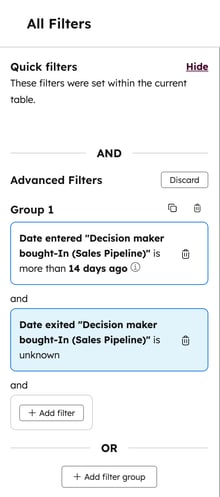
- Create a saved view to identify deals that have spent more than two weeks in a given stage.
- Create a filter using the Advanced filters in the sales workspace to identify leads that have spent more than two weeks in a given stage.
- Create a report that shows the total amount of time spent in all stages using the Cumulative time in [stage] properties.
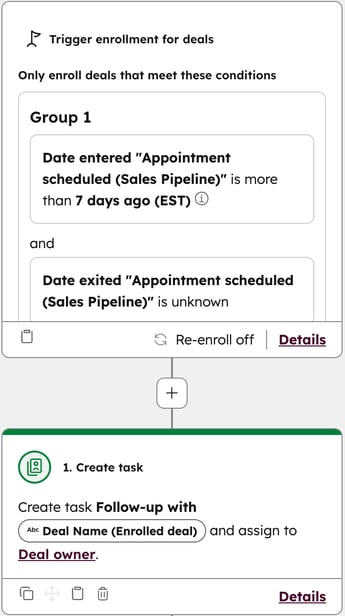
- Create a workflow that triggers a task for a deal owner to follow up when the deal's Date entered Contract Sent is more than 7 days ago. You can use similar triggers in a lead-based workflow.
Manage stage calculated properties (BETA)
Permissions required Edit property settings or Super Admin permissions are required to toggle stage calculated properties on or off.
If you're a user enrolled in the Manage Stage Calculated Properties by Pipeline public beta, you can toggle on or off stage calculated properties per pipeline stage and view stage calculated property usage. By default, new pipelines and pipeline stages created after enrolling in the beta will have stage calculated properties turned off. As an operations manager, turn off stage calculated properties for existing pipeline stages to hide unutilized properties and clean up your HubSpot account.
To manage stage calculated properties for a pipeline:
- In your HubSpot account, click the
settings icon in the top navigation bar. - In the left sidebar menu, in the Data Management section, click Objects.
- On the Objects page, click the Select an object dropdown menu and select the object for which you want to manage stage calculated properties.
- Click the name of the pipeline you want to modify.
- To turn off stage calculated properties for stages:
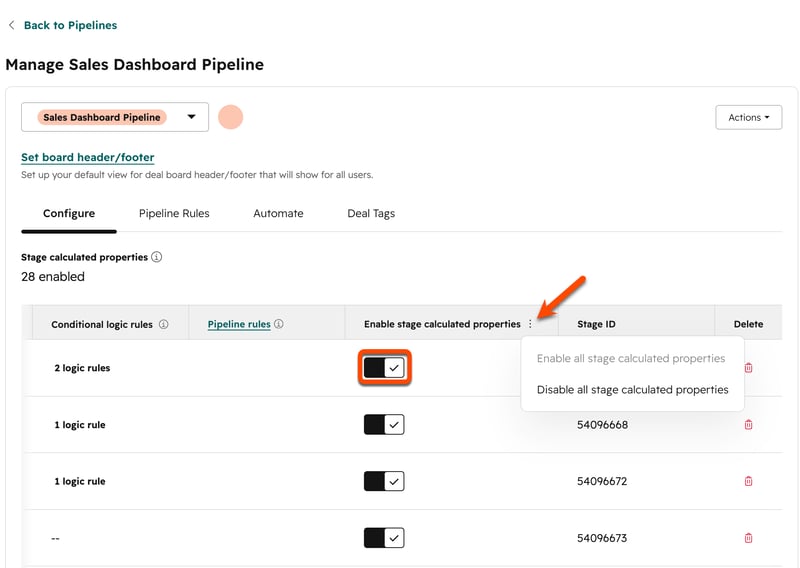
- In the table, navigate to the stage calculated properties column, then select from the following:
- Toggle off for an individual stage: toggle the calculated properties switch off.
- Toggle off for all stages in the pipeline: click the three horizontal dots, then select Disable all stage calculated properties.
- Click Save.
- In the dialog box, confirm that you want to toggle the properties off.
- In the table, navigate to the stage calculated properties column, then select from the following:
- To turn on stage calculated properties for stages:
- In the table, navigate to the stage calculated properties column, then select from the following:
- Toggle on for an individual stage: toggle the calculated properties switch on.
- Toggle on for all stages in the pipeline: click the three horizontal dots, then select Enable all stage calculated properties.
- Click Save.
- In the table, navigate to the stage calculated properties column, then select from the following: