
Last updated: December 15, 2025
Available with any of the following subscriptions, except where noted:
- Marketing SMS Add-on
-
 Marketing Hub
Professional, Enterprise
Marketing Hub
Professional, Enterprise
If you purchased the Marketing SMS Add-On and set up messaging in HubSpot, you can connect your SMS number as a channel in the conversations inbox.
Once connected, you can review, organize, and reply to incoming SMS messages within the conversations inbox. You can also use SMS channel data in conversations-based workflows and in the reporting tool.
Connect SMS as a channel in your inbox
- In your HubSpot account, click the settings icon in the top navigation bar.
- In the left sidebar menu, navigate to SMS.
- In the Service section, hover over a registered phone number and click Manage.
- In the right panel, click Connect in the Reply management section.
- Click the Choose an existing inbox dropdown menu and select an inbox, or click Go to inbox settings to create a new inbox.
- Click Save.
Your SMS number will now appear as a connected channel in your connected inbox settings.
Create an SMS view in the conversations inbox
Once you've connected your SMS number, incoming SMS messages will appear in the list of conversations associated with any of the status filters in the left sidebar (such as All open and All closed).
You can also create a custom view to filter for messages that come from your connected SMS channels.
- In your HubSpot account, navigate to CRM > Inbox.
- In the bottom left, click the Actions dropdown menu and select Create a view.
- In the right panel, enter a name for the view, then click Next.
- Click Add filter.
- In the pop-up box, click Source.
- In the Source filter, click the second dropdown menu, then select the SMS checkbox.
- In the bottom right, click Create view.
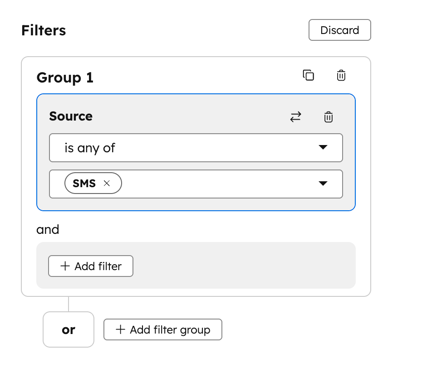
The new view will appear below the other default inbox filters and views.
Reply to incoming SMS messages
When a contact receives a SMS message you've sent or scheduled or via a workflow, they can reply to the message. Any replies they've sent will appear as a new conversation in your inbox.
Users can then review the contact's information and reply, unless the contact has opted out of receiving SMS messages.
Click on an SMS conversation to view the conversation history and use the reply editor to compose a response.
Please note: incoming and outgoing inbox messages count against your monthly SMS segment usage. Incoming MMS messages are counted as 5 message segments.
Review SMS activities on the contact record
- In your HubSpot account, navigate to CRM > Contacts.
- Click the name of a contact.
- On the contact record, click the Activities tab.
- Click the Activity dropdown menu and select the SMS checkbox. To narrow down the activities that appear, select and clear the Select all checkbox, then select the SMS checkbox again.
