
Last updated: May 21, 2026
Available with any of the following subscriptions, except where noted:

HubSpot’s AI settings give you control over how generative AI is used across your account. Configure access to AI features, manage which data sources are used, and ensure AI-generated content is tailored to your organization.
For an overview of configuring your account for AI features, review how to set up a HubSpot account to adopt AI features.
Please note: you can manage AI feature access in your AI settings and configure what data is shared. Review HubSpot's AI Trust FAQs and AI Model Cards for detailed information on AI security controls, data use, and compliance.
Permissions required Super Admin permissions are required to manage AI settings.
Manage AI features settings
To use generative AI features in your HubSpot tools, turn on your AI settings in the Access tab. Turn off generative AI features and data access in your HubSpot account at any time by setting the corresponding toggles to Off.
If you've previously configured your AI settings, the options turned on will generally depend on the following:
- Content Prompts corresponds to Give users access to generative AI tools and features.
- Customer analysis corresponds to Customer conversation data.
- Files corresponds to Files data.
- Breeze Assistant remains the same.
To manage AI features settings:
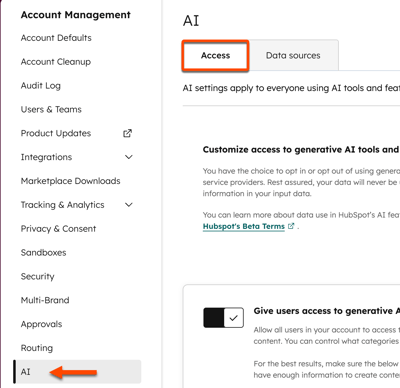
- In your HubSpot account, click the
settings icon in the top navigation bar. - In the left sidebar menu, in the Account management section, navigate to AI.
- On the Access tab of AI settings, configure the settings below.
Manage generative AI tools and features settings
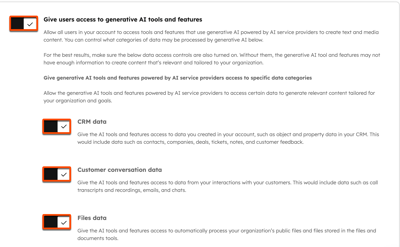
To give the users access to generative AI features, such as generating text and media content using prompts, toggle the Give users access to generative AI tools and features switch on.
Toggle the Give users access to generative AI tools and features switch on. By default, this setting is toggled on.- This setting must be turned on to use any generative AI features, including Breeze Assistant.
-
To help AI generate outputs that reflect your business, you can also turn on additional data access:
- CRM data: allows AI access to metadata and user-generated content such as CRM records and default properties. By default, this setting will be toggled on.
- Customer conversation data: allows AI to summarize and respond to customer conversations such as call transcripts, emails, and more. By default, this setting will be toggled on.
- Files data: allows AI to use file data from public files or files stored in your HubSpot account's files tool. By default, this setting will be toggled off.
Manage Breeze Assistant settings
To let the users in your account access Breeze Assistant, toggle the Give users access to Breeze Assistant switch on.
- Toggle the Give users access to Breeze Assistant switch on. By default, this setting will be toggled on.
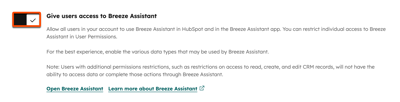
- To personalize Breeze Assistant, it's recommended to turn the Give users access to generative AI tools and features switch on, and additional data access such as CRM data, Customer conversation data, and Files data.
Manage AI model training settings
Configure the AI model training settings to control if HubSpot may use your account's customer data to train HubSpot AI models. This setting applies at the account level, and covers all eligible customer data. It must be configured separately for each account if you manage multiple accounts. Toggle changes are logged for audit logs.
When this setting is turned off, data isn’t used to train HubSpot AI models and isn’t shared with other HubSpot customers. When this setting is turned off, you can still use AI features in your account. Accounts with Sensitive Data turned on are opted out of AI model training by default and can't opt in. Learn more about opting out of machine learning use.
-
Toggle the AI Model Training switch on or off. By default, this setting will be toggled on.

Manage Breeze context
Configure Breeze context to ensure that the content generated aligns with your company. The context is used for Breeze Assistant responses and when generating content with other assistants and agents.
Learn more about managing Breeze context.
