
Last updated: April 28, 2026
Available with any of the following subscriptions, except where noted:

-
 Additional subscriptions required for certain features
Once you have set up Hubspot payments or Stripe as a payment processing option, you can store buyers' payment methods at checkout for future charges.
HubSpot uses multiple layers of security to protect payment information. The payments tool uses Stripe’s API to securely collect and process payment data. Stripe applies encryption and tokenization to help protect buyers’ payment details from unauthorized access.
It's recommended to set up a refund or cancellation policy in your terms of service if you plan to use the payment method for unscheduled charges. Learn how to add policies and terms at checkout.
Understand limitations and considerations
- Credit or debit card and ACH payment details can be stored. Other payment methods (e.g., BACS, SEPA) aren't supported.
- You can take payment using a stored payment method through invoices and subscriptions.
- If your account is enrolled in the Multiple Stored Payment Methods beta, you can store multiple payment methods. If your account isn’t enrolled in the beta, only one payment method can be stored. When a buyer saves a new payment method, it replaces any previously stored method.
Turn on the store payment method setting
Permissions required Super Admin permissions are required to turn on the store payment method setting.
To turn on the setting to store payment methods at checkout, for use in future charges:
- In your HubSpot account, click the
settings icon in the top navigation bar. - In the left sidebar menu, navigate to Payments.
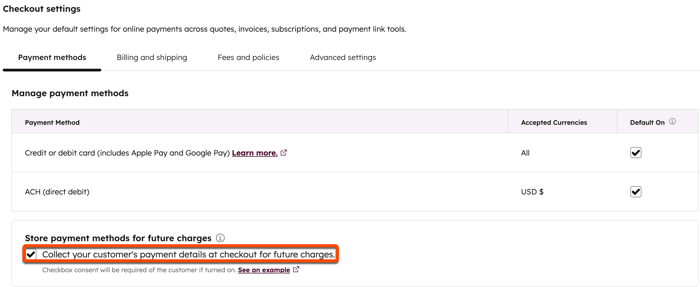
- On the Payment methods tab, select the Collect your customer's payment details at checkout for future charges checkbox, then click Save.
Please note: compliance obligations may apply when storing a payment method for future payments. For any questions, you should consult your own tax and/or legal advisors.
Buyer checkout experience
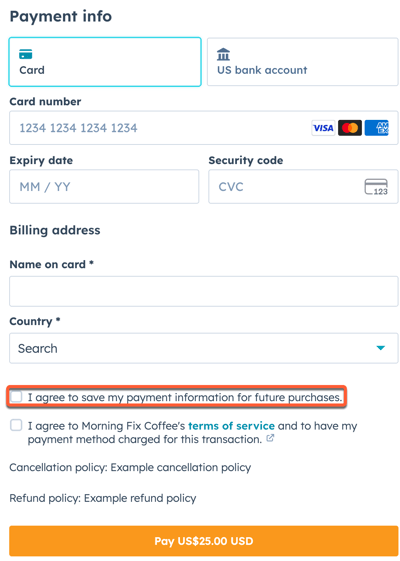
When the setting is turned on, the store payment method agreement will be shown when making payments on invoices, payment links, quotes, legacy quotes, or subscriptions.
How the buyer agrees to store their payment method depends on your checkout settings:
- If other checkboxes aren't turned on for checkout in your payment settings (e.g., terms of service), the buyer agrees to the terms of storing their payment method by clicking Pay.

- If other checkboxes are turned on for checkout in your payment settings (e.g., terms of service), the buyer can select the checkbox to agree to have their payment method stored.
View, filter, and report on stored payment methods
If a customer agrees to save their payment information, records with a payment associated (e.g., a contact record) will indicate that the payment method has been stored. You can also create a custom property on records (e.g., contacts, invoices, subscriptions), and create a workflow to automatically update the property. The property can then used to filter index pages, reports, and segments.
View the stored payment method on an individual record
To view if a customer has stored their payment information on their contact record, or on an associated invoice or subscription record:
- Navigate to your records:
- In your HubSpot account, navigate to Sales > Activity Feed.In your HubSpot account, navigate to Sales > Activity Feed.
- In your HubSpot account, navigate to Commerce > Invoices.
- In your HubSpot account, navigate to Commerce > Subscriptions.
- Click the record.
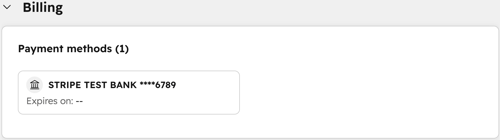
- At the top, click the Revenue tab. Stored payment methods will be displayed in the Billing section.
Please note: if the Revenue tab isn't appearing on your record by default, learn more about using the new updated record default layout.
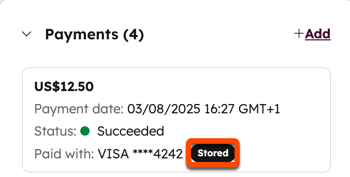
- You can also view which payments also stored a payment method. In the right panel, scroll to the Payments card. If the Payments card isn't appearing on your record by default, you can manually add the card to your HubSpot record.
- Any payments where the customer agreed to store their payment information will be labeled with Stored.
Create a custom stored payment property
Permissions required Edit property settings permissions are required to create properties.
Create a custom property on the contact, invoice, or subscription object that identifies if a customer has stored their payment method for future charges. For example, to filter an index page, segment, or report using the contact that stored the payment method, create the property on the contact object. To filter using an invoice, create the property on the invoice object. You can then create a workflow to automatically update the property whenever a payment is made.
To create the custom property:
- In your HubSpot account, click the
settings icon in the top navigation bar. - In the left sidebar menu, navigate to Properties.
- Click the Select an object dropdown menu and select [Object] properties (e.g., Contact properties, Invoice properties, or Subscription properties.
- Click Create property.
- In the right panel:
- In the Property label field, enter Has stored payment method.
- Click the Field type dropdown menu and select Single checkbox.
- Click Create property.
Create a workflow that automatically updates the stored payment property
Permissions required A Professional or Enterprise subscription is required to create workflows.
- In your HubSpot account, navigate to Automation > Workflows.
- In the top right, click Create workflow.
- Click From scratch.
- At the top, enter a workflow name.
- In the left panel, click to expand the Data values section.
- Click Record created.
- Click Payment.
- In the upper right of the left panel, click Next.
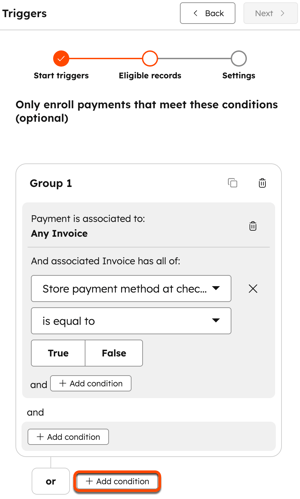
- Add invoice, payment link, and subscription as enrollment triggers (as these are the methods through which a payment can be made, and a payment method stored):
- Under Only enroll subscriptions that meet these conditions (optional) click + Add condition.
- Click the Filtering on dropdown menu and select Invoice.
- Under Object information, click Invoice properties.
- Click Store payment method at checkout.
- Under is equal to, select True.
- Below the group, next to or click + Add condition.
- Click the Filtering on dropdown menu and select Payment Link.
- Under Object information, click Payment Link properties.
- Click Store Payment Method At Checkout.
- Under is equal to, select True.
- Below the group, next to or click + Add condition.
- Click the Filtering on dropdown menu and select Subscription.
- Under Object information, click Subscription properties.
- Click Store Payment method at checkout.
- Under is equal to, select True.
- In the upper right of the left panel, click Next.
- Select the Re-enroll toggle if you want records to be able to re-enroll. Learn more about re-enrollment in workflows.
- In the upper right of the left panel, click Save and continue.
- Click + underneath the trigger you have just created in the workflow editor.
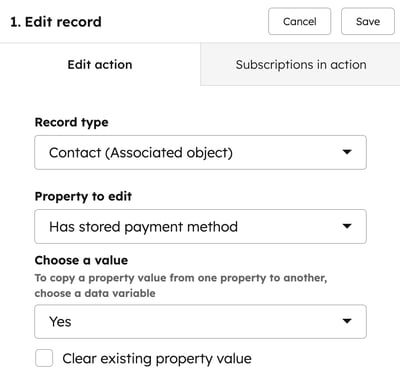
- In the left panel, click to expand the CRM section, then select Edit record.
- Click the Record type dropdown menu and select [Object] (select the object you created the property for).
- Click the Property to edit dropdown menu and select Has stored payment method (the custom property you created before creating the workflow).
- Click the Change type dropdown menu and select Replace.
- Click the Choose a value dropdown menu and select Yes.
- In the upper right of the left panel, click Save.
- To update the Has stored payment method property for payment methods saved in the past, manually enroll them.
Use the property to filter index pages, reports, and segments.
Charge a buyer using a stored payment method
Once a buyer has agreed to store their payment method during checkout for future payments, use the same payment method to charge them via:
- Invoices: when creating an invoice or after the invoice has been created.
- Subscriptions: when creating a subscription.
View payments that charged a stored payment method
View all the processed payments that used a stored payment method. To view the payments:
-
In your HubSpot account, navigate to Commerce > Payments.
-
Click Edit columns.
-
Select the checkbox next to Charged from stored payment method and click Apply.
-
Any payments where the stored payment method was used to charge the buyer will be labeled as Yes in the Charged from stored payment method column.
Change a stored payment method
Buyers can change their stored payment method by going through checkout again using a different payment method, and selecting the I agree to save my payment information for future purchases checkbox. Learn more about the buyer checkout experience.
Turn off the store payment method setting
Permissions required Super Admin permissions are required to turn off the store payment method setting.
To turn off the setting to store payment methods at checkout:
-
In your HubSpot account, click the
settings icon in the top navigation bar. -
In the left sidebar menu, navigate to Commerce > Payments.
-
On the Payment methods tab, clear the Collect your customer's payment details at checkout for future charges checkbox, then click Save.
