
Last updated: May 12, 2026
Available with any of the following subscriptions, except where noted:
-
 Marketing Hub
Professional, Enterprise
Marketing Hub
Professional, Enterprise
-
 Sales Hub
Professional, Enterprise
Sales Hub
Professional, Enterprise
-
 Service Hub
Professional, Enterprise
Service Hub
Professional, Enterprise
-
 Data Hub
Professional, Enterprise
Data Hub
Professional, Enterprise
-
 Content Hub
Professional, Enterprise
Content Hub
Professional, Enterprise
-
 Smart CRM
Professional, Enterprise
Smart CRM
Professional, Enterprise
Use the HubSpot-Salesforce integration to sync data between HubSpot and Salesforce. After connecting the app, you can sync contacts, companies, deals, tickets, and activities between both systems, ensuring consistency across your teams.
For example, when a contact is created in HubSpot, it'll sync to a corresponding lead or contact in Salesforce. Updates made in either system will reflect in the other, based on your sync settings.
If you're moving to a new Salesforce production organization, learn how to connect a new production organization.
- The HubSpot-Salesforce integration is not affected by the retirement of the Salesforce Platform API legacy versions.
- HubSpot’s legacy managed package in Salesforce containing HubSpot’s legacy Visualforce module is being deprecated. If you're still using the legacy Visualforce module, it is recommended to uninstall the package in Salesforce and use HubSpot Embed moving forward instead.
Before you get started
Before you begin working with this feature, make sure to fully understand what steps should be taken ahead of time, as well as the limitations of the feature and potential consequences of using it.
Understand requirements
You must have Account Access permissions in your HubSpot account, along with the following subscriptions, access, and permissions in your Salesforce account:
- Have a Salesforce edition with API access, or Salesforce Professional. The HubSpot-Salesforce integration also supports and can connect to Salesforce Government Cloud. However, it does not support Salesforce Group Edition.
- Be a Salesforce system administrator.
- Have all of the following user profile administrative permissions:
- API Enabled.
- View Setup and Configuration turned on.
- Modify All on any objects (accounts, campaigns, contacts, leads, or opportunities) that you'd like to sync to HubSpot.
- Have the Modify Metadata permission (to view data in the HubSpot Embed window on Salesforce lead or contact records). This is only required if you want to use the HubSpot Embed window, and sync deals to HubSpot.
- Have the Download AppExchange Packages permission.
- Have the Customize Application profile permission. This is required to install the HubSpot Embed window and for automatic updates to the HubSpot Embed window.
- Have the Task Type field set to Visible in your user profile.
Please note: if you're setting up Salesforce Selective Sync, your specific settings may vary from the standard requirements, settings, and behavior described below.
Understand limitations & considerations
- There's a limit to the number of API calls used by the integration per day. A single contact sync can take up to four API calls per record, but this number can vary.
- To connect multiple HubSpot accounts to one Salesforce instance, you must set up and install the integration in each HubSpot account. You can connect only one Salesforce instance per HubSpot account.
Please note: if you're integrating multiple HubSpot accounts with one Salesforce environment, for the Creating contacts in HubSpot setting, it's recommended to select Don't automatically create HubSpot contacts. If either of the other options are selected, Salesforce leads or contacts created by one HubSpot account may create contacts in the other HubSpot account.
- Records won't automatically sync after installing and setting up the Salesforce integration. You can import your Salesforce records into HubSpot, or allow them to sync gradually based on automatic sync triggers.
Install the Salesforce app
- In your HubSpot account, click the Marketplace icon
in the top navigation bar, then select HubSpot Marketplace. - Use the search bar to locate and select Salesforce.
- Click Install.
- If you're connecting HubSpot to a Salesforce sandbox, select the Yes, this will connect to a sandbox checkbox.
- Click Log in to Salesforce.
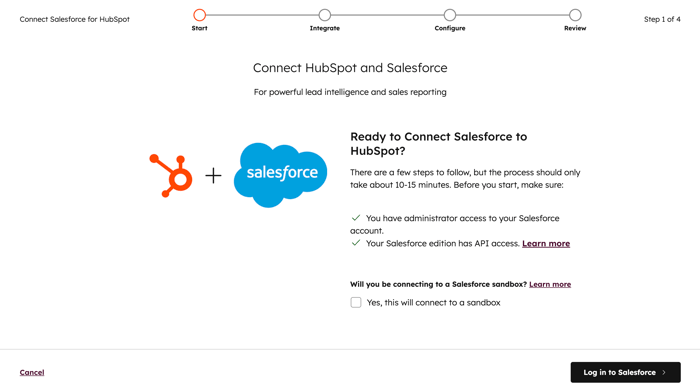
- In the pop-up window, enter your Salesforce credentials and click Log In. After logging in, you'll be redirected back to the installation process in HubSpot.
- On the Bring the power of HubSpot to Salesforce screen, click Skip this step to install the HubSpot Embed window at a later time. Learn more about adding the HubSpot Embed window to your Salesforce page layouts.
- On the Choose your data sync settings screen, choose how your data will sync between HubSpot and Salesforce.
-
- HubSpot will create mappings between HubSpot properties and Salesforce fields regardless of which setup you choose.
- If the Salesforce field doesn't have a matching HubSpot property, a new property will be created in HubSpot by Unknown user.
- If you select Recommended setup, click Review settings.
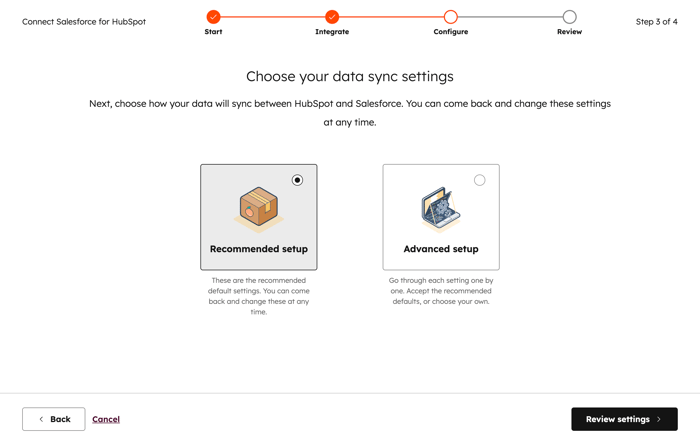
- If you select Advanced setup, click Next.
-
- On the next screen, set up your contact sync settings:
- Click the Choose which contacts to sync dropdown menu and select All contacts to sync all contacts to Salesforce, or select a HubSpot segment to use as an inclusion segment to sync only those contacts to Salesforce.
- Click Next.
- On the next screen, set up your activity and task sync settings:
- Click to toggle the Salesforce task sync switch on to automatically create a task in HubSpot when a task is created in Salesforce.
- In the Timeline sync table, select the Sync checkbox next to HubSpot events to sync to Salesforce as tasks, and click the Salesforce task type dropdown menu to select the task type it will be created as in Salesforce.
- Click Next.
- On the next screen, set up your object and property sync settings:
- Click the Contacts, Companies, or Deals tab to configure the sync type for standard properties for that object. In the Companies and Deals tabs, you may need to click to toggle the Enable company/deal sync switch on before you can create field mappings.
- The table displays the standard HubSpot object properties and their Salesforce field equivalents. For each property sync, select the sync type: Prefer Salesforce (default), Always use Salesforce, or Two-way. Learn more about the sync types for Salesforce field mappings.
- Click Next.
- On the next screen, set up your contact sync settings:
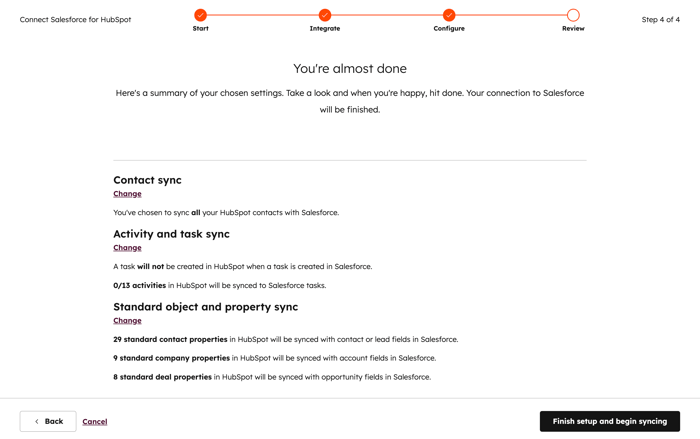
- Lastly, review your selected data sync settings. To change the settings for a data sync type, click Change.
- When you're done, click Finish setup and begin syncing. You'll be redirected to your Salesforce integration settings, and data between HubSpot and Salesforce will begin syncing.
Connect a new Salesforce production organization to HubSpot
If you're migrating from a Salesforce production organization where the HubSpot integration package was installed to a new Salesforce production organization, you'll need to connect the new Salesforce production organization to HubSpot.
- This process does not apply if you're migrating from a production organization to a sandbox, or vice-versa. Learn how to connect your Salesforce sandbox to HubSpot.
- Integrating a new Salesforce production organization with HubSpot will require turning off the HubSpot-Salesforce integration for approximately one hour.
- At this time, only the sync and relationship between existing HubSpot contacts and Salesforce leads or contacts can be maintained when integrating a new Salesforce production organization to HubSpot. The sync and relationship between existing HubSpot companies and Salesforce accounts, as well as between HubSpot deals and Salesforce opportunities, will be lost.
- In your HubSpot account, click the
settings icon in the top navigation bar. In the left sidebar menu, navigate to Integrations > Connected Apps. - Click Salesforce.
- In the upper right, click to toggle the switch off to turn off the integration.
- Install the integration package in your new Salesforce production organization.
- Export the HubSpot contacts you want to continue syncing with your new Salesforce production organization.
- Import the exported HubSpot contacts into your new Salesforce production organization.
- Create or edit any custom field mappings that were previously mapped between your old Salesforce production organization and HubSpot.
Please note: existing custom field mappings can be kept if the HubSpot property is mapped to a Salesforce field that also exists in the new production organization. The internal name of the Salesforce field in the new production organization must also match the internal name of the Salesforce field in the old production organization. If not, create new field mappings and delete old field mappings to avoid sync errors.
- After one hour has passed, connect your new Salesforce production organization to HubSpot.
- In the upper right, click to toggle the switch on to turn the integration on.
- Import the Salesforce leads/contacts back into HubSpot. The import will deduplicate the Salesforce leads and contacts against the existing HubSpot contacts. It'll also refresh the Salesforce record IDs of the existing HubSpot contacts to associate them with the Salesforce leads and contacts in the new production organization.
Change your Salesforce integration user
To change your Salesforce integration user, you must update your Salesforce credentials in your integration settings.
Please note: before changing integration users, verify that the new integration user has Salesforce permissions equal to or higher than the previous integration user.
- In your HubSpot account, click the
settings icon in the top navigation bar. In the left sidebar menu, navigate to Integrations > Connected Apps. - Click Salesforce.
- In the upper right, click the Actions dropdown menu and click Connect a different production user.

- You'll be redirected to Salesforce's login page in a new browser tab. Enter your Salesforce credentials and click Log In.
- If you've previously connected this Salesforce account with HubSpot, you'll be redirected to your Salesforce integration settings in HubSpot.
- If you've never connected this Salesforce account with HubSpot, click Allow to give HubSpot access to your Salesforce account.
