
Last updated: December 15, 2025
Available with any of the following subscriptions, except where noted:

The process for downgrading or cancelling your HubSpot account depends on the type of account you have:
- Paid HubSpot subscriptions: you can downgrade or cancel your subscription at the end of your commitment term. After a subscription has been canceled, you can delete your account.
- HubSpot’s free tools, Developer, and Template Marketplace provider accounts: you can delete your account without needing to cancel a subscription.
- HubSpot Solutions Partners: connect with your HubSpot Team to discuss changes to your subscription or account.
Before you get started
Prior to cancelling or downgrading your account:
- Understand commitment terms and billing cycles.
- Understand renewal options.
- Review the impacts of cancelling specific subscriptions.
- Review HubSpot's Customer Terms of Service.
If you're unsure about the best next steps for your subscription, reach out to the Customer Success Team.
Downgrade your subscription at renewal
Downgrading a HubSpot subscription may include moving to a lower subscription tier (e.g., Professional to Starter) or decreasing marketing contacts, seats, or HubSpot Credits capacity packs. Mid-contract downgrades are not permitted. This means the downgrade will go into effect on your renewal date, not immediately.
To downgrade your subscription, contact a HubSpot representative to discuss downgrade options:
- If you have a Starter subscription, contact HubSpot Support.
- If you have a Professional or Enterprise subscription, contact your HubSpot Contract Manager.
For example, your contract includes Marketing Hub Enterprise and Service Hub Enterprise with 30 Service Seats. Upon renewal, you want to keep Marketing Hub Professional, but downgrade to Service Hub Professional with 20 seats. You discuss downgrading to Service Hub Professional and removing seats with a Contract Manager. Once you commit to the downgraded subscription, your current subscription will continue until the end of your commitment term, at which point the new subscription will begin.
Cancel your subscription at renewal
To cancel your subscription, effective when your current commitment term ends, turn off the subscription’s auto-renewal. Mid-contract cancellations are not permitted.This means your subscription will be automatically canceled on your renewal date, not immediately.
Following the cancellation date, your account will be downgraded to HubSpot’s free tools. Once your account has been downgraded to HubSpot’s free tools, you can then delete your account if needed.
For example, if your contract is for 12 months but you want to cancel after eight months, you can turn off your subscription's auto-renewal. This means that your subscription will be canceled at the end of your 12-month commitment term and you'll still be charged until the end of your commitment term.
Turn off auto-renewal for your HubSpot subscription
Permissions required Billing admin permissions are required to turn off auto-renewal.
- In your HubSpot account, click your account name in the top right corner, then click Account & Billing.
- Click the Subscriptions tab.
- In the Auto-renewal terms section, click Cancel auto-renewal.
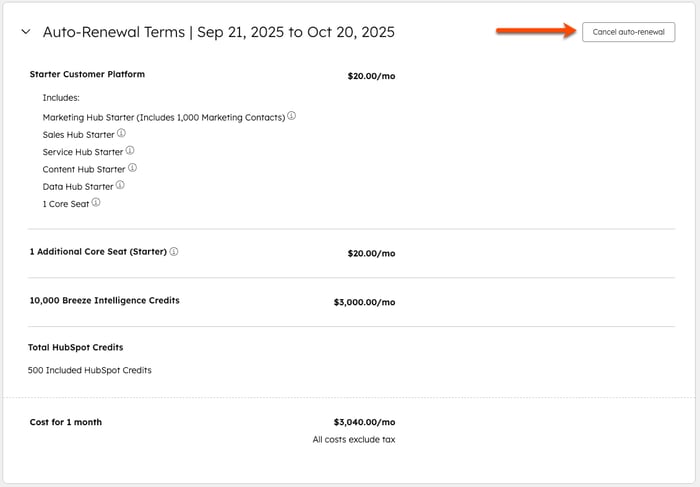
- Select which products you want to cancel. To cancel all subscriptions, select all products. Make sure to review the list of features that'll be affected when you cancel a subscription.
- Click Next.
- Select a cancellation reason.
- Click Next.
- Review the cancellation details, then click Cancel auto-renewal.
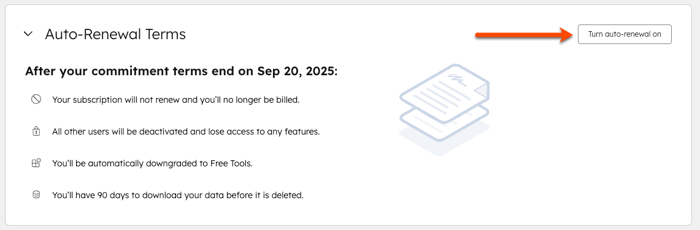
A notice of non-renewal will be sent to the billing admin of the account. This will include the commitment term of the contract and the effective date of the cancellation. After the effective cancellation date, your account will be downgraded to HubSpot’s free tools.
To turn auto-renewal back on before your cancellation date:
- In your HubSpot account, click your account name in the top right corner, then click Account & Billing.
- Click the Subscriptions tab.
- Click Turn auto-renewal on. This turns auto-renewal back on for all canceled products. If you still want to cancel certain products, you must turn auto-renewal off for individual products.
Delete your HubSpot account
If you have a HubSpot account with HubSpot’s free tools, a HubSpot Developer Account, or a HubSpot Template Marketplace provider account, you can delete your account.
If you've canceled a paid subscription, you can delete your account once your subscriptions are no longer active. You cannot delete your account if any HubSpot subscriptions still have active commitments, even if you’ve turned off auto-renewal.
Permissions required Billing admin permissions are required to delete the HubSpot account.
- In your HubSpot account, click your account name in the top right corner, then click Account & Billing.
- Click the Delete Account tab.
- Click Delete account.
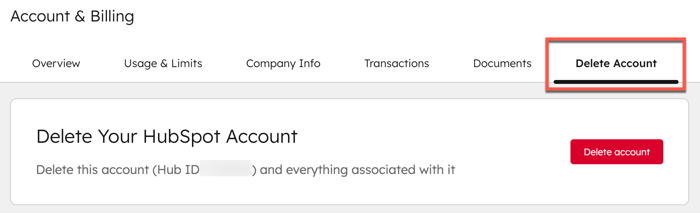
- You'll be prompted to enter your Hub ID to confirm the deletion. Click Yes, delete to permanently delete your account.
