
Last updated: January 6, 2026
Available with any of the following subscriptions, except where noted:
-
 Marketing Hub
Starter, Professional, Enterprise
Marketing Hub
Starter, Professional, Enterprise
-
 Sales Hub
Starter, Professional, Enterprise
Sales Hub
Starter, Professional, Enterprise
-
 Service Hub
Starter, Professional, Enterprise
Service Hub
Starter, Professional, Enterprise
-
 Data Hub
Starter, Professional, Enterprise
Data Hub
Starter, Professional, Enterprise
-
 Content Hub
Starter, Professional, Enterprise
Content Hub
Starter, Professional, Enterprise
-
 Smart CRM
Professional, Enterprise
Smart CRM
Professional, Enterprise
-
 HubSpot Credits required for certain features
-
Additional subscriptions required for certain features
Breeze studio lets you decide how AI behaves in your HubSpot account by building assistants and customizing agents. Assistants help users find information, generate content, and answer questions, while agents complete structured tasks using your data and tools. Together, they enable you to define AI behaviors that support the workflows your team relies on.
Before you get started
Before you begin working with assistants and agents in Breeze studio, make sure to fully understand Breeze, the requirements to use these tools, as well as their limitations and considerations.
Please note: Please avoid sharing any sensitive information in your enabled data inputs for AI features, including your prompts. Admins can configure generative AI features in account management settings. For information on how HubSpot AI uses your data to provide trustworthy AI, with you in control of your data, you can refer to our HubSpot AI Trust FAQs.
Please note: Breeze features use artificial intelligence and machine learning models. To understand HubSpot’s approach to AI, data usage, and security, learn more about HubSpot's AI Model Cards and HubSpot's AI Cloud Infrastructure FAQs.
Understand requirements
- A Super Admin must toggle the following switches on in AI Settings:
- Give users access to generative AI tools and features
- CRM data
- Customer conversion data
- Files data
- Give users access to Breeze Assistant
Permissions required Breeze Studio permission is required to create and customize agents and assistants in Breeze studio.
Permissions required Additional permissions may be required depending on the goal of the assistant or agent. For example, an assistant or agent that generates a landing page requires Edit and Publish permission to edit and publish landing pages.
HubSpot Credits required for certain features Some Breeze Agents may require HubSpot credits. Learn more about features using HubSpot credits
Understand limitations & considerations
- HubSpot's pre-built agents have default inputs, instructions, and tools that can't be edited, deleted, or rearranged.
Understand assistants and agents
Assistants and agents are two types of AI-driven components that support work across your HubSpot account. Each component plays a different role within Breeze and interacts with your data in distinct ways.
Assistants focus on delivering information in a conversational format, while agents follow defined steps to complete tasks. Assistants prioritize speed and guidance, whereas agents may take longer due to task complexity.
| Agents | Assistants | |
| Purpose | Automates tasks and performs actions in your HubSpot account. | Uses information in your HubSpot account or that you upload to answer questions, generate content, and provide documentation to your HubSpot users. |
| Speed | Slower, due to complexity | Faster |
| Used in | Breeze studio | Breeze Assistant |
Learn more about Breeze features.
Install assistants and agents
Assistants and agents are available in the Breeze Marketplace and can be customized further in Breeze studio.
- In your HubSpot account, navigate to Breeze > Marketplace.
- At the bottom of the page, click Explore all.
- On the Marketplace page, click Filters.
- Click the Agent type dropdown menu and select Assistants or Agents.
- Click an assistant card or agent card (e.g., Internal FAQ Assistant) or Company research agent).
- On the listing page, review the assistant or agent information:
- Built by: creator of the assistant or agent.
- Overview: summary of the capabilities of the assistant or agent. Click See more to view the entire summary.
- Features: explanation of individual features available in the assistant or agent.
- Agent functionality (agents only): which tools the agent uses by default.
-
- Pricing: explanation of credit usage. Learn more about HubSpot Credits and billing.
- More info: additional information about the assistant or agent, including links to contact the assistant's or agent's creator for support.
- Feedback: users can provide feedback on the assistant or agent to help improve it's performance and capabilities.
- Click Add beta [assistant or agent].
- In the dialog box, select the checkbox to confirm participation in the beta, then click Add beta [assistant or agent].
Use assistants
Use assistants in Breeze Assistant to answer questions, generate content, and provide guidance. Customize pre-built assistants or create custom assistants from scratch.
Create or customize assistants in Breeze studio
Assistants can be created from scratch or customized after installation to reflect your team’s needs.
- In your HubSpot account, navigate to Breeze > Breeze Studio.
- Click the Assistants tab.
- To create a new assistant, click Create assistant in the top right. To edit an existing assistant, hover over the assistant's card, then click the menu icon and select Configure.
- In the assistant editor, click the edit icon at the top of the page and enter a name for your assistant.
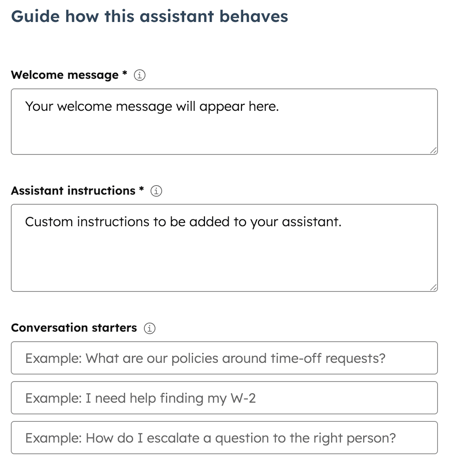
- In the Guide how this assistant behaves section:
- Enter a message that'll appear for any users using the assistant in the Welcome message field.
- Enter a description of what the assistant should do and how it should interact with users in the Assistant instructions field.
- Enter starter prompts that appear in an assistant to help users begin a conversation in the Conversation starters field. For example, you can create conversation starters that ask the custom assistant to summarize CRM updates, draft an email, or surface recent contact activity.
- In the Set the information this assistant can access section, set the information the assistant can pull from to answer users' questions:
- In the What this assistant can do field, select Browse the web to allow the bot to use search engines to find answers to questions. You can also select Read your HubSpot CRM records to allow the bot access to that data.
- In the What this assistant knows field, click Add knowledge to add a knowledge vault you've uploaded with context about your business. Learn more about using knowledge vaults in Breeze studio.
- To edit the assistant's icon, click the current icon on the top left. Then in the right panel, select an image from HubSpot's files tool or upload a new one.
- To test the assistant, enter a prompt in the preview in the right column, then click the send icon.
- When you've finished editing and testing the assistant, click Publish in the top right to make the assistant available to users in Breeze Assistant.
Use assistants in Breeze Assistant
After publishing an assistant, it becomes available for use in Breeze Assistant to answer questions, provide guidance or generate assets.
- In the top navigation bar, click Breeze Assistant in the top right.
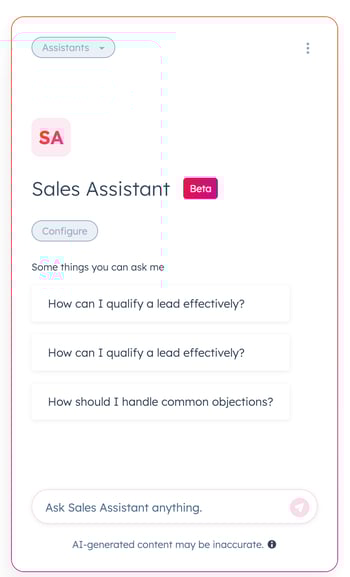
- In the right panel, click the Assistants dropdown menu and select a custom assistant in the top left.
- To add apps from Dashworks, click Add apps, then select each app you want to include.
- Enter a prompt, and then click the send icon. To use a conversation starter, click a prompt in the Some things you can ask me section.
Use agents
Use agents to complete specific, complex tasks in HubSpot. Customize or clone agents in Breeze studio.
Customize agents in Breeze studio
Customize agents in Breeze studio by adjusting inputs, instructions, tools, knowledge, and automation settings.
- In your HubSpot account, navigate to Breeze > Breeze Studio.
- Click the name of the agent.
- In the top right, click Configure agent.
- To edit a copy of this agent, click Clone in the top right of the agent editor.
- In the What this agent needs from users section, fill in any fields that are required during setup.
- To manage custom inputs that give the agent information:
- In the During setup section, click Manage inputs.
- To add a new custom input, click the Add input dropdown menu in the right panel and select an input format.
- On the input card, enter a name and description for your input.
- If the input is required to run the agent, select the Required checkbox.
- To rearrange custom inputs, click the drag and drop icon on the input card and drag the input into a new location.
- To remove a custom input, click the X on the input card.
- In the Agent instructions field, review the agent's default instructions. This field can't be edited.
- To add additional instructions, click Add extra instructions and enter additional context on the agent's tone, structure, or output format.
- In the What this agent can access section, review the default tools this agent can use to accomplish its tasks. These tools can't be removed.
- To add additional tools, click Add tool. Learn more about using tools in Breeze studio.
- In the Knowledge section, click Add knowledge to add a knowledge vault with additional context. Learn more about using knowledge vaults in Breeze studio.
- For agents that support automation, click Select trigger in the Automate this agent section to set a trigger for when the automation will occur. Automation requires a Professional or Enterprise subscription to use.
Please note: automation has a daily limit of 100 runs per day. This limit resets at 12:00 AM UTC. Additionally, existing records can't be enrolled in bulk when publishing the agent.
- To test the agent, enter values for the required fields on the right. Required fields will be marked with an * asterisk.
- Click Run agent to test the agent's current configuration.
- To run an additional test, click New test in the top right.
- When you've finished editing and testing your agent, click Publish in the top right.
Run an agent
After you've published an agent, you can run it from Breeze studio. Running an agent executes its current configuration and generates an output.
- In your HubSpot account, navigate to Breeze > Breeze Studio.
- Click the agent card.
- Enter values in any fields that are used each time the agent runs. Required fields will be marked with an * asterisk.
- Click Run agent to start the agent. The time it takes to run the agent will depend on the complexity of required tasks.
Review agent output
When the agent has finished running, review the agent's run output and sources. You can also export or share output.
- By default, agent output will be optimized for readability. To view the output in text instead, click the Output dropdown menu and select Text Output in the top right.
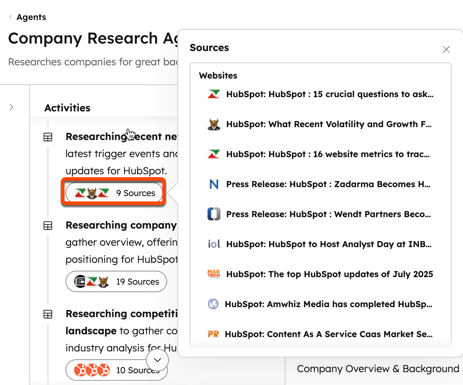
- To view the sources the agent is using to generate its output:
- In the Activity column, click [#] Sources underneath an action.
- In the pop-up box, click a website to view the source.
- To download the output in PDF format, at the top of the Output column, click Export PDF.
- When the export is ready, click the notification icon in top navigation bar.
- In the right panel, click the export notification to begin the download.
- To share the agent's run output, at the top of the Output column, click Share.
- In the dialog box, click the dropdown menu and select an option:
- Only me: the agent's output will only be visible to the user who ran the agent.
- Everyone in my portal: all users within the account, that have access to the agent, can view the agent's run output.
- Specific users and teams: only the selected users and teams that have access to the agent, can view the agent's run output.
- When finished, click Copy link.
- In the dialog box, click the dropdown menu and select an option:
- To unshare an agent's run output, click Share. In the dialog box, select Only me and then click Done.
Manage assistant or agent access
Control which users have access to each assistant and agent. By default, Super Admins can edit agents and assistants and all users can run them.
- In your HubSpot account, navigate to Breeze > Breeze Studio.
- Click the Assistants or Agent tab.
- Hover over the assistant or agent card, then click themenu icon and select Configure.
- In the editor, click Manage access in the top left.
- In the right panel, select an access option:
- Owners and super admins can edit and run: only the user, who created or installed, and Super Admins can edit and run the assistant or agent.
- Owners and super admins can edit, everyone can run: only the user, who created or installed, and Super admins can edit the agent. Every user can run the assistant or agent.
- Everyone can edit and run: any user can edit and run the assistant or agent.
- Custom team and user access: only selected users and teams can edit or run the assistant or agent. If you select this option there will be additional access options:
- Run and edit: selected users or teams can run and edit the assistant or agent.
- Run: selected users or teams can run the assistant or agent.
- When you've finished, click Publish in the top right.
