
Last updated: April 8, 2026
Available with any of the following subscriptions, except where noted:

-
 Additional subscriptions required for certain features
The default views for contacts, companies, deals, and tickets use an updated layout that organizes information into tabs and sections. Depending on your subscription, the layout includes default tabs such as About, Activities, Catch-up, Intelligence, and Revenue. Each tab contains cards that display information (e.g., activity history, associated revenue data), depending on the object and your account setup.
A record contains three main areas: the left sidebar, middle column, and right sidebar. This layout provides an overview of a record, with information organized by type into distinct sections. Each section contains default cards. You can also add custom cards to each area.
Before you get started
Viewing the updated record layout depends on the configuration of your account:
-
If you haven't customized your records and you have a Free or Starter subscription, you automatically get the updated layout starting at the end of March 2026.
-
If you have a Free or Starter account created after March 30, 2026, you automatically get the updated layout.
- If you have a Professional or Enterprise account, you automatically get the updated layout starting in the middle of April 2026.
-
If you manually reset your customization to system defaults, you automatically get the updated layout.
Reset your record layout
- In your HubSpot account, click the settings icon in the top navigation bar.
- In the left sidebar menu, in the Data Management section, click Objects.
- On the Objects page, click the Select an object dropdown menu and select the object for which you want to reset customization.
- Click the Record Customization tab.
- In the Default view row, click the three horizontal dots icon and select Reset default view.
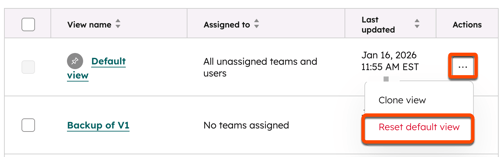
- In the dialog box, click Reset view.
Please note: once you reset a customized view to the system defaults, you cannot undo this action.
Left sidebar
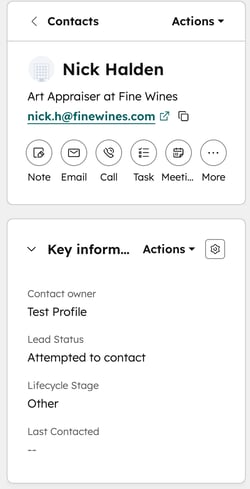
Highlight section: displays the primary and secondary display properties in the upper left of the record (e.g., name, email). You can also take actions on the record or log activities.
Key information/Details/About this [object name]: displays properties relevant to the record (e.g., type, Lifecycle Stage). You can customize the properties displayed and edit their values for the record.
Use the left sidebar
Subscription required A Professional or Enterprise subscription is required to use the View record access tool.
- Navigate to an object index page (e.g., In your HubSpot account, navigate to CRM > Contacts.).
- Click the name of the record you want to work with.
- In the top right of the left sidebar, click Actions, then select from the following to take actions on the record:
- Follow/Unfollow: click to follow/unfollow the record. By default, you follow all records you own. By following a record, you'll receive notifications on updates to the record.
- View all properties: click to view a list of the record's properties. The list is grouped by the property configuration (e.g., Contact information, Email information).
- View property history: click to view a table displaying the history of the record's property values. The table includes data such as the property name, change source (e.g., name of a user or workflow) and timestamp.
- View association history: click to view a table displaying the history of the record's associated records and engagements.
- Review associations: click to view a table displaying the current associated records. You can filter by object or association label and bulk remove associations.
- Search in Google: for contacts and companies, click to search the record's name on Google.
- Opt out of email: for contacts, click to turn off email communication with the contact's email address.
- Restore activity: click to view and restore associated engagements that were deleted within the last 90 days.
- View record access: click to view which users and teams can view or edit the record. Learn more about managing record access.
- Merge: click to merge the record with another. Learn more about what happens when you merge a record.
- Clone: click to clone the record. Learn more about cloning records.
- Delete: click to delete the record. Learn more about the data lost during a deletion.
- Export contact data: for contacts, click to export the contact's personal data.
- To edit the display properties in the highlight section:
- Hover over the properties and click the edit icon or value.
- Enter a value.
- When you're finished, click Save.
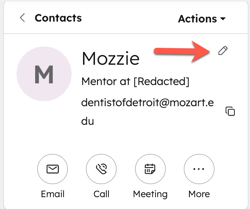
- In the highlight section, click a log activity icon. By default, icons for note, email, call, task, and meeting are shown.
- To edit a property value:
- In a displayed left sidebar card, hover on a property and click the edit icon.
- Enter or select a value. The available options depend on the property field type.
Middle column
Subscription required
- A Service Hub Professional or Enterprise subscription is required to view the NPS and CSAT feedback cards.
- A Professional or Enterprise subscription is required to view the Revenue and Intelligence tabs and the customer lifetime value report and revenue attribution cards.
- A Starter, Professional, or Enterprise subscription is required to view the Data quality section on the Catch-up tab.
Permissions required Reporting access permissions are required to view the customer lifetime value report cards.
About: displays a view of the customer journey, including Breeze record summary, key properties, signals, communication subscriptions, and feedback (e.g., NPS and CSAT) cards.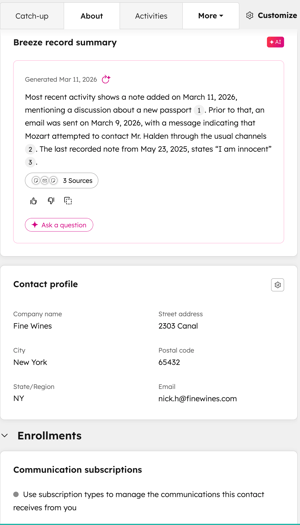
Activities: displays a timeline of activities and engagements on the record (e.g.,logged activities, pipeline stage changes, form submissions, and analytic events). Filter by date range, activity owner, activity properties (e.g., Meeting outcome), and teams. Learn more about the activity timeline.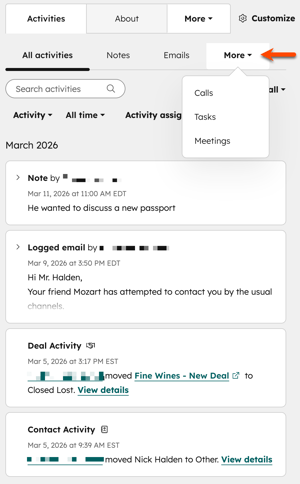
Catch-up: displays insights, health, and data quality specific to the selected contact or company. The insights are generated by Breeze using logged activities (e.g., emails, notes). The Health section displays contact or company sentiment, challenges, and positive feedback. The Data quality section displays key properties with missing values (e.g., Phone number) and any detected duplicates.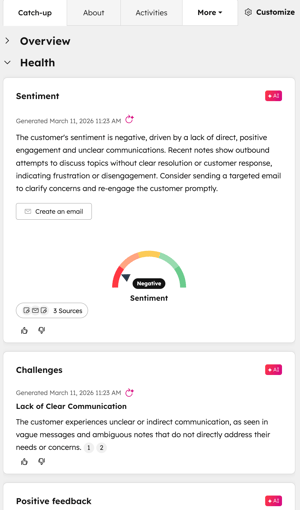
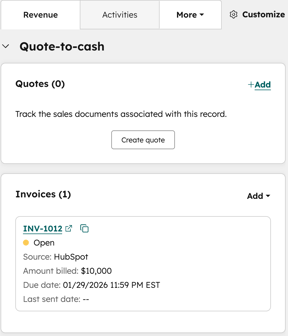
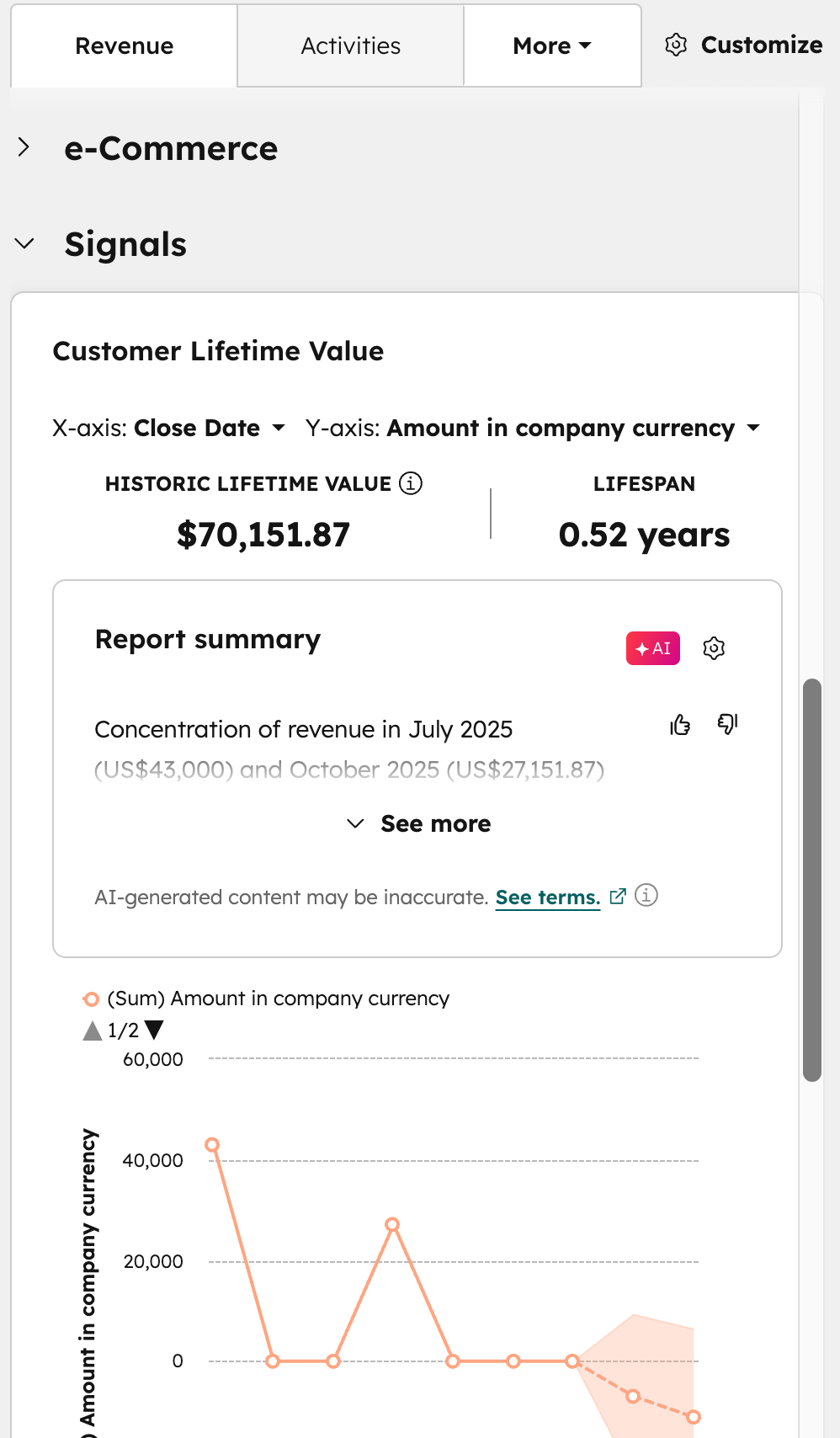
Revenue: displays commerce objects associated with the record, such as quotes, invoices, and subscriptions. You can also view customer lifetime value and revenue attribution report cards.
 Click the image to expand it. |
 Click the image to expand it. |
Intelligence: displays data enrichment and website visit-based insights for companies, and data enrichment, associated company details, and contact outreach data for contacts. Learn more about the Intelligence tab.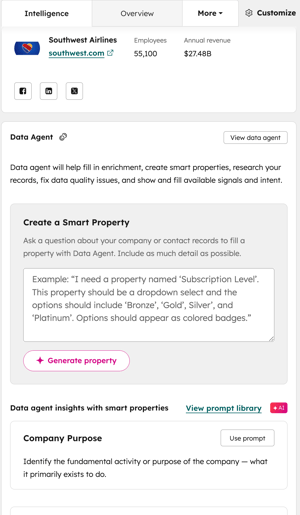
Use the middle column
- Navigate to an object index page (e.g., In your HubSpot account, navigate to CRM > Contacts.).
- Click the name of the record you want to work with.
- In the middle column, click the Activities tab.
- To manage the display of activities:
- Show or hide content: at the top of the timeline, click the Collapse all dropdown menu, then select Expand all or Collapse all to expand or collapse the details of all displayed timeline activities.
- Change activity display: above the timeline, click a tab (e.g., Notes, Emails) to view only certain activities. For example, on the Email tab, you can log and send a one-to-one email, or review previously sent and received one-to-one emails. Marketing emails don't appear here.
- Filter all activities: at the top of the timeline, click a property dropdown menu to filter all displayed activities (e.g., Activity assigned to, All time).
- Search for a specific activity: at the top of the timeline, in the Search activities text field, enter search terms to search for a specific activity. The results returned are based on terms in the following activity fields: Email subject, task subject, task body, note body, call body, and meeting body.
- Manage existing activities: click an activity to edits its details and comments. Hover on an activity, click Actions, then select from additional options: pin, history, copy link, or delete.
Right sidebar
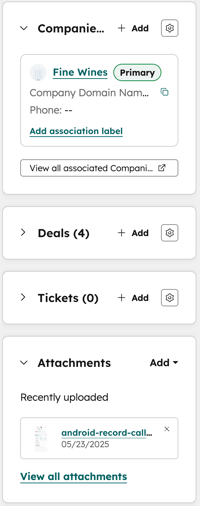
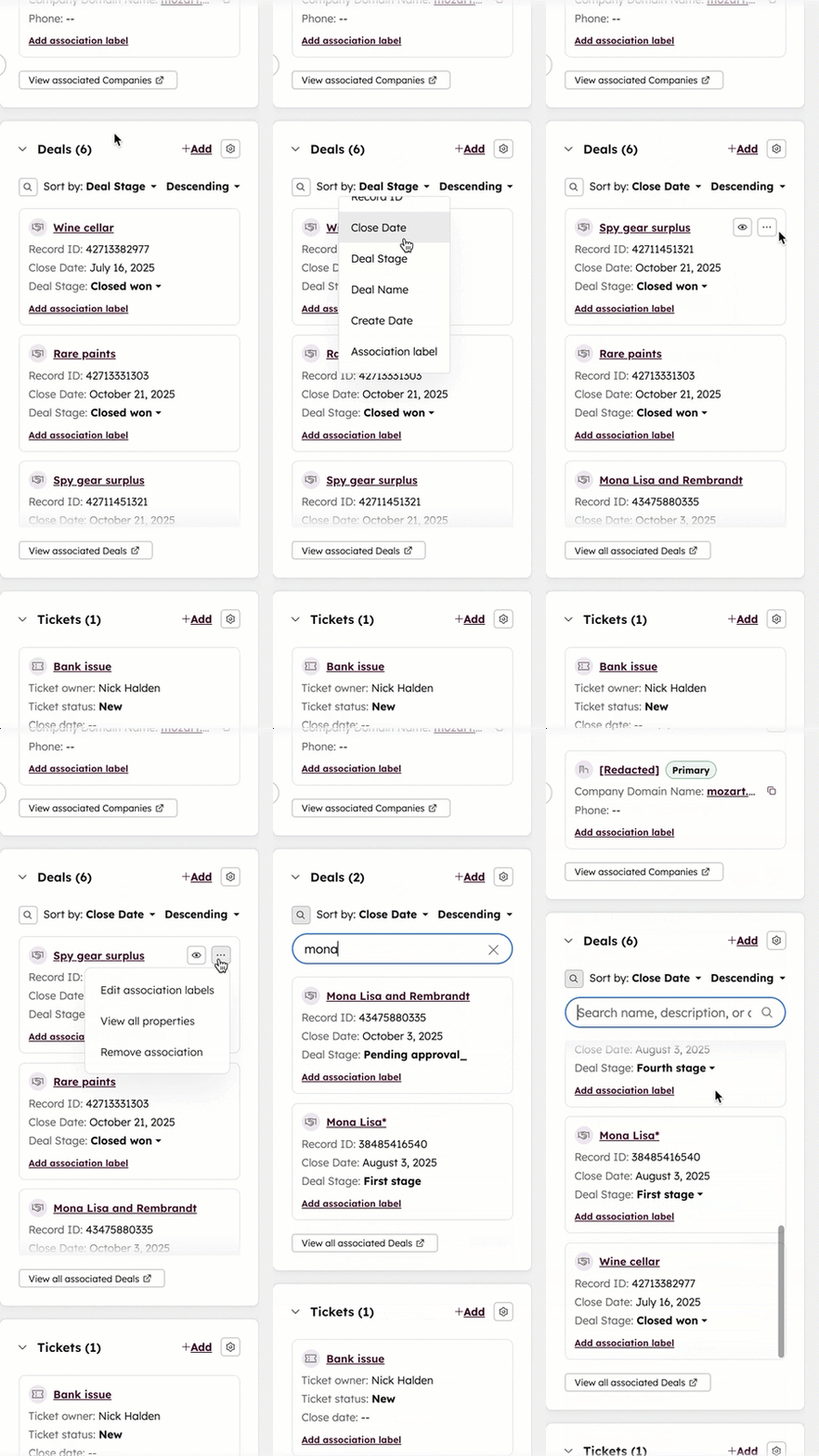
Associations: displays previews of associated records. You can also add, edit, or remove associated records.
Attachments: displays uploaded files and non-inline attachments sent from one-to-one CRM emails.
Use the right sidebar
- Navigate to an object index page (e.g., In your HubSpot account, navigate to CRM > Contacts.).
- Click the name of the record you want to work with.
- On the right sidebar, on a [Record name] (e.g., Deals) card, click the configure association card icon to customize the properties displayed and the order of the cards.
- Click the down arrow to collapse the card or the right arrow to expand it.
Learn more about adding and editing associations on records or adding and managing attachments.
Manage record customization
For each area of a record, you can add pre-built cards or create custom ones, depending on your business needs. On the middle column, you can also add collapsible sections and side-by-side cards or add or remove cards contained on the tabs.
- In your HubSpot account, click the settings icon in the top navigation bar.
- Customize your records.
- Hover over the middle column and click Add section.
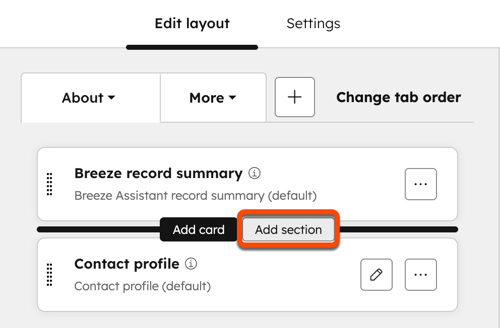
- In the section, click Add card to add cards to the section. You can also drag existing middle column cards to the section.
- Drag a card on top of another card to select its position, such as side-by-side in a grid view.
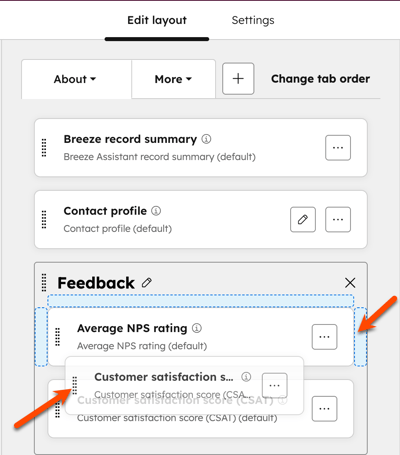
- Click the three horizontal dots icon, then select Remove card to delete it from the tab display.
- When you're finished, click Save and exit.
