
Last updated: April 28, 2026
Available with any of the following subscriptions, except where noted:

-
 Seats required for certain features
-
Additional subscriptions required for certain features
Collect payments in HubSpot using online payment methods or create payments manually for other payments you've received. Use commerce tools such as invoices, payment links, quotes, legacy quotes, and subscriptions, to accept payments from buyers and track payment activity in one place.
Payments can be collected and recorded in the following ways:
-
Online using HubSpot payments or Stripe as a payment processing option.
-
By manually creating (BETA) or recording payments on invoices.
-
Synced using integrations such as QuickBooks Online.
Collect online payments
To collect online payments, set up HubSpot payments or Stripe as a payment processing option. Learn more about the associated rates and fees when using payments.
Configure commerce tools to collect online payments
Collect online payments using commerce tools in HubSpot. Buyers complete payment through an online checkout:
- Invoices: configure the invoice to collect payments online. Buyers are prompted to pay and redirected to checkout.
- Payment links: create a payment link to collect payments online. Share the link with buyers for them to check out.
- Quotes: configure the quote or legacy quote to collect online payments. Buyers are prompted for payment on the quote and directed to check out.
- Subscriptions: configure the subscription to collect online payments. Buyers are prompted for payment on the subscription and directed to check out. Subscriptions are automatically created when recurring line items are added to payment links, quotes, or legacy quotes.
What happens after an online payment is processed
After an online payment is processed, the following occurs in HubSpot:
- You'll receive a payment notification. To stop receiving notifications for completed payments, turn off email notifications for payments in your notification settings.
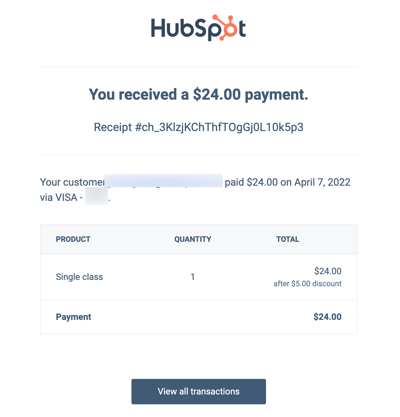
- The buyer will receive:
- An email receipt in the language set in their Preferred language contact property.
- An invoice PDF attachment if the payment was made against an invoice, or if the setting to create invoices is turned on. Learn more about the buyer checkout experience.
Please note:
- For recurring payments, the buyer receives a receipt for each payment. You'll only receive a notification for the first payment, but you can use workflows to send internal notifications for future payments.
- Notifications and receipts are only sent for payments collected through HubSpot Payments or Stripe payment processing, not other integrations such as QuickBooks Online.
- New payment objects are created and associated with the following records:
- Contact and company records: if there's no matching contact, a new contact record is created using the buyer’s email address provided at checkout. If your HubSpot account includes marketing contacts, new contacts are automatically set as marketing contacts. You can create a workflow to set existing contacts as marketing contacts, or set contacts as non-marketing to automate this process.
- Deal record: the first payment of a quote or legacy quote is automatically associated to the quote's associated deal. If the quote has recurring line items, future payments are associated with the subscription, which is associated to the deal. For payment links, a deal record is created if the setting to create deals for payment links is turned on. For standalone invoices, no association is made with deals.
- Subscription record: a subscription record is created for recurring line items of invoices, payment links, quotes, or legacy quotes.
- Invoice record: an invoice record is created if the setting to create invoices is turned on. This setting applies to payment links and legacy quotes only. Invoices are automatically created for quotes. Configure invoice creation for quotes when building a quote. Subscriptions automatically create invoices by default and this can't be turned off.
- For multiple recurring line items purchased in the same transaction:
- Items with the same payment frequency and term are grouped into a single subscription record. If they differ, separate subscription records are created. The associated subscription properties are updated in HubSpot each billing cycle. Learn more about managing subscriptions.
- The buyer will be charged and notified on each billing cycle, according to the payment link line item billing settings, quote billing configuration, or legacy quote line item billing settings.
- You can turn on reminder emails to notify buyers 14 days before their next subscription payment.
- An invoice is created for each recurring payment.
- Payment activity, including submitted or refunded payments, appears on associated contact, deal, and company records. Learn more about associating payments to other records.
Please note: the payments tool is intended for use in standard online transactions and does not support collecting buyer payment information orally or by phone. If you submit a payment on behalf of a buyer while logged into your browser, the payment may be associated with the incorrect contact due to existing cookies. To correct this, edit the contact association on the payment record.
Manually create payments (BETA)
Permissions required Super Admin or Manage payments and subscriptions permissions are required to manually create payments.
If you're a Super Admin, you can opt your account into the Create Payment Records without Payment Processing beta.
If you're not using online payments, you can manually create individual payments from the payments index page or by importing payment records. Once added, you can associate them to other records.
Manually create a payment record
Manually create a payment record from the payments index page. This can be useful when you're not accepting online payments and need to record received payments.
- In your HubSpot account, navigate to Commerce > Payments.
- In the upper right, click Add payments, then select Collect a payment.
- Click Or create a manual payment.
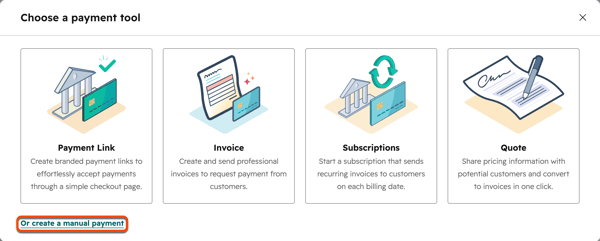
- In the right panel, enter the payment details. You can add associations when creating the payment, or associate it with other records later.
- Click Create payment.
- You can then manage the payment like other payment record in HubSpot.
Import payments
Import payment records in bulk to HubSpot using the import tool.
- In your HubSpot account, navigate to Commerce > Payments.
- In the upper right, click Add payments, then select Collect a payment.
- Click Import.
- Learn how to import files.
Create a payment record using workflows (BETA)
Subscription required A Professional or Enterprise subscription is required to create workdflows.
Permissions required Users must have Super Admin permissions or Edit permissions for workflows to create workflows. To publish workflows, users must have Publish permissions for workflows.
If you're a Super Admin, you can opt your account into the Create Payment Records without Payment Processing beta.
Use the Create payment workflow action to create a payment record based on workflow enrollment criteria. To set up the workflow:
- Create a workflow.
- Configure your enrollment triggers.
- When adding actions, select the Create payment action.
- Turn on and publish the workflow.
The workflow will create a payment record whenever the enrollment criteria is met.
Next steps
- Learn more about collecting payments.
- Manage payments: issue refunds, send receipts, customize refund and receipt emails, get the bank debit transaction authorization, retry a failed subscription payment, request a new payment method, export payments, download payment reports, and more.
- Manage and respond to payment disputes.
- Use payments data in other HubSpot tools.
