
Last updated: December 15, 2025
Available with any of the following subscriptions, except where noted:
-
 Marketing Hub
Starter, Professional, Enterprise
Marketing Hub
Starter, Professional, Enterprise
-
 Sales Hub
Starter, Professional, Enterprise
Sales Hub
Starter, Professional, Enterprise
-
 Service Hub
Starter, Professional, Enterprise
Service Hub
Starter, Professional, Enterprise
-
 Data Hub
Starter, Professional, Enterprise
Data Hub
Starter, Professional, Enterprise
-
 Content Hub
Professional, Enterprise
Content Hub
Professional, Enterprise
-
 Smart CRM
Professional, Enterprise
Smart CRM
Professional, Enterprise
Learn how to view and manage your current HubSpot subscription, find your subscription and service limits, and start a trial of HubSpot's software.
Permissions required Billing admin permissions are required to make any billing-related changes to your HubSpot account.
Review your HubSpot subscriptions and service limits
To view your current subscriptions and add-ons:
Please note: some features may be restricted, or not available when on a trial. If you have questions around the availability of a specific feature, speak to the representative managing your trial.
- In your HubSpot account, click your account name in the top right corner, then click Account & Billing.
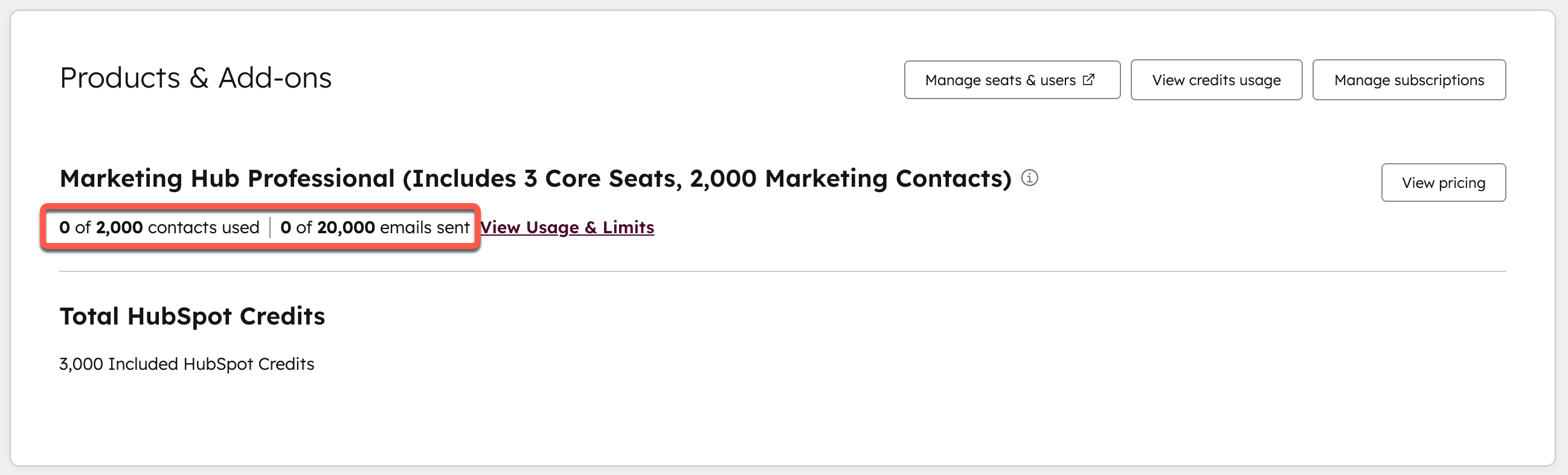
- On the Overview tab, in the Products & Add-ons section, view details for your current subscriptions and add-ons. Applicable limits will display under each subscription:
-
- For Marketing Hub subscriptions, this includes your contact limit and monthly email send limit.
- For all subscriptions, this includes the number of seats available in your subscription, and any additional seat add-ons.
- To manage your individual subscriptions, click Manage subscriptions. This will take you to the Subscriptions tab.
- In the Seats section, view how many seats are assigned out of the total per subscription tier. Click Manage Seats & Users to be taken to user settings.
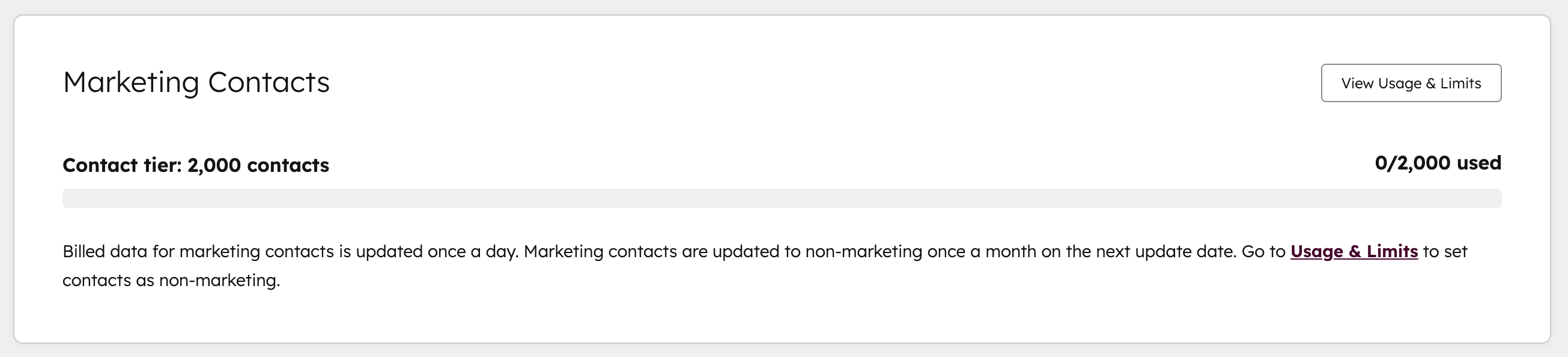
- In the Marketing Contacts section, view how many marketing contacts are assigned out of the total per contact tier. To set contacts as non-marketing or to view usage and limits, click View Usage & Limits.
Manage individual HubSpot subscriptions
To view the details of your subscription and make changes such as upgrading or canceling the auto-renewal:
- In your HubSpot account, click your account name in the top right corner, then click Account & Billing.
- Click the Subscriptions tab.
- At the top of the page, view your current subscription term, the next billing date, and the payment method attached to the subscription. Learn more about billing and commitment terms.
-
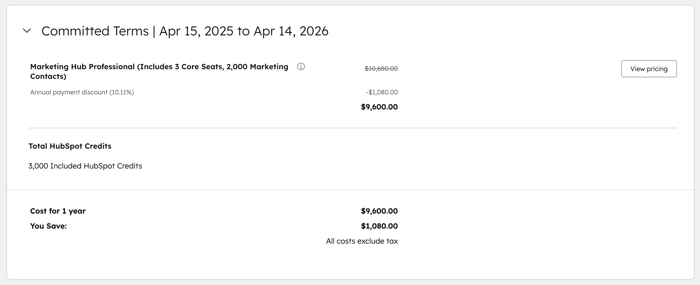
- In the Committed Terms section, view the current terms, cost, and billing frequency of each subscription on your account. If your subscription includes a legacy discount, learn more about it legacy discounts.
-
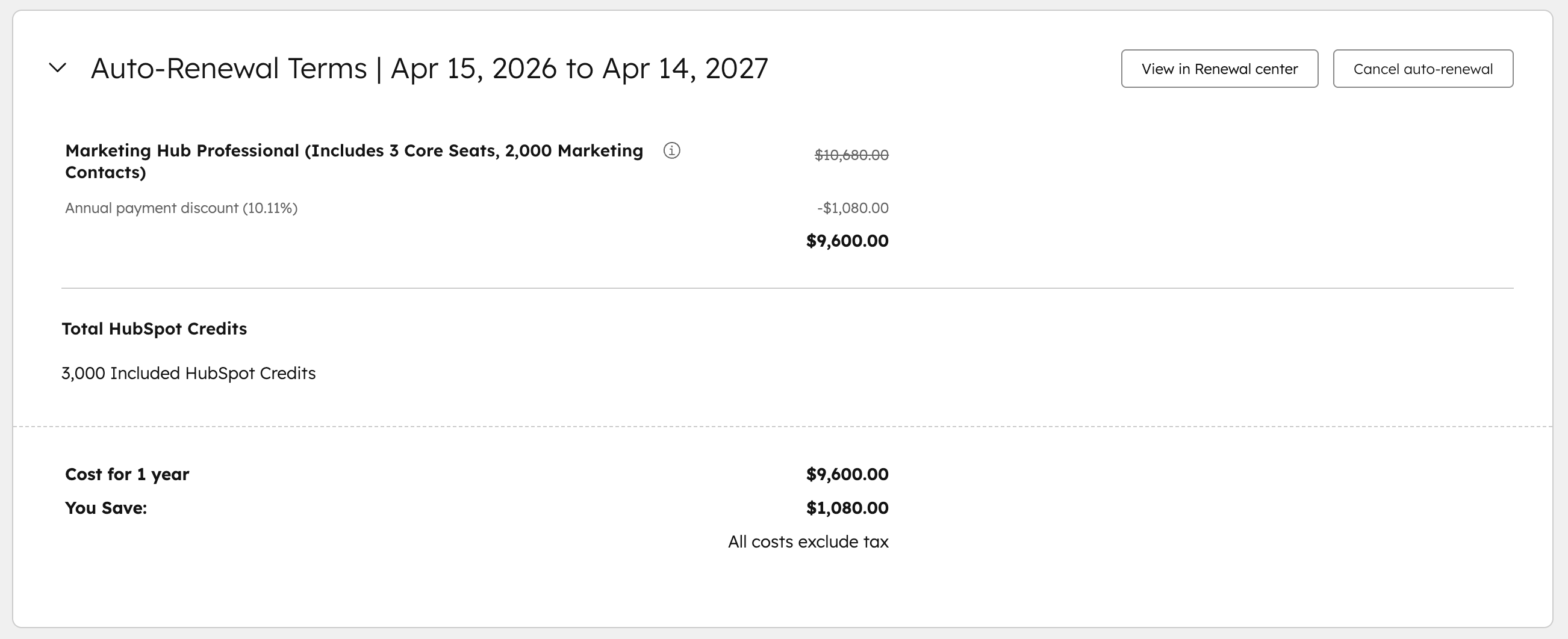
- In the Auto-Renewal Terms section, view the terms for the renewal of your subscription. Learn more about your renewal options.
-
- To upgrade a subscription, click View pricing to the right of the subscription.
- To turn off auto-renewal for a subscription, click Cancel auto-renewal. Learn more about downgrading or cancelling a HubSpot subscription.
Review the contract for your HubSpot subscription
To view or download the existing contract for your HubSpot subscription:
- In your HubSpot account, click your account name in the top right corner, then click Account & Billing.
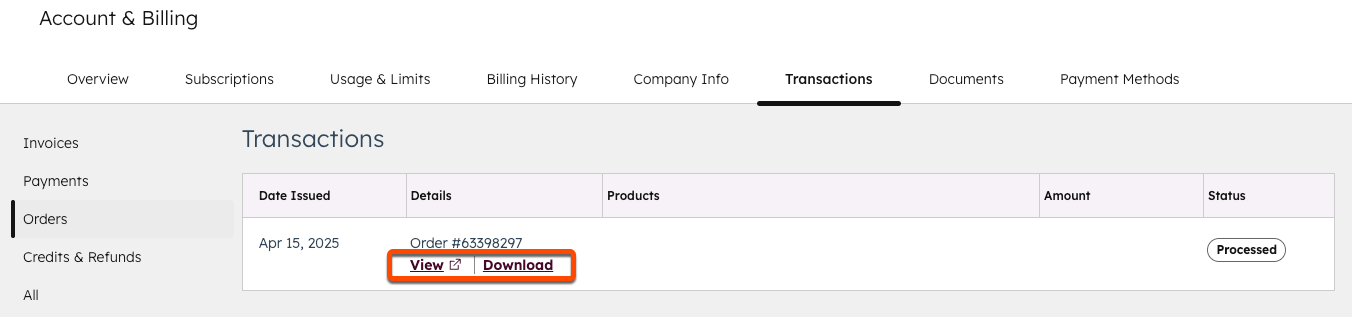
- Click the Transactions tab.
- In the left sidebar menu, select Orders.
- To view the order details in a new window, click View.
- To download the order as a PDF, click Download.
Frequently Asked Questions
Who should I contact if I have billing-related questions about my account?
If you have specific billing-related questions about your HubSpot account, you can email HubSpot's Billing Team at billing@hubspot.com.
Learn more about which HubSpot teams to contact based on your goal.
Why am I seeing a legacy discount applied to my subscription?
When reviewing your billing details, you may see a legacy discount applied to some of your subscriptions. This occurs if you bought a subscription before there was a change to the current pricing model. Refer to HubSpot's pricing page for the current price per subscription tier.
How do I start a trial of any of HubSpot's tools?
To start a trial of any of HubSpot’s tools and software:
- In your HubSpot account, click your account name in the top right corner, then click Pricing & Features.
- Under the subscription you want to trial, click Start a free 14-day trial. The trial will automatically begin.
Alternatively, you can also click any of the tools you want to try (for example sequences) and click Start a free 14-day trial. Or, contact your Customer Success Manager.
Will I be charged after my trial ends?
If you're currently on a trial for any HubSpot subscription, you will not be automatically charged after the trial ends.
How do I cancel a trial?
Trials will automatically end after 14 days. You will not be automatically charged after the trial ends.
Additional resources
Review the following resources for more details on renewals, specific subscription changes, and billing.
Renewal and subscription changes
Review the following resources for more help understanding and managing your HubSpot subscription:
- Review your HubSpot renewal
- Downgrade or cancel a HubSpot subscription
- Understand how subscriptions work for certain features:
Billing and payments
Review the following resources for help paying or updating billing details in your account:
