Last updated: June 23, 2026
Available with any of the following subscriptions, except where noted:
-
 Sales Hub
Professional, Enterprise
Sales Hub
Professional, Enterprise
-
 Service Hub
Professional, Enterprise
Service Hub
Professional, Enterprise
-
 Seats required
-
Additional subscriptions required for certain features
Seats required An assigned Sales or Service seat is required to use sequences.
Permissions required Sequences and Communicate permissions are required to enroll contacts in sequences.
Use sequences to automate outreach with your contacts. Customize the email send times, edit the delays between sequence steps, and personalize each email to increase your reply rate.
You can enroll individual contacts or enroll multiple contacts in bulk. In HubSpot, contacts can be enrolled from:
- The sequence tool and embedded automation within the sequence tool
- An individual contact's record
- The contacts index page
- Active and static lists
- Contact-based workflows (Sales or Service Hub Enterprise only)
You can also start a sequence from your inbox using the HubSpot Sales extension. Learn how to enroll contacts in sequences from your inbox using the HubSpot Sales Chrome extension, the HubSpot Sales Outlook desktop add-in, or the HubSpot Sales Office 365 add-in.
When you enroll a contact into a sequence, you may see an error message stating that the contact can't be enrolled. For example, if the contact is missing an email address or has previously bounced. Learn more about troubleshooting sequence enrollment issues.
Before you get started
When enrolling contacts in a sequence and when sending a sequence from the contact owner property, please note the following:
- You must have a connected personal email inbox.
- The sequence must be shared with the user selected as the sender. If the user does not have permission to access the sequence, enrollment will fail.
- Each contact can only be enrolled in one sequence at a time. To enroll a contact in a different sequence, they must first be unenrolled from their current sequence.
- To enroll multiple contacts at once, users must have Bulk enroll sequences permissions turned on.
- There is a limit to the number of sequence emails a user can send each day.
- HubSpot will not be able to increase the sequence email send limit.
- If a user exceeds their daily send limit, the contact won't enroll in the sequence.
- Refer to the Sequences item in HubSpot's Product & Services Catalog to review the daily send limit for your subscription.
- When manually enrolling a contact in a sequence, you must choose one of your own connected email accounts as the sender. To send a sequence on behalf of another user, you must use a workflow.
- Sequences no longer update the contact's Lifecycle stage property. If you want to update the Lifecycle stage property for your enrolled contacts, you can do so using the Set a property value action in a workflow.
- When enrolling multiple contacts, a maximum of three emails can be sent per minute.
Manually enroll contacts in a sequence
You can enroll individual contacts from the sequence tool in HubSpot or from their contact records.
- To enroll a contact from the sequence tool:
- In your HubSpot account, click More, then navigate to Sales > Sequences. If More doesn't appear in your account, navigate to Sales > Sequences directly.
- At the top, click the Manage tab.
- Click the sequence name.
- In the top right of the sequence page, click Enroll contacts and select Enroll contacts.
- In the right panel, select the checkbox next to the name of the contact you want to enroll.
- At the bottom, click Next.
- To enroll a contact from a record:
- Navigate to your records:
- Contacts: In your HubSpot account, click More, then navigate to CRM > Contacts. If More doesn't appear in your account, navigate to CRM > Contacts directly.
- Companies: In your HubSpot account, click More, then navigate to CRM > Companies. If More doesn't appear in your account, navigate to CRM > Companies directly.
- Deals: In your HubSpot account, click More, then navigate to CRM > Deals. If More doesn't appear in your account, navigate to CRM > Deals directly.
- Tickets: In your HubSpot account, click More, then navigate to CRM > Tickets. If More doesn't appear in your account, navigate to CRM > Tickets directly.
- Custom objects: In your HubSpot account, navigate to CRM, then select the custom object.
- Select a record.
- In the left panel, click the Enroll in a sequence icon. You may need to click the More icon and then click the Enroll in a sequence icon.
- If you're enrolling a contact from another record type (e.g., a company or deal), select the associated contact that'll enroll in the sequence.
- In the dialog box, hover over the sequence and click Select.
- Navigate to your records:
Please note: only contacts can be enrolled in a sequence. If you're enrolling from other record types in HubSpot, that record must have an associated contact to select for enrollment.
- At the top of the Select sequence dialog box, click the Start at dropdown menu and select the step where the contact should start the sequence.
- Then, click the Time zone dropdown menu and select a time zone. All steps will be executed in the selected time zone.
- To override the sequence's default follow-up settings, in the top right, click Settings. These settings only apply to the emails and tasks that execute after the first step in the sequence.
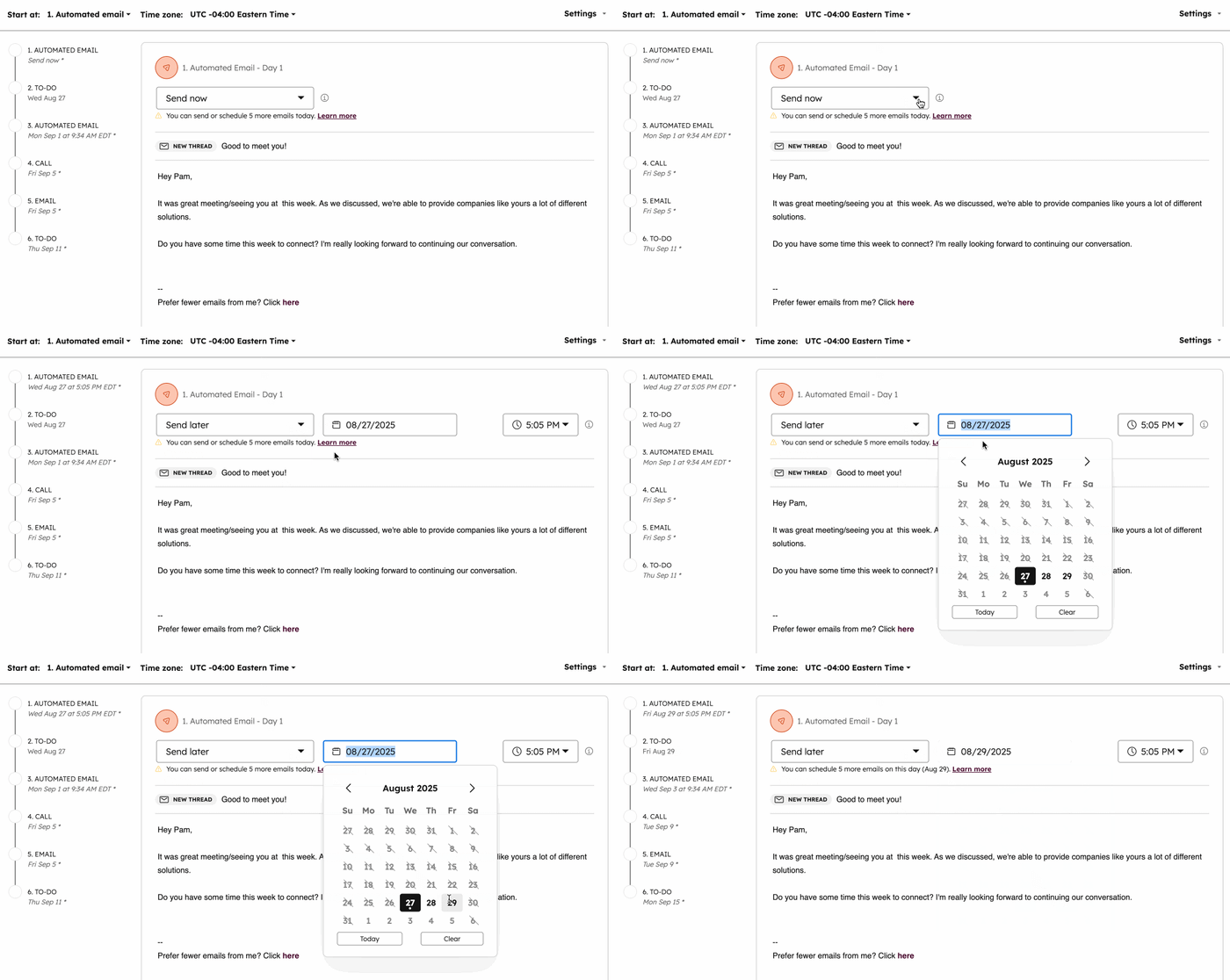
- By default, the first email in the sequence will send as soon as possible. To set a send time for the first step:
- Click the Send now dropdown menu and select Send later.
- Then, select a date and time.
- For subsequent emails, in the Send email in section, select how many days should pass after the previous step before the email is sent.
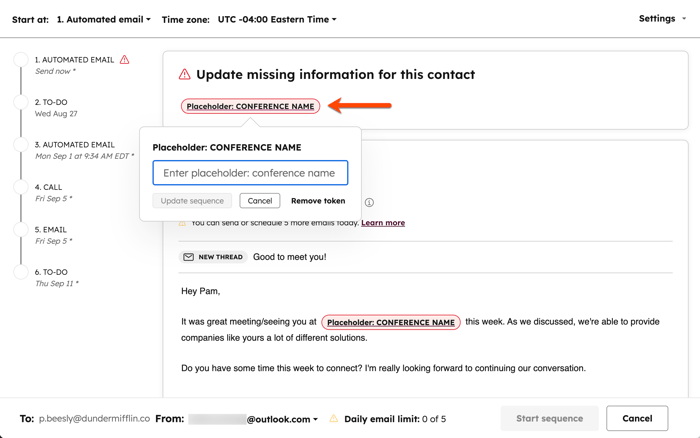
- If you're using placeholder tokens in an email and values are missing for the selected contact, the tokens will appear in red at the top:
- Click a token and enter a value for the token.
- Click Update all. Repeat for each token in the template.
- At the bottom of each email template, you can use the rich text toolbar to format the text or insert a link, snippet, document, or add a video.
- Customize your sequence tasks:
- To schedule your tasks, set the [number of days] before the task is created.
- To create a task immediately after the previous step executes, on the task step, click the dropdown menu and select Create task immediately.
- To edit the task title, enter a new title in the Task title field
- By default, a sequence will pause until the task is complete. To continue the sequence even if that task is incomplete, select the Continue without completing task checkbox.
- If your user has multiple inboxes connected to HubSpot, at the bottom, click the From dropdown menu and select an email address to send sequence emails from.
- In the bottom left, click Start sequence.
Enroll multiple contacts in a sequence
Permissions required Bulk enroll sequences permissions are required to enroll multiple contacts in a single sequence.
Users with Bulk enroll sequences permissions can enroll up to 50 contacts in a sequence at once. Enroll multiple contacts when you need to follow up with contacts after a trade show or conference, reconnect with contacts from inactive accounts, or send targeted messages to a segmented list of prospects.
Please note: when bulk enrolling contacts, HubSpot will send a maximum of three emails per minute and also take into account daily email send limits, based on your subscription level. This means your sequence emails may not send immediately.
- To enroll multiple contacts from the sequence tool:
- In your HubSpot account, click More, then navigate to Sales > Sequences. If More doesn't appear in your account, navigate to Sales > Sequences directly.
- In the top left, click the Manage tab.
- Click the sequence name.
- In the top right of the sequence page, click Enroll contacts.
- In the right panel, select the checkboxes next to the name of the contact you want to enroll.
- At the bottom of the right panel, click Next.
- To enroll multiple contacts from the lists tool:
- In your HubSpot account, navigate to Contacts > Lists.
- Click the name of the list to enroll from.
- To select all contacts in the list, select the checkbox in the top left of the table, then click Select all [x] contacts.
- To select individual contacts from the list, select the checkboxes next to the contacts you want to enroll.
- At the top of the table, click Enroll in sequence.
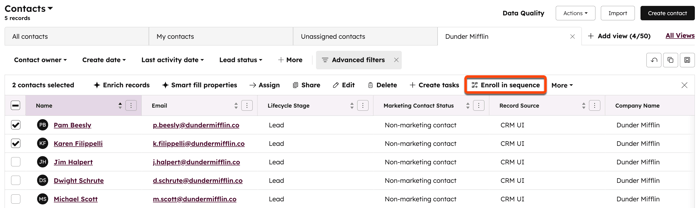
- To enroll multiple contacts from the contacts index page:
- In your HubSpot account, click More, then navigate to CRM > Contacts. If More doesn't appear in your account, navigate to CRM > Contacts directly.
- On the contacts index page, apply filters if needed.
- To select all filtered contacts, select the checkbox in the top left of the table, then click Select all [x] contacts.
- To select individual contacts from the filtered results, select the checkboxes next to the contacts you want to enroll.
- At the top of the table, click Enroll in sequence.
- Hover over the sequence, and click Select.
- To customize the follow-up options and delays for all contacts in the sequence, in the left panel, click All contacts.
- In the right panel, at the top, click the Start at dropdown menu and select the step where the contacts should start the sequence.
- Then, click the Time zone dropdown menu and select a time zone. All steps will be executed in the selected time zone.
- To override the sequence's default follow-up settings, in the top right, click Settings. These settings only apply to the emails and tasks that execute after the first step in the sequence.
- By default, the first email in the sequence will send as soon as possible. To set a send time for the first step:
- Click the Send now dropdown menu and select Send later.
- Then, select a date and time.
- For subsequent emails, in the Send email in section, select how many days should pass after the previous step before the email is sent.
- Schedule your sequence tasks:
- To schedule your tasks, set the [number of days] before the task is created.
- To create a task immediately after the previous step executes, on the task step, click the dropdown menu and select Create task immediately.
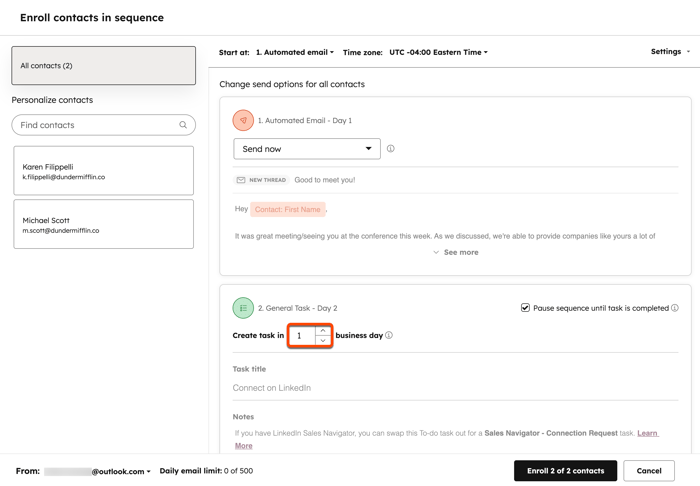
- To customize the sequence and email content for individual contacts, in the left panel, click a contact. You can also use the search bar to search for specific contacts.
- At the bottom of each email template, you can use the rich text toolbar to format the text or insert a link, snippet, document, or add a video
- Customize your sequence tasks:
- To edit the task title, enter a new title in the Task title field
- By default, a sequence will pause until the task is complete. To continue the sequence, even if that task is incomplete, select the Continue without completing task checkbox.
- If you're using placeholder tokens in an email and values are missing for the selected contact, the tokens will appear in red at the top.
- Click a token and enter a value for the token.
- Click Update all. Repeat for each token in the template.
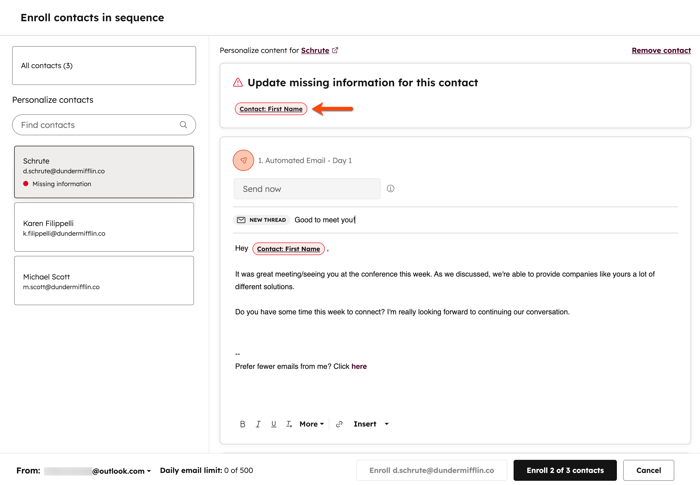
- If your user has multiple inboxes connected to HubSpot, at the bottom, click the From dropdown menu and select an email address to send sequence emails from.
- To enroll all selected contacts:
- In the bottom right, click Enroll [all] of [X] contacts.
- Then, in the dialog box, click Enroll [X] contacts.
- To enroll contacts one at a time:
- In the left panel, click the [contact name].
- In the bottom right, click Enroll [contact name].
- Then, in the dialog box, click Enroll.
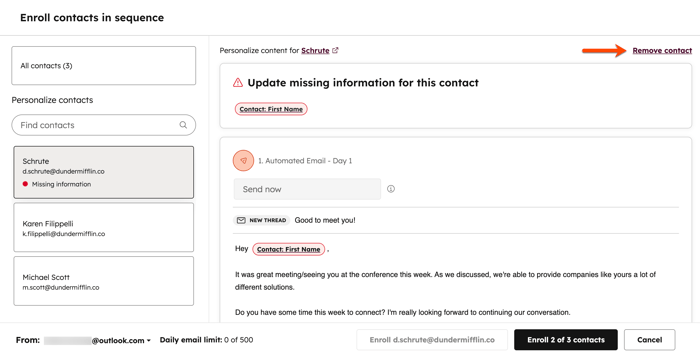
- To remove a contact from bulk enrollment:
- In the left panel, click the [contact name].
- In the upper right, click Remove contact.
Automate your sequence enrollment from the sequence tool
You can automate the enrollment of sequences based on page views or form submissions from within the sequence tool:
- In your HubSpot account, click More, then navigate to Sales > Sequences. If More doesn't appear in your account, navigate to Sales > Sequences directly.
- At the top, click the Manage tab.
- Click the sequence name.
- In the top right of the sequence page, click Enroll contacts and select Automate enrollment.
- To enroll contacts based on form submissions:
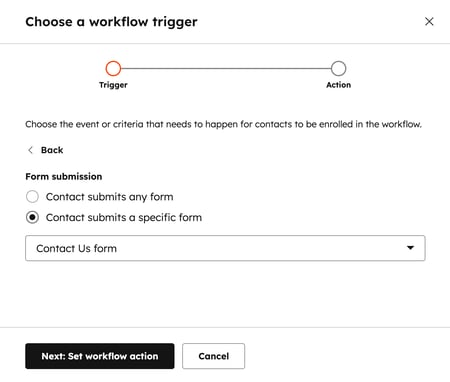
- In the right panel, click Form submission.
- To enroll contacts based on any form submission, select Contact submits any form.
- To enroll contacts based on a specific form submission, select Contact submits a specific form. Then, click the dropdown menu and select an existing form.
- At the bottom, click Next: Set workflow action.
-
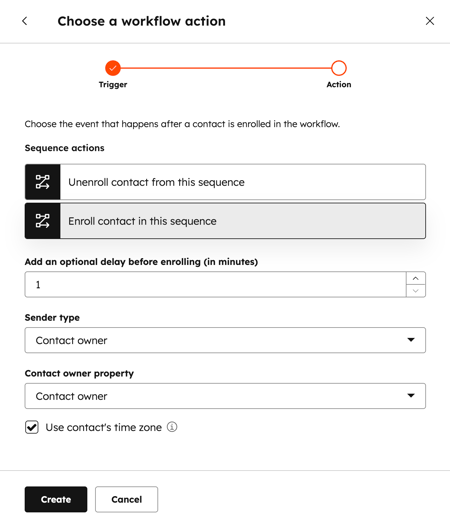
- To unenroll a contact based on the set triggers, select Unenroll contact from the sequence.
- To enroll a contact based on the set triggers, select Enroll contact in the sequence. Then, configure the following:
- Add an optional delay before enrolling (in minutes): set a delay before the contact enrolls into the sequence.
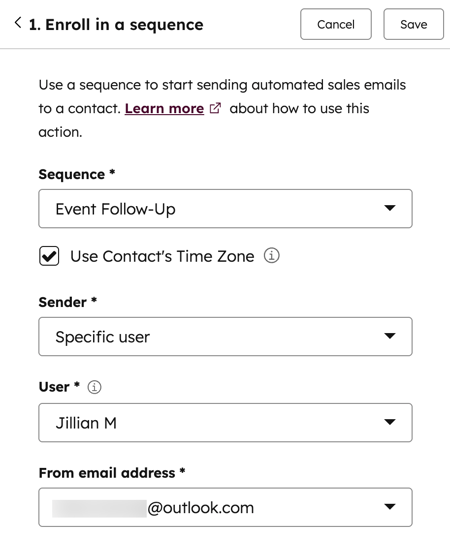
- Sender: click the Sender type dropdown menu to select a Specific user or the Contact owner that will be listed as the sender of the sequence.
- If you selected Specific user, click the Sender dropdown menu and select a user.
- If you selected Contact owner, click the Contact owner property dropdown menu and select a property where the email address is stored.
- To enroll contacts based on page views:
- In the right panel, click Page view.
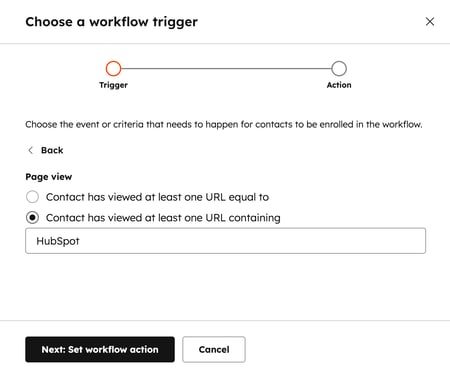
- To enroll contacts based on a specific page view, select Contact has viewed at least one URL equal to. Then, enter the page URL.
- To enroll contacts based on page views containing a specific term, select Contact has viewed at least one URL equal to. Then, enter the page URL.
- At the bottom, click Next: Set workflow action.
-
- To unenroll a contact based on the set triggers, select Unenroll contact from the sequence.
- To enroll a contact based on the set triggers, select Enroll contact in the sequence. Then, configure the following
- Add an optional delay before enrolling (in minutes): set a delay before the contact enrolls into the sequence.
- Sender: click the Sender type dropdown menu to select a Specific user or the Contact owner that will be listed as the sender of the sequence.
- If you selected Specific user, click the Sender dropdown menu and select a user.
- If you selected Contact owner, click the Contact owner property dropdown menu and select a property where the email address is stored.
Enroll contacts in sequences using embedded automation
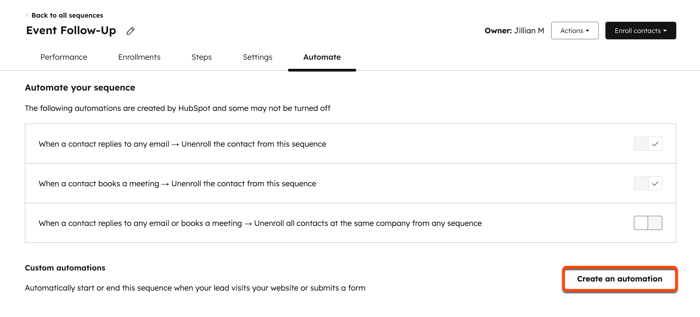
You can create workflows from the Automation tab to automatically enroll or unenroll contacts from this sequence based on other triggers. These workflows can be turned on and off from the Automation tab, or managed in the workflows tool.
Enroll contacts in sequences using workflows
Subscription required A Sales or Service Hub Enterprise subscription is required to enroll contacts in sequences using workflows.
Using workflows, you can automate sequence enrollment and unenrollment. Learn more about the different use cases and limitations when enrolling contacts in sequences using workflows. The user selected as the sender of the sequence in a workflow action must have a connected personal email inbox and the sequence must be shared with that user.